When an Azure SQL Database linked service in Azure Data Factory fails Test connection with a firewall error, the firewall is usually doing its job. It turned away a source address that nobody allowed. The fix isn’t “open the firewall”. It’s to find out which integration runtime made the call, and from which address, and then allow that one path. The error message tells you most of this. Error 40615 includes the client IP that was blocked. Error 47073 means public network access is turned off. Error 40914 points to a subnet that has no virtual network rule.
This guide is a decision workflow for the Azure SQL linked service firewall error that you can follow in order. Read the error number and IP, identify the runtime in the linked service’s connectVia, then apply the fix that matches it: a rule for a self-hosted IR’s public egress IP, a managed private endpoint, Azure IR regional ranges, or a virtual network rule. It also covers why Allow Azure services and resources to access this server makes the error go away and why that’s usually the wrong trade.
Applies to: Azure Data Factory (and Synapse pipelines, which use the same Azure integration runtime IP model) connecting to Azure SQL Database. Not Azure SQL Managed Instance, which has a different network model. Behaviour was checked against Microsoft Learn on 19 October 2026. All names are synthetic (adf-contoso-demo, sql-contoso-demo, rg-data-demo) and 203.0.113.10 is a documentation-only address. The two Python helpers were run against Microsoft’s public service tags file dated 12 October 2026. The Azure CLI and T-SQL commands are illustrative and were not executed against a live subscription. They follow the documented syntax.
The short answer
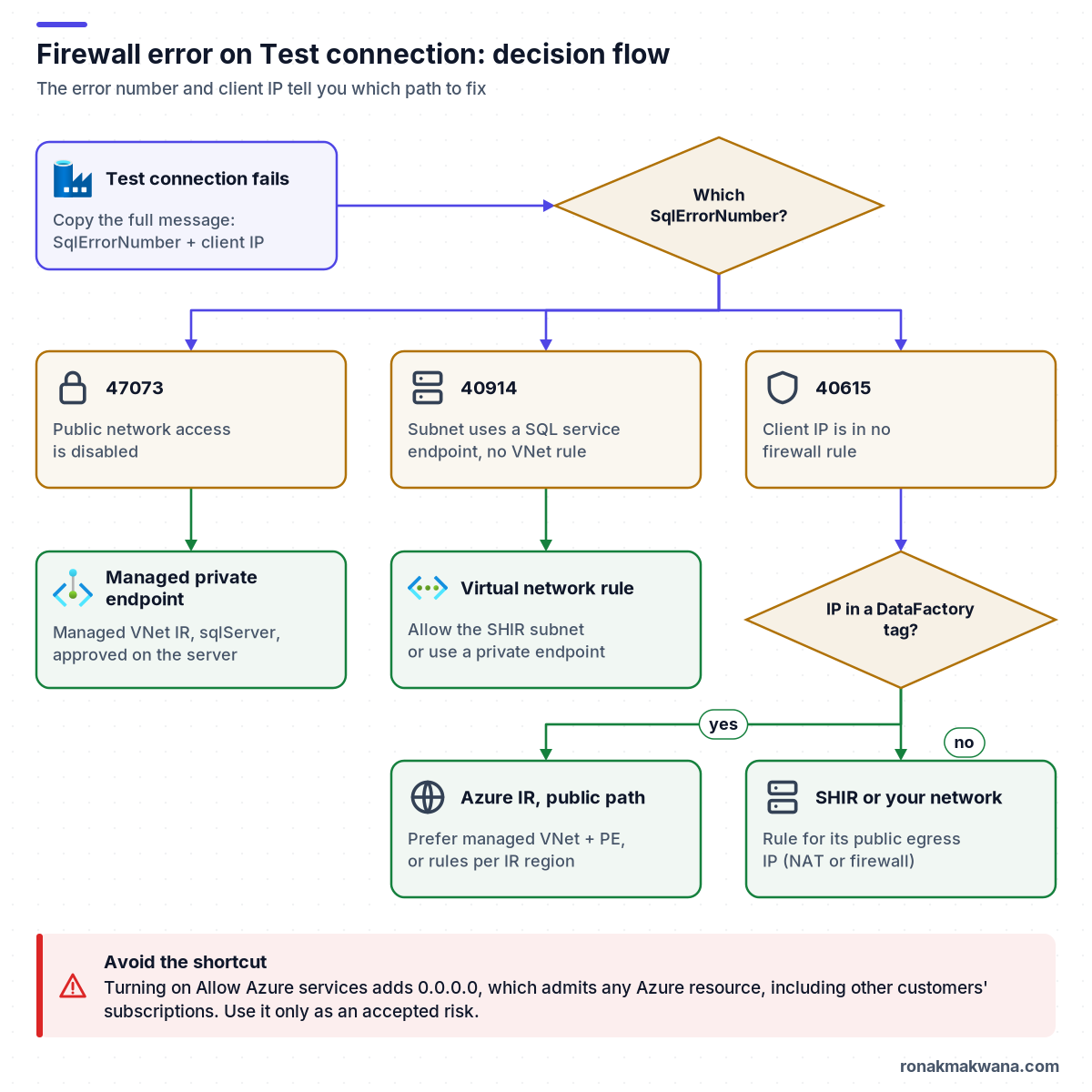
- 40615, “Client with IP address ‘…’ is not allowed to access the server”: the server’s IP firewall has no rule for that address. Look up who owns the IP. If it sits in a
DataFactory.<region>service tag, the call came from the Azure IR on the public network. If it’s in no Azure tag, it’s a self-hosted IR or the network it sits behind. Allow that path. Don’t add your own browser’s IP: Test connection doesn’t run from your browser. - 47073, “The public network interface on this server is not accessible”: public network access is disabled, so only private endpoints get in. Firewall rules can’t help (you can’t even edit them in this state). Use a managed virtual network IR with an approved managed private endpoint, or a self-hosted IR that reaches a private endpoint.
- 40914, “Client is not allowed to access the server”: the caller sits in a subnet with a
Microsoft.Sqlservice endpoint, but the server has no virtual network rule for that subnet. Add the rule. - Allow Azure services (the 0.0.0.0 rule) fixes the Azure IR case instantly, but it admits any Azure resource, including resources in other customers’ subscriptions. Treat it as an accepted risk, not a default.
Prerequisites
- Access to the factory in Data Factory Studio, and the name of the integration runtime the linked service uses (Connect via integration runtime in the UI,
connectViain JSON). IfconnectViais empty, the default Azure integration runtime is used, and it auto-resolves its region. - Permission to change the logical server’s networking. Microsoft Learn lists SQL Server Contributor, SQL Security Manager or owner of the resource for IP firewall rules. Database-level rules need at least
CONTROL DATABASEthrough T-SQL. - For a self-hosted IR: access to the machine, and a network contact who knows its public egress address (NAT gateway, firewall or proxy).
- Optional: Python 3 and the current Azure IP Ranges and Service Tags – Public Cloud JSON file from the Microsoft Download Center, for the IP lookup below.
Step 1: Read the full error, not the summary
Data Factory wraps the SQL error in its own SqlFailedToConnect message: “Check the linked service configuration is correct, and make sure the SQL Database firewall allows the integration runtime to access.” The useful part is the SQL error number and text inside it. A 40615 failure looks roughly like this (illustrative and trimmed; the wording varies by release):
Cannot connect to SQL Database: 'sql-contoso-demo.database.windows.net',
Database: 'sales', User: '...'. Check the linked service configuration is correct,
and make sure the SQL Database firewall allows the integration runtime to access.
Cannot open server 'sql-contoso-demo' requested by the login.
Client with IP address '51.104.9.33' is not allowed to access the server. ...
SqlErrorNumber=40615
Write down two things: the error number and, for 40615, the IP address. If the message contains Login failed for user instead, the firewall let you through and the problem is authentication or database permissions, not networking. If it says 47073, skip to the private endpoint fix: no IP rule will help.
Step 2: Work out which runtime made the call
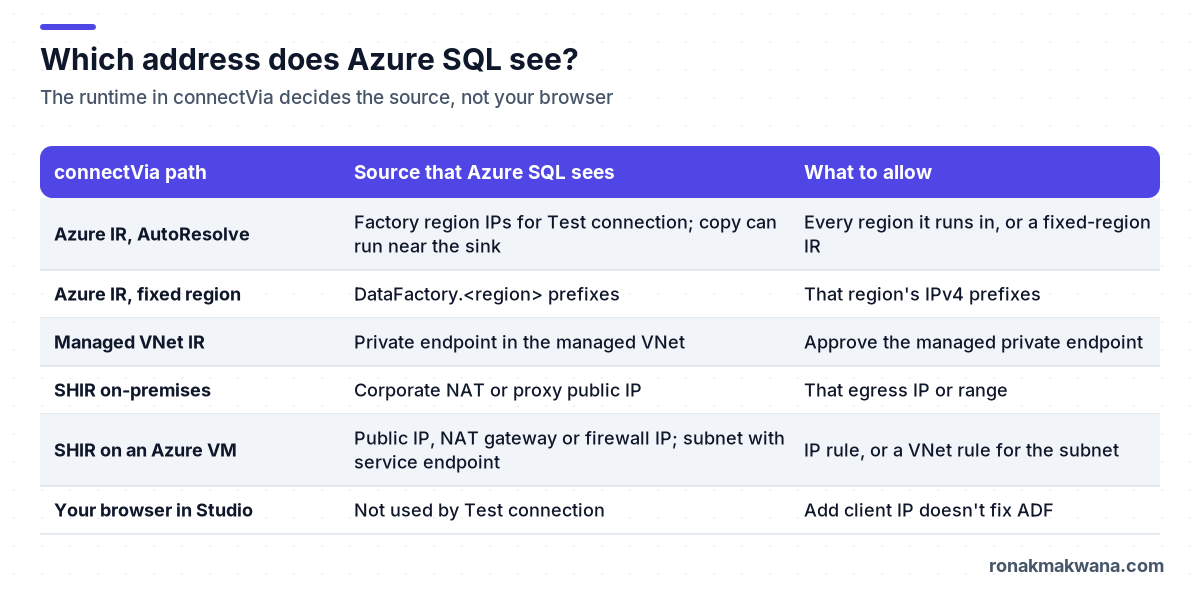
Test connection doesn’t run in your browser. It runs on the integration runtime that the linked service points at, so the firewall sees that runtime’s address. The portal’s option to add your current client IP on the SQL server’s Networking page allows your machine, which is why it so often “doesn’t work” for Data Factory.
Azure IR and the AutoResolve trap
Microsoft’s integration runtime documentation is specific about where an auto-resolving Azure IR runs. Authoring operations such as Test connection, and Lookup, Get Metadata and Delete activities, use the IR in the same region as the data factory. A copy activity makes a best effort to run in the sink’s region (or the closest one in the same geography) and falls back to the factory’s region. So a firewall that only allows the factory region’s addresses can pass Test connection and still block a copy whose sink lives in another region. If you allow-list Azure IR ranges at all, create an Azure IR with a fixed region and point connectVia at it. The copy activity output’s effectiveIntegrationRuntime field (for example DefaultIntegrationRuntime (East US)) shows which region actually ran.
Self-hosted IR
A self-hosted IR connects to *.database.windows.net on TCP 1433 from the machine it’s installed on. Azure SQL sees the address that traffic leaves your network with: the corporate NAT or firewall address on-premises, or, on an Azure VM, its instance public IP, a NAT gateway or a firewall’s SNAT address. It isn’t the VM’s private IP, unless you use a private endpoint. One exception: if the VM’s subnet has a Microsoft.Sql service endpoint, the traffic arrives as that subnet and you get 40914 rather than 40615.
Test connection on a self-hosted IR also depends on Azure Relay (*.servicebus.windows.net on 443) for interactive authoring, unless self-contained interactive authoring is turned on. If Relay is blocked, Test connection fails without reaching SQL, so the error won’t be one of the SQL firewall numbers in this guide.
Look up who owns the blocked IP
Microsoft publishes every service tag’s IP ranges as a JSON file that’s updated weekly. This small script checks which tags contain an address. It was run on 19 October 2026 against ServiceTags_Public_20261012.json (change number 422):
# which_tag.py: find the Azure service tags whose ranges contain an IP address.
# Usage: python which_tag.py ServiceTags_Public_YYYYMMDD.json 51.104.9.33
import ipaddress, json, sys

tags_file, ip = sys.argv[1], ipaddress.ip_address(sys.argv[2])
data = json.load(open(tags_file, encoding="utf-8"))
hits = [v["name"] for v in data["values"]
        if any(ip in ipaddress.ip_network(p) for p in v["properties"]["addressPrefixes"])]
print(f"{ip} is in {len(hits)} tag(s):")
for name in sorted(hits):
    print("  ", name)
Output for an address inside the UK South Data Factory range, and for a documentation address that isn’t Azure’s:
$ python which_tag.py ServiceTags_Public_20261012.json 51.104.9.33
51.104.9.33 is in 5 tag(s):
   AzureCloud
   AzureCloud.uksouth
   DataFactory
   DataFactory.UKSouth
   DataFactoryManagement

$ python which_tag.py ServiceTags_Public_20261012.json 203.0.113.10
203.0.113.10 is in 0 tag(s):
Read the most specific tag. DataFactory.UKSouth means an Azure IR running in UK South. Only AzureCloud.<region> usually means some other Azure resource, such as a VM hosting a self-hosted IR. No tag at all means an address outside Azure: an on-premises self-hosted IR or whatever network the caller sits behind.
Step 3: Apply the fix for that path
Start by checking the server’s current state, so you know whether public access is on and what rules already exist (illustrative, not executed):
# Illustrative, not executed
az sql server show -g rg-data-demo -n sql-contoso-demo --query publicNetworkAccess
az sql server firewall-rule list -g rg-data-demo -s sql-contoso-demo -o table

# Connection policy (Default, Redirect or Proxy)
SQL_ID=$(az sql server show -g rg-data-demo -n sql-contoso-demo --query id -o tsv)
az resource show --ids "$SQL_ID/connectionPolicies/Default" --query properties.connectionType
Fix A: self-hosted IR, allow its public egress IP
This is the case Microsoft’s data movement security article spells out: Azure SQL Database requires you to allow the IP address of the self-hosted IR machine. Get the address from the 40615 message (it’s the address SQL actually saw), confirm it with your network team, and make sure it’s stable. On Azure, a VM’s default outbound access IP is owned by Microsoft and can change without notice, so give the VM an explicit outbound path such as a NAT gateway or a public IP first.
# Illustrative, not executed: server-level rule for one egress IP
az sql server firewall-rule create -g rg-data-demo -s sql-contoso-demo \
  -n shir-egress-01 --start-ip-address 203.0.113.10 --end-ip-address 203.0.113.10
If only one database should be reachable from that IR, Microsoft recommends database-level rules where possible. They’re T-SQL only, and the server needs at least one server-level rule before you can connect to create them (illustrative, not executed; run it in the user database, not master):
-- Illustrative, not executed: run in the 'sales' database
EXECUTE sp_set_database_firewall_rule
    @name = N'shir-egress-01',
    @start_ip_address = '203.0.113.10',
    @end_ip_address   = '203.0.113.10';

SELECT name, start_ip_address, end_ip_address FROM sys.database_firewall_rules;
If the error was 40914, the IR’s subnet has a SQL service endpoint. Add a virtual network rule for that subnet on the server’s Networking page instead of an IP rule. For a self-hosted IR on an Azure VM, also check the outbound NSG rules. Connections from inside Azure use the Redirect policy by default, which needs outbound TCP 11000–11999 to the region’s SQL addresses as well as 1433 to the gateway. You can use the Sql.<region> service tag in an NSG for that. If those ports can’t be opened, the documented alternative is the Proxy policy, which only needs 1433 and has higher latency.
Fix B: Azure IR on the public network, allow its regional ranges
Microsoft’s guidance is to allow the IP ranges for the Azure IR in the region where it runs, taken from the DataFactory.<region> service tag. There’s a catch. Service tags are documented for network security groups, Azure Firewall and user-defined routes. An Azure SQL server firewall rule takes only a start and end IPv4 address, so you can’t reference a service tag in it. You have to expand the tag into one rule per prefix, the same approach Microsoft documents for Data Sync with the Sql tag. This helper prints the commands:
# tag_to_rules.py: print az CLI commands that turn one regional service tag
# into Azure SQL server-level IPv4 firewall rules (start/end per prefix).
# Usage: python tag_to_rules.py ServiceTags_Public_YYYYMMDD.json DataFactory.UKSouth rg-data-demo sql-contoso-demo
import ipaddress, json, sys

tags_file, tag, rg, server = sys.argv[1:5]
data = json.load(open(tags_file, encoding="utf-8"))
entry = next(v for v in data["values"] if v["name"] == tag)
v4 = [ipaddress.ip_network(p) for p in entry["properties"]["addressPrefixes"] if ":" not in p]
print(f"# {tag}: {len(v4)} IPv4 prefixes (file changeNumber {data['changeNumber']})")
for i, net in enumerate(v4, 1):
    print(f"az sql server firewall-rule create -g {rg} -s {server} "
          f"-n adf-{tag.split('.')[-1].lower()}-{i:02d} "
          f"--start-ip-address {net[0]} --end-ip-address {net[-1]}")
The script was run, but the commands it printed were not executed. The first lines of its output for UK South:
# DataFactory.UKSouth: 10 IPv4 prefixes (file changeNumber 422)
az sql server firewall-rule create -g rg-data-demo -s sql-contoso-demo -n adf-uksouth-01 --start-ip-address 20.90.129.128 --end-ip-address 20.90.129.255
az sql server firewall-rule create -g rg-data-demo -s sql-contoso-demo -n adf-uksouth-02 --start-ip-address 20.90.130.0 --end-ip-address 20.90.130.255
...
Counting prefixes in that same file shows why this only works for one or two regions. DataFactory.UKSouth had 10 IPv4 prefixes, DataFactory.WestEurope 14, and the global DataFactory tag 597. A server allows at most 256 server-level IP rules, so “allow all of Data Factory” doesn’t fit. Use a fixed-region IR, and keep in mind:
- The ranges change. The file is republished weekly, and Microsoft says new addresses aren’t used for at least a week after they’re added. Re-run the expansion on a schedule and remove stale rules, or a working pipeline will start failing with 40615 one day.
- These ranges are shared by every Azure IR in the region, across all customers, and Microsoft notes that the Data Factory range is also shared with Fabric Data Factory. An IP rule narrows the source to Data Factory in one region. It doesn’t narrow it to your factory, so authentication is still your real control.
- The script only covers IPv4. Azure SQL has separate IPv6 firewall rules (
az sql server ipv6-firewall-rule), and the Data Factory documentation doesn’t say whether an Azure IR reaches Azure SQL over IPv6. If the address in your 40615 message is IPv6, it needs an IPv6 rule.
Fix C: keep it private with a managed virtual network and private endpoint
This is the fix when public network access is disabled (47073), and the cleanest one when it isn’t. Traffic from a managed virtual network IR reaches the server through a private endpoint that Data Factory manages, so no public IP rule is involved.
- In Studio, open Manage → Integration runtimes and create a new Azure IR with the managed virtual network enabled. An existing public Azure IR can’t be switched into a managed virtual network, so this is a new IR. The managed virtual network runs in the same region as the data factory.
- In the Manage hub, open Managed private endpoints and create an endpoint for the logical server (Azure SQL Database, private link sub-resource
sqlServer). It starts in a Pending state. - The SQL server owner approves the connection on the server’s Networking → Private access tab. Only an approved managed private endpoint can carry traffic.
- Point the linked service’s
connectViaat the new IR. Turn on Interactive authoring on that IR. It’s what serves Test connection, table lists and data preview. Without it, compute is allocated for every interactive operation, which is slower. It switches itself off 60 minutes after the last use by default. - Once pipelines work through the endpoint, you can set public network access to Disable. Adding a private endpoint doesn’t block public access on its own. While it’s disabled, the server rejects any change to firewall rules with error 42101, so plan rule changes before you switch it off.
The same pattern applies to a self-hosted IR on a VM in your own virtual network. Give the server a private endpoint in that network, and make sure the server name resolves to the private IP from the IR machine.
When “Allow Azure services” is acceptable
Data Factory’s own troubleshooting page suggests turning this option on for the 40615 case, and it does work. Switching it on creates a rule named AllowAllWindowsAzureIps for 0.0.0.0. Microsoft’s firewall article warns that it allows connections from all Azure services, including services in other customers’ subscriptions. It isn’t limited to your subscription or resource group. For a short-lived dev server with Microsoft Entra authentication and no sensitive data, you might accept that risk. For production, prefer Fix C, or Fix A or B with tight authentication, and record the decision if you do turn it on.
Expected results
- Test connection on the linked service succeeds with the intended IR selected. Firewall changes can take up to five minutes to apply. Running
DBCC FLUSHAUTHCACHEin the database refreshes its cached rules sooner. - A debug run of a copy activity shows the expected
effectiveIntegrationRuntimein its output, with the region you allowed or your self-hosted IR’s name. - The address SQL sees is the one you planned for. A Lookup activity on the same linked service can run the query Microsoft uses to verify private endpoint connections. Through a private endpoint, it should return a private IP:
-- Illustrative, not executed: Lookup activity query on the same linked service
SELECT client_net_address FROM sys.dm_exec_connections WHERE session_id = @@SPID;
Troubleshooting table
| Error or symptom | Likely cause | Fix |
|---|---|---|
40615, IP is in a DataFactory.<region> tag | Azure IR on the public network, no rule for that region | Managed VNet IR + private endpoint, or rules for a fixed-region IR’s prefixes |
| 40615, IP is in no Azure tag | Self-hosted IR behind on-premises NAT, firewall or proxy | Server- or database-level rule for that egress IP |
| 40615 from an Azure VM hosting the IR | VM’s public, NAT gateway or SNAT IP isn’t allowed | Rule for that IP. Replace default outbound access with an explicit outbound path |
| 40615 straight after adding the rule | Firewall change not applied yet (up to 5 minutes) | Wait, or run DBCC FLUSHAUTHCACHE in the database |
| Test connection passes, copy fails with 40615 | AutoResolve IR ran the copy in the sink’s region, not the factory’s | Fixed-region Azure IR in connectVia, or a private endpoint |
| Worked for weeks, then 40615 | Service tag ranges changed | Re-run the tag expansion on a schedule, or move to a private endpoint |
47073 / SqlDeniedPublicAccess | Public network access disabled | Managed VNet IR with an approved managed private endpoint |
| 42101 when editing rules | Public network access disabled | Set it to Selected networks to edit rules, or use private endpoints only |
| 40914 | IR subnet has a Microsoft.Sql service endpoint but no virtual network rule | Add a virtual network rule for the subnet |
| Self-hosted IR Test connection fails with no SQL error number | Azure Relay (*.servicebus.windows.net:443) blocked | Allow Relay outbound, or turn on self-contained interactive authoring |
| Fails from a locked-down Azure VM although 1433 is open | Redirect policy needs outbound 11000–11999 | Allow those ports to Sql.<region>, or use the Proxy policy |
Login failed for user | Not a firewall problem. The identity or credentials lack access | Create the database user for the managed identity or service principal and grant roles |
Security, reliability, monitoring and cost
- Security: a firewall rule only lets a client try to log in. Pair any public path with Microsoft Entra authentication through the factory’s managed identity rather than SQL passwords in the linked service. The managed identity approach is covered in securing Azure data pipelines with managed identity and Key Vault. Prefer private endpoints with public access disabled for production data, and avoid the 0.0.0.0 rule.
- Reliability: a firewall block isn’t transient, so activity retries only delay the failure. Fix the path, and keep retries for genuine transient errors, as described in error handling and retry logic in ADF. If you rely on IP rules, automate the weekly tag refresh and pin self-hosted IR egress to an address you own.
- Monitoring: Azure SQL Database exposes a Blocked by Firewall metric (
blocked_by_firewall). Alert on it so a range change shows up before the nightly load does. Auditing can record firewall rule changes, andeffectiveIntegrationRuntimein activity output tells you which runtime and region ran each copy. - Cost: IP rules are free. A managed virtual network IR adds a few minutes of compute startup per copy unless you set a time to live, which you then pay for. Private endpoints have their own hourly and data processing charges. Check current figures on the Data Factory and Private Link pricing pages rather than relying on remembered numbers.
If you promote the factory between environments, make sure the IR named in connectVia exists in each one with a matching type, as covered in CI/CD for Azure Data Factory with Azure DevOps. The same “the firewall sees the caller’s real source address” problem shows up with Key Vault in Logic Apps getting Unauthorized from Key Vault. More Data Factory guides are in the Azure Data Factory category.
Sources
- Troubleshoot the Azure SQL Database and related connectors (SqlFailedToConnect, SqlDeniedPublicAccess)
- Azure SQL Database IP firewall rules
- Virtual network endpoints and rules for Azure SQL Database (errors 40615 and 40914)
- Azure SQL Database connectivity settings (public network access, error 47073 and 42101, connection policy)
- Azure SQL Database connectivity architecture (Redirect vs Proxy, ports 1433 and 11000–11999)
- Azure SQL Database network access controls (Allow Azure services, service tag expansion for Data Sync)
- Azure Private Link for Azure SQL Database
- Azure integration runtime IP addresses
- Integration runtime in Azure Data Factory (Azure IR location and AutoResolve)
- Azure Data Factory managed virtual network and managed private endpoints
- Create and configure a self-hosted integration runtime (ports and firewalls)
- Security considerations for data movement in Azure Data Factory
- Copy data to and from Azure SQL Database in Azure Data Factory (connectVia)
- Monitor copy activity (effectiveIntegrationRuntime)
- Azure virtual network service tags
- Azure IP Ranges and Service Tags – Public Cloud (download)
- az sql server firewall-rule (Azure CLI reference)
- Default outbound access in Azure
- Azure SQL Database monitoring data reference (Blocked by Firewall metric)