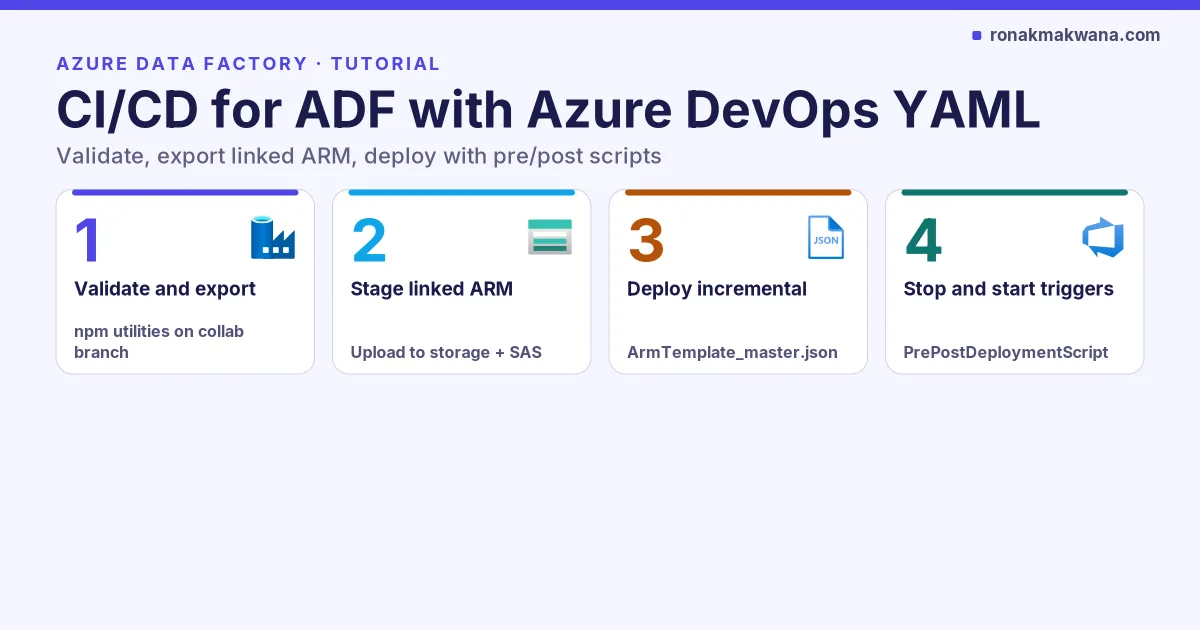
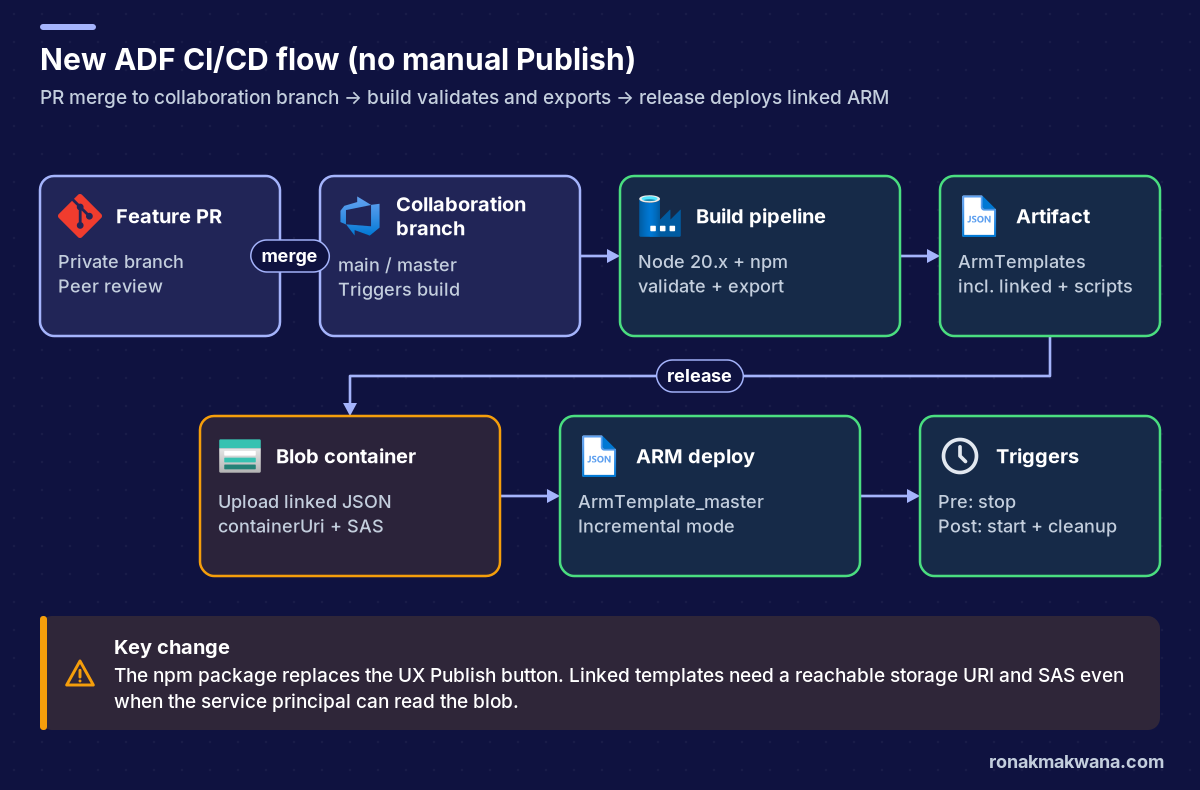
CI/CD for Azure Data Factory means promoting pipelines, datasets, linked services and triggers from a Git-backed development factory into test and production without clicking Publish in the portal. The practical path in Azure DevOps is: merge to the collaboration branch, run a YAML build that validates and exports ARM with @microsoft/azure-data-factory-utilities, stage the linked templates in Blob Storage with a SAS, deploy ArmTemplate_master.json in Incremental mode, and wrap the deploy with Microsoft’s pre/post trigger scripts.
Microsoft’s guidance is spread across several Learn pages (automated publish, linked templates, sample scripts, release automation). This tutorial unifies them into one end-to-end Azure DevOps YAML walkthrough, including the parameter overrides and shared self-hosted IR caveats that usually break the first release.
Applies to: Azure Data Factory with Azure Repos Git and Azure Pipelines. Behaviour was checked against Microsoft Learn on 15 October 2026. All names are synthetic (adf-contoso-dev, adf-contoso-prod, rg-contoso-data, stcontosocicd, kv-contoso-demo). Every YAML snippet and script argument below is illustrative and was not executed against a live Azure subscription. They follow the documented syntax.
The short answer
- Build on the collaboration branch with Node.js 20.x and
@microsoft/azure-data-factory-utilities. Runvalidatethenexportso the pipeline artifact replaces the manual UX Publish /adf_publishstep. - Deploy linked ARM templates from
ArmTemplate_master.json(plusArmTemplate_N.jsonchildren). Upload them to a storage container and passcontainerUriandcontainerSasToken— ARM resolves links without your user context, so a SAS is required even when the service principal can read the blob. - Stop triggers before deploy, start them after with
PrePostDeploymentScript.ps1(or Ver2 for modified-only triggers). Use PowerShell Core. Prefer Incremental deployment mode; Complete deletes resources that aren’t in the template. - Override per environment: factory name, linked-service connection strings or Key Vault references, and the two linked-template storage parameters. Keep IR type identical across environments; strip IR definitions from the templates when the target uses a shared self-hosted IR.
Prerequisites
- A development factory configured with Azure Repos Git. Only the development factory should be Git-connected; test and production factories stay Git-free and are updated only by the pipeline.
- An Azure DevOps project with a service connection that can deploy to the target subscription/resource groups, and permission to create pipelines and variable groups.
- A storage account and container for staging linked templates (for example
stcontosocicd/adf-arm), plus a Key Vault to hold the SAS token and other secrets. - Familiarity with ADF pipelines and linked services helps. For production pipeline design patterns, see production-ready ETL pipelines in Azure Data Factory.
Git setup reminder
Microsoft’s CI/CD overview still applies under the automated-publish flow. Developers work in private branches, open pull requests into the collaboration branch (often main), and never publish from a private branch. Signed commits aren’t supported in Data Factory. Don’t drop unrelated files into the ADF resource folders in Git — leftover .bak files can break resource loading and CI validation.
The older flow relied on someone opening the factory UX and clicking Publish, which wrote ARM into the adf_publish branch. That path still works, but it is a manual gate. The new flow removes that gate: every merge to the collaboration branch builds, validates and exports ARM into a pipeline artifact that the release consumes.
Build YAML: validate and export ARM
Place a package.json next to (or above) the factory resource root that ADF wrote into Git. The scripts.build entry must call the utilities package entry point — that is what npm run build validate|export runs:
{
  "scripts": {
    "build": "node node_modules/@microsoft/azure-data-factory-utilities/lib/index"
  },
  "dependencies": {
    "@microsoft/azure-data-factory-utilities": "^1.0.0"
  }
}
Microsoft requires Node.js 20.x for this package. Older Node versions cause install or runtime incompatibilities. The build below is illustrative and was not executed:
# Illustrative — not executed against a live subscription
trigger:
- main   # collaboration branch

pool:
  vmImage: 'ubuntu-latest'

variables:
  # Root folder from ADF Git configuration (factory JSON trees live here)
  adfRoot: '$(Build.Repository.LocalPath)/adf-contoso-dev'
  pkgDir: '$(Build.Repository.LocalPath)/build'
  # Source (dev) factory resource ID — used by validate/export, not the deploy target
  factoryId: '/subscriptions/00000000-0000-0000-0000-000000000000/resourceGroups/rg-contoso-data/providers/Microsoft.DataFactory/factories/adf-contoso-dev'

steps:
- task: UseNode@1
  inputs:
    version: '20.x'
  displayName: 'Install Node.js 20.x'

- task: Npm@1
  inputs:
    command: 'install'
    workingDir: '$(pkgDir)'
    verbose: true
  displayName: 'Install npm package'

# Same checks as Validate all in the UX
- task: Npm@1
  inputs:
    command: 'custom'
    workingDir: '$(pkgDir)'
    customCommand: 'run build validate $(adfRoot) $(factoryId)'
  displayName: 'Validate ADF resources'

# Same output shape as Publish in the UX, written to disk (not to live factory)
- task: Npm@1
  inputs:
    command: 'custom'
    workingDir: '$(pkgDir)'
    customCommand: 'run build export $(adfRoot) $(factoryId) "ArmTemplate"'
  displayName: 'Validate and export ARM template'

- task: PublishPipelineArtifact@1
  inputs:
    targetPath: '$(pkgDir)/ArmTemplate'
    artifact: 'ArmTemplates'
    publishLocation: 'pipeline'
Export runs validation first, then writes single-file and linked templates into the output folder. The generated artifact already includes the pre- and post-deployment scripts for triggers; you still have to invoke them in the release. The ARM output is not published to the live development factory — deployment is a separate pipeline step.
Why linked templates
Large factories hit Azure Resource Manager limits (resource count, template size). ADF therefore emits linked templates: a parent ArmTemplate_master.json and children ArmTemplate_0.json, ArmTemplate_1.json, and so on. In the classic adf_publish layout they sit under a linkedTemplates folder beside the full ARMTemplateForFactory.json.
Point the ARM deploy task at the master file, not the monolithic factory template. Because child templates are fetched by URL at deploy time, they must live in a location ARM can reach — typically a Blob container. That is why the master template expects containerUri / containerSasToken (Learn also writes containerURI; match the parameter names in your generated ArmTemplateParameters_master.json).
Release / deploy YAML: upload, ARM deploy, pre/post scripts
A multi-stage YAML release (or a classic release pipeline with the same tasks) typically does four things for each environment: download the artifact, upload linked JSON to storage, stop triggers, deploy Incremental ARM, then start triggers and optionally delete removed resources. The sample below is condensed and not executed:
# Illustrative — not executed against a live subscription
# Assumes ArmTemplates artifact from the build, Key Vault-linked variable group
# with StorageSASToken, and an Azure Resource Manager service connection.

stages:
- stage: Deploy_Prod
  variables:
  - group: AzureKeyVaultSecrets   # exposes $(StorageSASToken)
  jobs:
  - job: deploy
    pool:
      vmImage: 'ubuntu-latest'
    steps:
    - download: current
      artifact: ArmTemplates

    # Stage linked templates where ARM can resolve them
    - task: AzureCLI@2
      displayName: 'Upload linked ARM to blob'
      inputs:
        azureSubscription: 'AzureDevServiceConnection'
        scriptType: 'bash'
        scriptLocation: 'inlineScript'
        inlineScript: |
          az storage blob upload-batch \
            --account-name stcontosocicd \
            --destination adf-arm \
            --source "$(Pipeline.Workspace)/ArmTemplates/linkedTemplates" \
            --overwrite true
          # containerUri example (no trailing slash issues — match your master template):
          # https://stcontosocicd.blob.core.windows.net/adf-arm

    - task: AzurePowerShell@5
      displayName: 'Stop ADF triggers (pre-deploy)'
      inputs:
        azureSubscription: 'AzureDevServiceConnection'
        scriptType: 'FilePath'
        scriptPath: '$(Pipeline.Workspace)/ArmTemplates/PrePostDeploymentScript.ps1'
        ScriptArguments: >-
          -armTemplate "$(Pipeline.Workspace)/ArmTemplates/ARMTemplateForFactory.json"
          -ResourceGroupName "rg-contoso-data"
          -DataFactoryName "adf-contoso-prod"
          -predeployment $true
          -deleteDeployment $false
        azurePowerShellVersion: 'LatestVersion'
        pwsh: true

    - task: AzureResourceManagerTemplateDeployment@3
      displayName: 'Deploy linked ARM (Incremental)'
      inputs:
        deploymentScope: 'Resource Group'
        azureResourceManagerConnection: 'AzureDevServiceConnection'
        subscriptionId: '00000000-0000-0000-0000-000000000000'
        resourceGroupName: 'rg-contoso-data'
        location: 'uksouth'
        csmFile: '$(Pipeline.Workspace)/ArmTemplates/linkedTemplates/ArmTemplate_master.json'
        csmParametersFile: '$(Pipeline.Workspace)/ArmTemplates/linkedTemplates/ArmTemplateParameters_master.json'
        overrideParameters: >-
          -factoryName "adf-contoso-prod"
          -containerUri "https://stcontosocicd.blob.core.windows.net/adf-arm"
          -containerSasToken "$(StorageSASToken)"
        deploymentMode: 'Incremental'

    - task: AzurePowerShell@5
      displayName: 'Start ADF triggers (post-deploy)'
      inputs:
        azureSubscription: 'AzureDevServiceConnection'
        scriptType: 'FilePath'
        scriptPath: '$(Pipeline.Workspace)/ArmTemplates/PrePostDeploymentScript.ps1'
        ScriptArguments: >-
          -armTemplate "$(Pipeline.Workspace)/ArmTemplates/ARMTemplateForFactory.json"
          -ResourceGroupName "rg-contoso-data"
          -DataFactoryName "adf-contoso-prod"
          -predeployment $false
          -deleteDeployment $true
        azurePowerShellVersion: 'LatestVersion'
        pwsh: true
Use PrePostDeploymentScript.Ver2.ps1 when you only want to stop and start triggers that changed, instead of every trigger. Always set pwsh: true so the task runs PowerShell Core. The -deleteDeployment $true flag on the post step removes the ADF entry from the ARM deployment history after a successful deploy, as documented in the sample-script page.
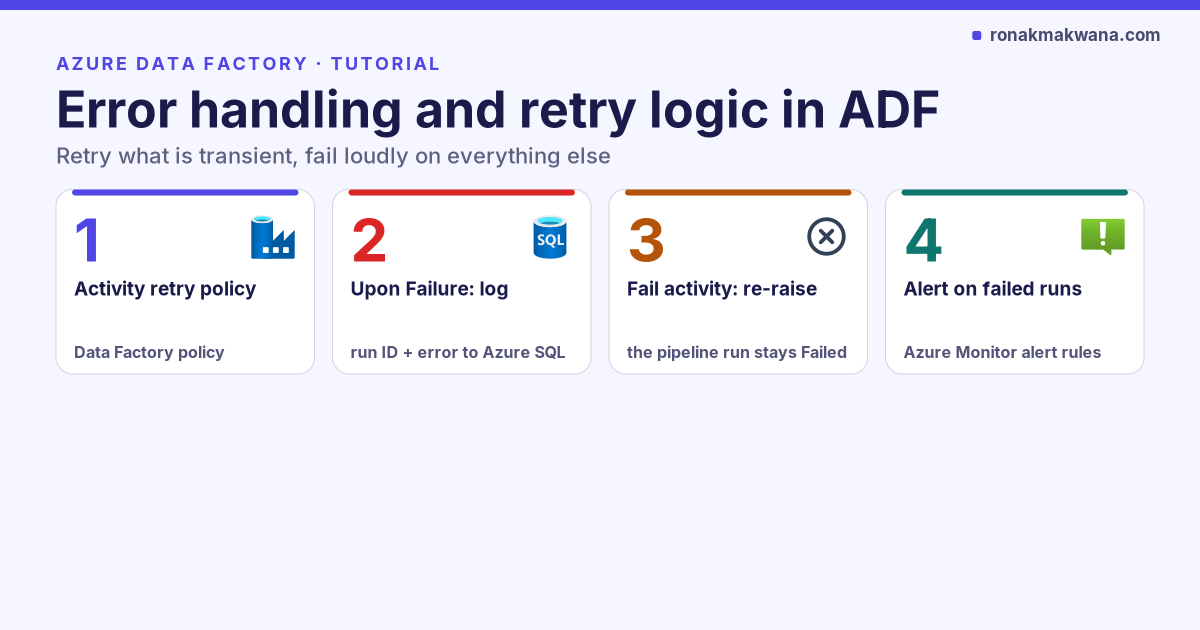
For durable pipelines, pair this release with solid activity-level failure handling — see error handling and retry logic in ADF — so a bad deploy isn’t the only place failures surface.
Parameter overrides checklist
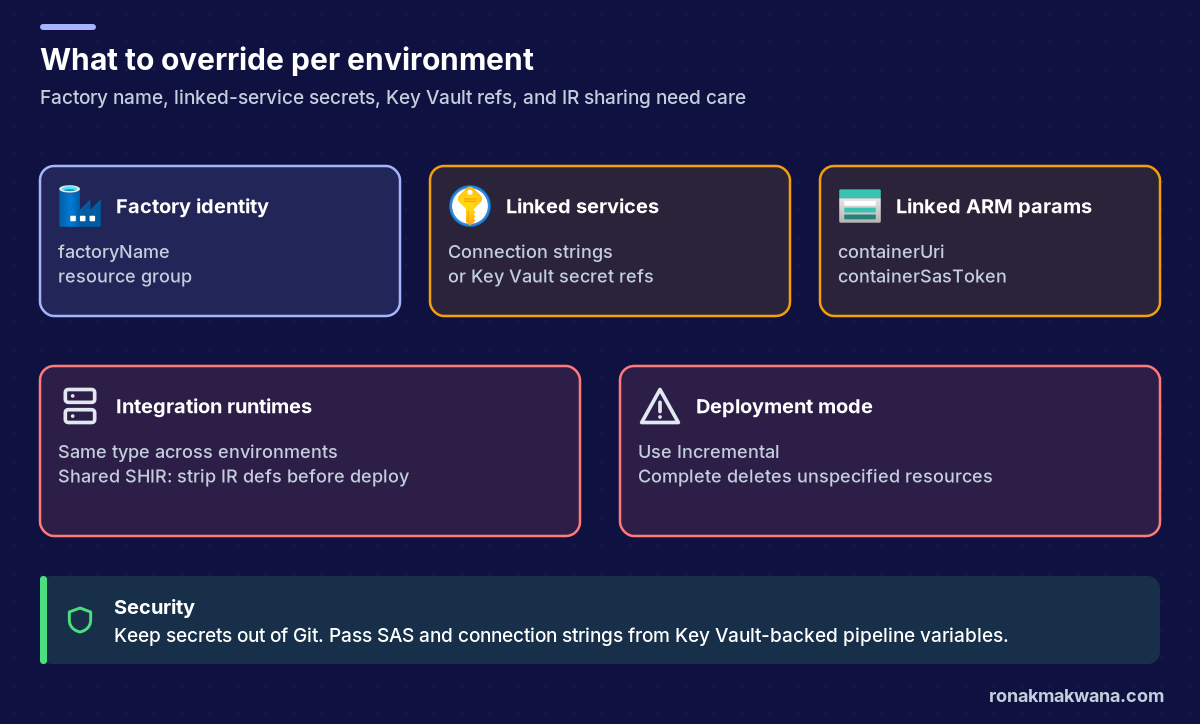
- factoryName — always override to the target factory (
adf-contoso-test,adf-contoso-prod). Never deploy the development factory name into production. - Linked service connection strings and keys — pass them as secure override parameters, or store values in environment-specific Key Vaults and keep the secret names identical so you only parameterise the vault name. Prefer managed identity and Key Vault references over plaintext strings; see securing Azure data pipelines with managed identity and Key Vault.
- containerUri and containerSasToken — required for linked templates. Store the SAS in Key Vault and surface it through a variable group. Scope the SAS tightly (container, short TTL, read-only if that is enough for your upload pattern).
- Integration runtimes — type and subtype must match across environments (self-hosted stays self-hosted). For a shared / linked self-hosted IR, Microsoft warns that linked ARM exports IRs as standalone resources; deploying them overwrites the shared IR and can leave it Unavailable. Add a pipeline step that removes IR resource definitions from the linked template files before the ARM deploy (and rename if the target IR name differs).
- Deployment mode — Incremental. Complete mode deletes resources that exist in the resource group but are absent from the template.
Security, reliability, monitoring and cost
Security
Do not commit SAS tokens, connection strings or service principal secrets to the repository. Keep them in Key Vault, link the vault to an Azure DevOps variable group, and reference secrets as $(SecretName) in override parameters. Grant the pipeline identity only the Key Vault permissions it needs (typically Get and List on secrets). Prefer managed identities on linked services in each environment over long-lived keys.
Reliability
Always stop triggers before ARM deploy and start them afterwards — updating an active trigger mid-deploy is a common failure mode. Stick to Incremental mode. Validate in the build so broken JSON never reaches production. For shared SHIR targets, strip IR definitions before deploy so you do not wipe registered nodes.
Monitoring
Alert on Azure Pipelines build and release failures (email or Teams). In each factory, use Azure Monitor alert rules on failed pipeline runs so a successful deploy that ships a broken activity still pages someone. Keep diagnostic settings on the factory pointed at Log Analytics.
Cost
Linked-template staging uses cheap Blob storage; watch for orphaned containers and long-lived wide SAS tokens rather than capacity. Azure Pipelines minutes add up if every commit rebuilds a huge factory — consider path filters or a schedule for non-critical branches. Data Factory itself bills on activity runs and IR compute, not on how you deploy ARM.
Troubleshooting
- npm / Node errors in the build: confirm Node 20.x and that
scripts.buildpoints atnode_modules/@microsoft/azure-data-factory-utilities/lib/index. - Validate fails after merge: open the build log — you get the same messages as Validate all in the UX. Fix the resource JSON in a follow-up PR; do not bypass validation.
- ARM linked-template resolve errors: check
containerUripoints at the container that holds the child JSON, the SAS is still valid, and the parameter casing matchesArmTemplateParameters_master.json. - Deploy fails updating triggers: ensure the pre-deploy script ran with
-predeployment $trueand PowerShell Core (pwsh: true). - Shared SHIR shows Unavailable after release: the deploy likely recreated a standalone IR. Remove IR resources from the linked templates before the ARM step, as Microsoft documents for linked templates.
- Unexpected deletions: confirm deployment mode is Incremental, not Complete.
What to do next
Wire the build to your collaboration branch, store the SAS and connection overrides in Key Vault, and run the first release into a non-production factory. Once the path is stable, promote the same artifact to production with environment-specific overrides only. Browse more Azure Data Factory guides on this site for pipeline design, error handling and security patterns that sit alongside CI/CD.