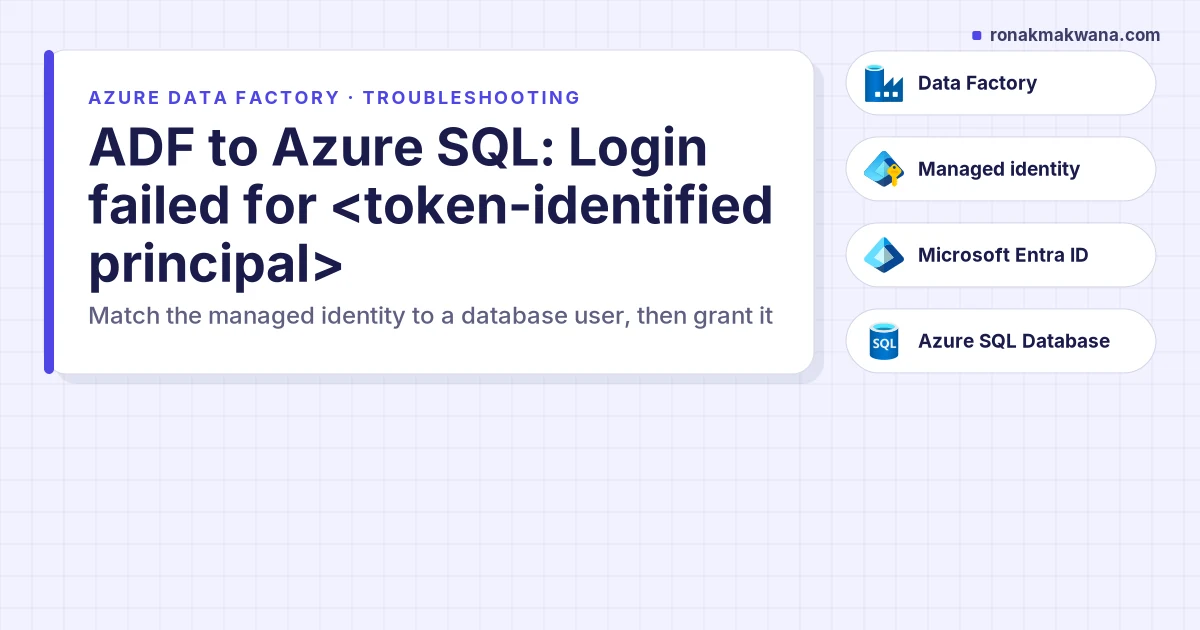
You switched an Azure Data Factory linked service for Azure SQL Database to a managed identity, pressed Test connection, and got Login failed for user '<token-identified principal>'. Or the same linked service worked in dev and fails in production after a deployment. This post explains what that message means, gives a five-step check that finds the cause, and lists the fix for each case. It’s written against Microsoft Learn as of November 2026; none of the commands were run against a live environment for this post.
Short answer
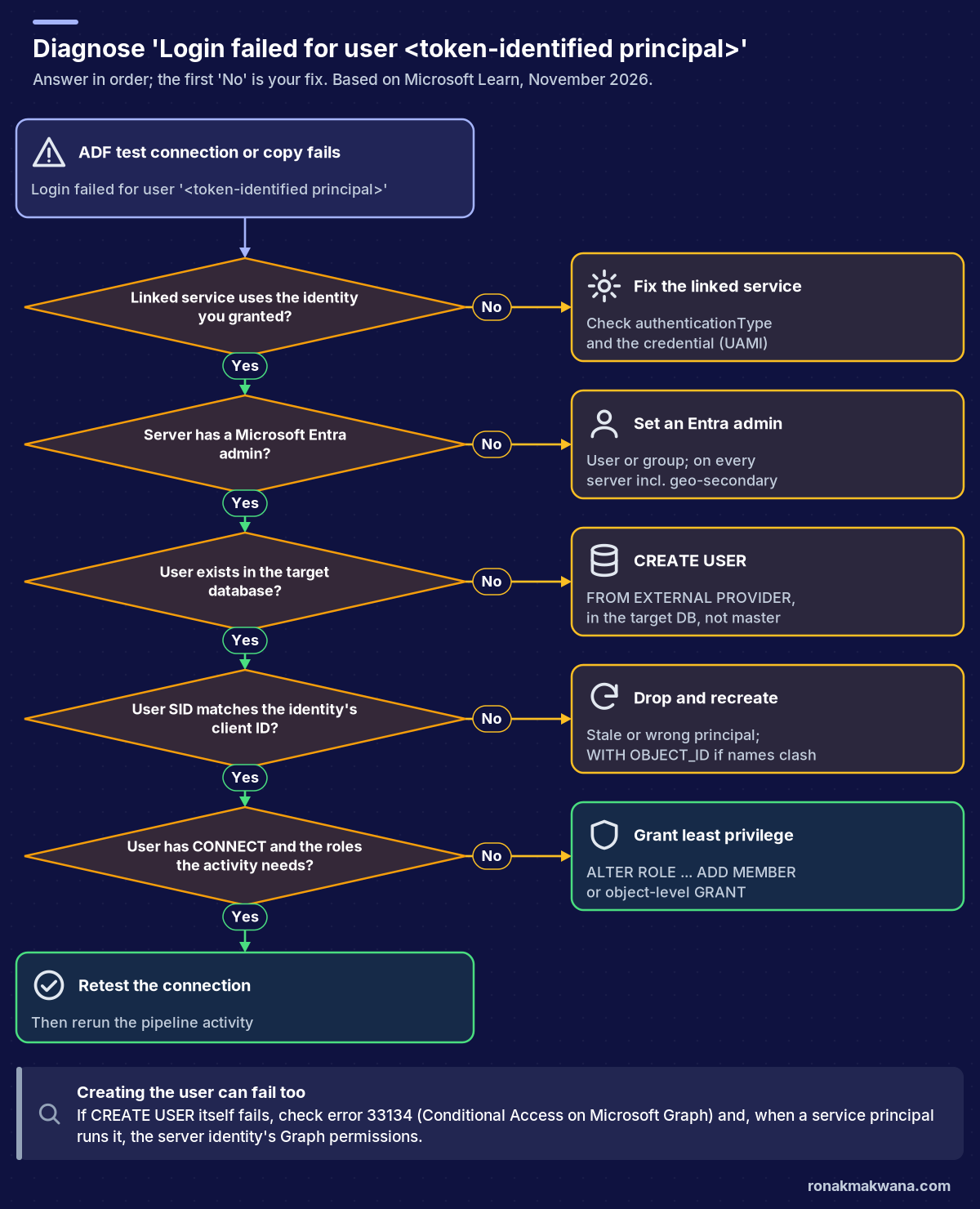
ADF’s own troubleshooting guide says this message is usually caused by not granting enough permission to the service principal or managed identity in your database (ADF SQL connector troubleshooting). In practice it usually means Azure SQL received a Microsoft Entra token-based login but found no usable database user for it in that database. Fix it in this order:
- Confirm which identity the linked service uses.
SystemAssignedManagedIdentityis the factory’s own identity (its name is the factory name).UserAssignedManagedIdentityuses whatever identity the linked service’s credential points to. - Make sure the logical server has a Microsoft Entra admin. Without one, no Entra principal can sign in, and no one can create the user.
- Create a contained user in the target database, not in
master:CREATE USER [<identity-name>] FROM EXTERNAL PROVIDER; - Check the user belongs to the right identity. For a managed identity,
CAST(sid AS uniqueidentifier)is its client (application) ID. If it doesn’t match, the user is stale (for example, the factory was recreated) or was created for a different principal with the same name. Drop it and create it again. - Grant only what the activity needs with
ALTER ROLE ... ADD MEMBERor object-levelGRANT, then retest.
If the message is about a client IP address or contains 40615 or 47073, the problem is the network, not the identity: see Azure SQL linked service firewall errors in ADF instead.
What the error means
When the connection fails, ADF reports error code SqlFailedToConnect. Its documented message template is Cannot connect to SQL Database: '%server;', Database: '%database;', User: '%user;'. Check the linked service configuration is correct, and make sure the SQL Database firewall allows the integration runtime to access. The useful part is the SQL Server message that follows it. With managed identity or service principal authentication, there’s no SQL user name in the connection, so the failed login shows up as <token-identified principal>.
It’s the standard SQL login failure, error 18456 in Azure SQL’s troubleshooting guide (Azure SQL common errors). Microsoft’s reference for it lists causes such as the user not being granted access to the database and a database name that’s misspelled, offline or unavailable (MSSQLSERVER_18456). For a managed identity, “granted access” means a database principal mapped to that exact Microsoft Entra identity, in the database named in the linked service.
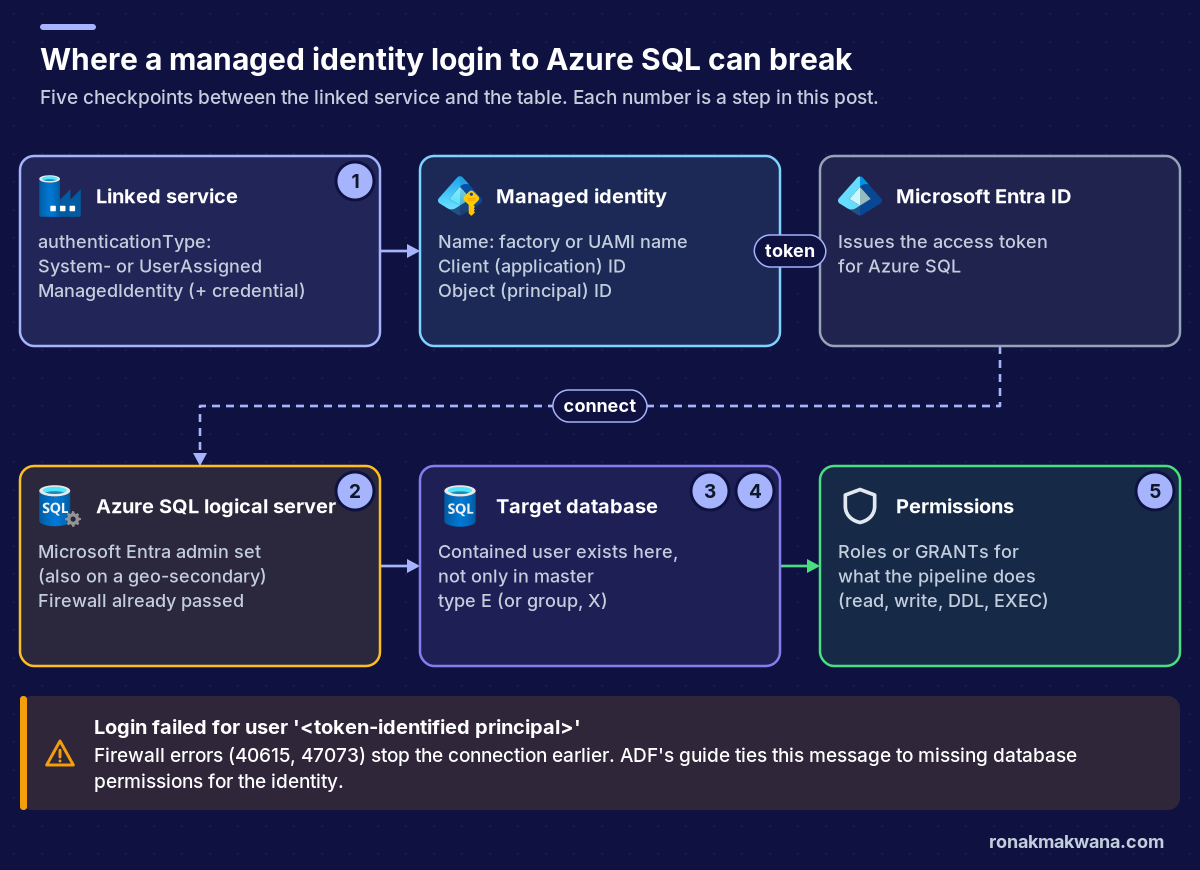
Keep one distinction in mind. A missing or wrong user causes the login itself to fail. A user that exists but lacks object permissions usually gets further: the connection opens and a later statement fails with a permission error. ADF’s guide groups both under “not enough permission”, so check both, but start with the user.
Prerequisites
- Access to the factory to read the linked service JSON (Manage > Linked services > the
{}code view) and the factory’s identity (Settings > Managed identities in the portal). - A Microsoft Entra identity that can create users in the target database. Learn’s connector steps say it needs at least
ALTER ANY USER. On a new server, that’s the Microsoft Entra admin, because it’s the first identity able to create other Entra principals (Microsoft Entra authentication overview). - A SQL client that supports Entra sign-in, such as SQL Server Management Studio or the query editor in the portal. Connect to the target database by name, not to
master. - Azure CLI if you want to look up the identity’s IDs from a terminal (optional; the portal shows the same values).
- The firewall already allows ADF. If Test connection fails with a client IP or 40615 message, fix that first.
Step 1: Confirm which identity the linked service uses
The Recommended version of the Azure SQL Database connector sets authenticationType to one of SQL, ServicePrincipal, SystemAssignedManagedIdentity or UserAssignedManagedIdentity. A user-assigned identity is referenced through a factory credential (Azure SQL Database connector). Open the linked service JSON and compare it with this shape:
Linked service JSON: what to check
// Not executed for this post. Shape from the Azure SQL Database connector page (Recommended version).
{
  "name": "AzureSqlDbLinkedService",
  "properties": {
    "type": "AzureSqlDatabase",
    "typeProperties": {
      "server": "sql-sales-prod.database.windows.net",
      "database": "salesdb",
      "encrypt": "mandatory",
      "trustServerCertificate": false,
      "authenticationType": "UserAssignedManagedIdentity",
      "credential": {
        "referenceName": "cred-id-adf-sql-prod",
        "type": "CredentialReference"
      }
    },
    "connectVia": {
      "referenceName": "AutoResolveIntegrationRuntime",
      "type": "IntegrationRuntimeReference"
    }
  }
}databaseis the database you’ll create the user in. A typo here also produces a login failure.authenticationTypematches the identity you granted. Switching from system-assigned to user-assigned (or back) means a different identity and needs a different database user.credential(user-assigned only) names a credential that points to the identity you expect. After a deployment, check that the production factory’s credential isn’t still pointing at a dev identity. Credentials hold user-assigned identities attached to the factory (Credentials in ADF).- Legacy version linked services use a
connectionStringinstead of these properties. Learn says the managed identity steps are the same, but if you deploy from templates, compare the deployed JSON with one created in the UI.
Then get the identity’s name, object (principal) ID and client (application) ID. You need the client ID in Step 4. For the system-assigned identity, Learn notes that the managed identity name is the data factory name and that the application ID comes from the service principal (Managed identity for ADF).
Look up the identity’s IDs
# Not executed for this post. Azure CLI; replace the placeholders.

# System-assigned: the factory's principal (object) ID
az resource show -g rg-data-prod -n adf-sales-prod \
  --resource-type Microsoft.DataFactory/factories \
  --query identity.principalId -o tsv

# Its display name and client (application) ID
az ad sp show --id <principal-id> --query "{name:displayName, appId:appId, objectId:id}" -o table

# User-assigned: name, client ID and principal ID
az identity show -g rg-data-prod -n id-adf-sql-prod \
  --query "{name:name, clientId:clientId, principalId:principalId}" -o table
Step 2: Check the server has a Microsoft Entra admin
Microsoft Entra authentication on a logical server requires a Microsoft Entra admin. Learn also says that removing the admin prevents any Microsoft Entra authentication connections to the server, and that with geo-replication or failover groups the admin must be set on both primary and secondary servers (Entra authentication overview). A pipeline that fails only after a failover is worth checking here.
List the Entra admin
# Not executed for this post.
az sql server ad-admin list -g rg-data-prod --server sql-sales-prod -o table
Expect one row. The admin can be a user, a group or another principal; a group is easier to manage because membership changes don’t touch the server (Configure Microsoft Entra authentication).
Step 3: Look for the user in the target database
Connect to the database named in the linked service (not master) as the Entra admin, and list the Entra principals. In sys.database_principals, type E is an external user from Microsoft Entra ID and type X is an external group from a Microsoft Entra group or applications (sys.database_principals).
List Microsoft Entra users and groups
-- Not executed for this post. Run in the TARGET database, not master.
SELECT name,
       type,
       type_desc,
       authentication_type_desc,
       CAST(sid AS uniqueidentifier) AS sid_as_guid,  -- client ID for a managed identity or app
       create_date
FROM sys.database_principals
WHERE type IN ('E', 'X')
ORDER BY name;- No row with the identity’s name: the user doesn’t exist in this database. Perhaps it was created in
master, in the dev database, or never. Go to Step 5 and create it. - A row exists: go to Step 4 to check that it belongs to the right identity.
- Access through a group: Azure SQL can also have a contained user for a Microsoft Entra group (type
X) (Configure Microsoft Entra authentication). If the identity reaches the database that way, check the group’s row and that the identity really is a member. The ADF connector page mentions one more route, putting the identity in the group that is the server’s Entra admin, but that gives it full admin access, so avoid it for pipelines.
Step 4: Check the user’s SID matches the identity
This is the step most guides skip. Azure SQL stores an Entra service principal’s or managed identity’s client (application) ID as the user’s SID. Learn’s guidance on nonunique names converts it back with CAST(sid AS uniqueidentifier) to read the application ID, and the CREATE USER reference says to use the client ID, not the object ID, as the SID for a service principal, user-assigned or system-assigned managed identity (nonunique display names, CREATE USER).
Compare sid_as_guid from Step 3 with the appId or clientId from Step 1:
| Result | What it means | Fix |
|---|---|---|
| Match | The user is the right identity | Go to Step 5 and check permissions |
| Different GUID, same name | The user points to another principal | Drop and recreate (below) |
| Factory was recreated | Old user still has the deleted identity’s ID | Drop and recreate |
| Name clash on CREATE USER | Several principals share the display name | Use WITH OBJECT_ID |
The recreated-factory row is an inference from two documented facts: deleting a factory deletes its system-assigned identity, and a new factory gets a new one (Managed identity for ADF). A database user keeps the SID it was created with, so it no longer matches. The same applies if a user-assigned identity is deleted and recreated with the same name.
Replace a stale user
-- Not executed for this post. Run in the TARGET database as the Entra admin.
-- DROP USER fails if the user owns securables such as a schema; transfer ownership first.
DROP USER [adf-sales-prod];
CREATE USER [adf-sales-prod] FROM EXTERNAL PROVIDER;
-- Re-apply the role memberships and grants from Step 5: they were dropped with the old user.
If CREATE USER fails because the display name isn’t unique in your tenant, use the WITH OBJECT_ID extension with the identity’s object (principal) ID (not the client ID) and a name with a suffix, as Learn recommends (nonunique display names):
Create a user for a nonunique display name
-- Not executed for this post. Object ID = the managed identity's principal ID from Step 1.
CREATE USER [adf-sales-prod-7c1f2] FROM EXTERNAL PROVIDER
    WITH OBJECT_ID = '<principal-id>';
Learn’s guidance is to use this only for nonunique names, and to add a suffix (for example the first five characters of the object ID) so it’s obvious which principal the user belongs to (nonunique display names).
Step 5: Create the user and grant least privilege
If the user is missing, create it in the target database and add it to roles. This is the documented connector setup (system-assigned, user-assigned): use the factory name for a system-assigned identity, or the user-assigned identity’s name.
Create the user and grant roles
-- Not executed for this post. Run in the TARGET database as the Entra admin
-- (or any Entra identity with ALTER ANY USER).
CREATE USER [adf-sales-prod] FROM EXTERNAL PROVIDER;

-- Pick the smallest set that covers what the pipeline does:
ALTER ROLE db_datareader ADD MEMBER [adf-sales-prod];   -- copy FROM this database
ALTER ROLE db_datawriter ADD MEMBER [adf-sales-prod];   -- copy INTO existing tables
-- Narrower alternative to the roles above:
-- GRANT SELECT ON SCHEMA::sales TO [adf-sales-prod];
-- GRANT INSERT ON OBJECT::stg.SalesOrder TO [adf-sales-prod];
-- GRANT EXECUTE ON OBJECT::etl.usp_merge_sales TO [adf-sales-prod];
A few ADF features need more than read and write. The copy sink’s tableOption: autoCreate creates the sink table, and an upsert that uses a physical interim table (useTempDB false) needs permission to create and drop tables in the interim schema (Azure SQL Database connector). Grant those on the specific schema rather than adding db_owner. The fixed database roles and what they allow are listed in Database-level roles.
Finally, check that nobody has denied the user access to the database, and see its role memberships:
Check CONNECT and role membership
-- Not executed for this post.
SELECT pr.name, pe.permission_name, pe.state_desc
FROM sys.database_permissions AS pe
JOIN sys.database_principals AS pr ON pe.grantee_principal_id = pr.principal_id
WHERE pr.type IN ('E', 'X') AND pe.permission_name = 'CONNECT';

SELECT r.name AS role_name, m.name AS member_name
FROM sys.database_role_members AS rm
JOIN sys.database_principals AS r ON rm.role_principal_id = r.principal_id
JOIN sys.database_principals AS m ON rm.member_principal_id = m.principal_id
WHERE m.type IN ('E', 'X');
A DENY in state_desc for CONNECT blocks the user from the database; remove it with REVOKE if it isn’t intentional (sys.database_permissions, sys.database_role_members).
Expected results
| Check | Expected |
|---|---|
| Linked service JSON | authenticationType and credential point at the identity you granted |
az sql server ad-admin list | One Microsoft Entra admin (on every server in a failover group) |
| Step 3 query in the target database | One type E row with the identity’s name (or a group row) |
| Step 4 comparison | sid_as_guid equals the identity’s client ID |
| Role and CONNECT queries | Expected roles listed; no DENY on CONNECT |
| ADF Test connection | Succeeds; then the pipeline activity runs |
Troubleshooting: situations and their usual cause
Use this to jump straight to the likely step. Each row links a situation you can observe to the check that confirms it.
| Situation | Likely cause | Check | Fix |
|---|---|---|---|
| Works in dev, fails in prod after deployment | User exists only in the dev database, or the prod credential points at another identity | Steps 1, 3 | Create the user in the prod database for the prod identity |
| Fails after the factory was deleted and recreated | Stale user with the old identity’s SID | Step 4 | Drop and recreate the user |
| Switched system-assigned to user-assigned | A different identity has no user | Steps 1, 3 | Create a user for the new identity |
| User was created while connected to master | Contained users live in one database | Step 3 | Create it in the target database |
| Fails only against a geo-secondary or after failover | No Entra admin on that server (Learn: Entra users get a Cannot connect error) | Step 2 | Set the admin on both servers |
| Database name typo in the linked service | Error 18456 cause: wrong or unavailable database | Step 1 | Fix the database property |
| Connection works, a later statement fails | Object permissions, not login | Step 5 | Grant the missing permission |
When CREATE USER itself fails
- Error 33134 with an Entra message about access being denied or MFA: Learn says this is usually a Conditional Access policy blocking access to Microsoft Graph (application ID
00000003-0000-0000-c000-000000000000) for the user running the command (Configure Microsoft Entra authentication). - Run by a service principal (for example, a deployment pipeline): Azure SQL needs the server’s identity to read Microsoft Graph, either through the Directory Readers role or lower-level Graph permissions such as
User.Read.All. Without them, creating Entra users fails (Directory Readers role, managed identities for Azure SQL). - Duplicate display name: use
WITH OBJECT_IDas shown in Step 4. If the object ID doesn’t exist in the server’s tenant, Learn documents error 37545. - No Graph lookup possible at all: for Azure SQL Database, the CREATE USER reference also shows creating an Entra user without validation, with
WITH SID = <client ID as binary>, TYPE = E(CREATE USER, example K). Treat it as a last resort, because a wrong ID isn’t caught when you run it.
Security
- Grant the identity only what the pipeline does. Avoid
db_owneras a quick fix; it hides the real permission need and widens the blast radius. - Remember who can use the identity. Learn notes that users with the Data Factory Contributor role can run pipelines that use the factory’s managed identities, which inherit every permission granted to them (Managed identity for ADF).
- Prefer a Microsoft Entra group as the server admin, and a group or one user per identity in each database, so access reviews happen in Entra ID.
- Managed identities remove secrets from the linked service. For the wider pattern with Key Vault, see securing Azure data pipelines with managed identity and Key Vault.
Reliability
- Script the database user and grants with the factory deployment, and run them in every environment. A linked service that deploys cleanly can still fail at run time if the database side was done by hand in dev only. The ADF CI/CD pipeline with Azure DevOps is a natural place for that step.
- Learn suggests making your deployment identity the Entra admin (or a member of the admin group) so deployments can create principals (Entra authentication overview). If that identity is a service principal, it also needs the Graph permissions above.
- Recreating a factory, or a user-assigned identity, means recreating its database users. Add it to your runbook.
- Set a retry on the activity for transient failures, but don’t rely on it here: a login failure caused by a missing user fails every retry.
Monitoring
- ADF’s activity run output carries the
SqlFailedToConnecterror and the SQL message; alert on failed runs in Azure Monitor as usual. - Don’t expect the SQL audit log to show these failures. Learn says that with Microsoft Entra authentication, failed login records don’t appear in the SQL audit log; check the Microsoft Entra admin center sign-in logs instead (Auditing for Azure SQL Database).
- After a fix, rerun the Step 3 and Step 4 queries and keep the output with the change record.
Cost
The fix itself has no cost impact. The real cost is failed or retried pipeline runs and the delay to downstream loads, which is another reason to script the database user rather than discover it missing at run time.
Related problems
- Network errors before authentication (client IP, 40615, 47073): Azure SQL firewall errors in ADF linked services.
- Linked service runs on a self-hosted integration runtime that shows Offline or Limited: ADF self-hosted IR diagnostic workflow.
- The same “identity exists, permission missing” pattern on a different service: Logic App Unauthorized or Forbidden calling Key Vault.
- Once the connection works, a full load pattern into Azure SQL: ADF copy CSV to Azure SQL through a staging table and MERGE.
What was checked for this article
No code in this article was executed against Azure, and each code block is labelled. Error text, property names, T-SQL syntax, catalog view columns and CLI commands were checked against the Microsoft Learn pages below on 23 November 2026. Two points are inference rather than quoted guidance: that a recreated factory leaves a stale user (from the documented identity lifecycle and SID rules), and that missing object permissions show up as a later statement error rather than this login error. Learn is also inconsistent in places: the WITH OBJECT_ID option is called preview on one page and not on others, and the CREATE USER reference and the Entra configuration page describe the Directory Readers requirement for Entra users differently. Recheck those pages if they matter to you.
Related guides
Start with the Azure SQL firewall troubleshooting guide if you haven’t reached the server yet. For an end-to-end load once access works, see copying CSV files into Azure SQL with ADF, and for deploying linked services between environments, CI/CD for Azure Data Factory. More posts are in the Azure Data Factory category.
Sources
- Troubleshoot the Azure SQL and Synapse connectors in ADF (Microsoft Learn)
- Copy and transform data in Azure SQL Database with ADF (Microsoft Learn)
- Managed identity for Azure Data Factory (Microsoft Learn)
- Credentials in Azure Data Factory and Azure Synapse (Microsoft Learn)
- Microsoft Entra authentication for Azure SQL (Microsoft Learn)
- Configure and manage Microsoft Entra authentication with Azure SQL (Microsoft Learn)
- Directory Readers role in Microsoft Entra ID for Azure SQL (Microsoft Learn)
- Managed identities in Microsoft Entra for Azure SQL (Microsoft Learn)
- Microsoft Entra logins and users with nonunique display names (Microsoft Learn)
- Microsoft Entra server principals (Microsoft Learn)
- CREATE USER (Transact-SQL) (Microsoft Learn)
- DROP USER (Transact-SQL) (Microsoft Learn)
- ALTER ROLE (Transact-SQL) (Microsoft Learn)
- Database-level roles (Microsoft Learn)
- sys.database_principals (Microsoft Learn)
- sys.database_role_members (Microsoft Learn)
- sys.database_permissions (Microsoft Learn)
- MSSQLSERVER_18456 (Microsoft Learn)
- Troubleshoot connectivity issues and other errors with Azure SQL Database (Microsoft Learn)
- Auditing for Azure SQL Database and Azure Synapse Analytics (Microsoft Learn)
- az sql server ad-admin (Azure CLI reference)
- az ad sp (Azure CLI reference)
- az identity (Azure CLI reference)
- az resource (Azure CLI reference)