Auto Loader is the Databricks way to pick up new files from cloud storage without writing your own “what have I already loaded” logic. This tutorial sets it up for the common Azure case: JSON or CSV files landing in an ADLS Gen2 container, loaded into a Unity Catalog Delta table, with Unity Catalog doing the access control instead of mounts or account keys. Everything below is as of November 2026, per Microsoft Learn; Auto Loader defaults have changed across recent runtime versions, so the links point to the pages to recheck.
Short answer
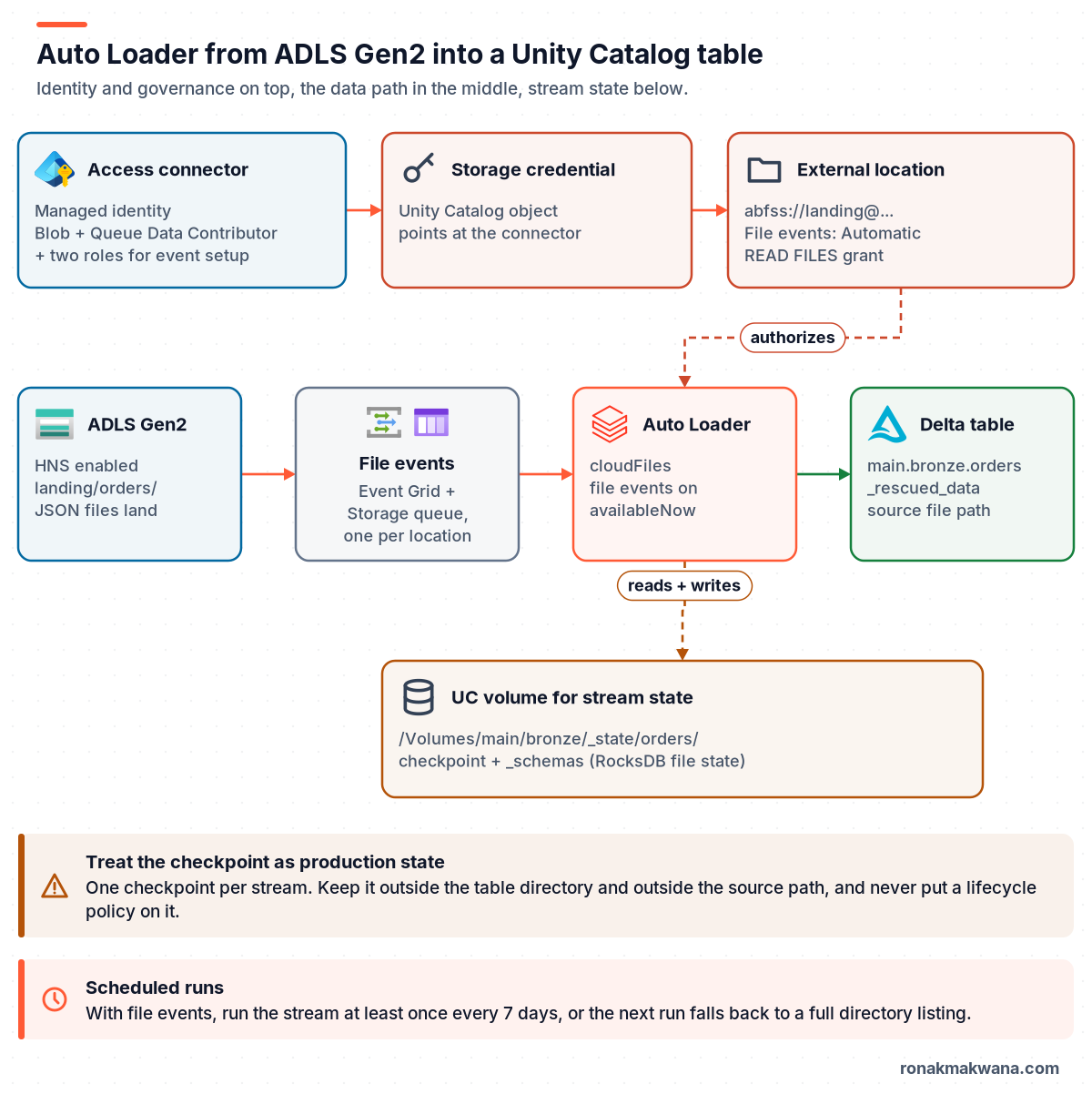
- Govern the storage with Unity Catalog. Create an access connector (managed identity), give it Storage Blob Data Contributor on the account, register it as a storage credential, and create an external location for the landing container. Read the files through an external volume (
READ VOLUME) or the external location (READ FILES). - Give the stream its own state folder. Point
checkpointLocationandcloudFiles.schemaLocationat a Unity Catalog volume path that is not inside the table directory or the source folder. One checkpoint per stream, never shared. - Read with
format("cloudFiles"), write withtoTable(). SetcloudFiles.format, add schema hints for the columns you know, keep the default_rescued_datacolumn, and run it withtrigger(availableNow=True)as a scheduled Lakeflow job that retries on failure. - Turn on file events. Enable file events on the external location and set
cloudFiles.useManagedFileEventsto true (Databricks Runtime 14.3 LTS or above). Directory listing is still the documented default and is fine for small folders, but Databricks recommends file events for most workloads (file detection modes). - Verify with
cloud_files_state. Query it with the checkpoint path to see which files the stream has discovered, and count rows per_metadata.file_pathin the table.
What you’ll build
One Auto Loader stream that reads new JSON files from landing/orders/ in an ADLS Gen2 account and appends them to a Unity Catalog managed table, main.bronze.orders. In a medallion (bronze, silver, gold) architecture this is the bronze ingestion step. The names (main, bronze, landing, orders) are placeholders; swap in your own.
Prerequisites
- A Unity Catalog-enabled workspace and compute on Databricks Runtime 14.3 LTS or above if you want file events. Reading from a volume path needs 13.3 LTS or above. Auto Loader works on standard and dedicated access modes from 11.3 LTS (Auto Loader with Unity Catalog).
- An ADLS Gen2 account with hierarchical namespace, ideally in the same region as the workspace to avoid egress charges. The container can’t have an immutability (WORM) policy, because Unity Catalog needs delete permission on external locations. If public network access is disabled, allow trusted Azure services (ADLS Gen2 external location).
- Not a premium storage account if you want notifications: Learn says file notification mode isn’t supported there because premium accounts don’t support queue storage (file notification mode).
- Azure permissions to create the access connector (Contributor or Owner on a resource group) and to assign roles (Owner or User Access Administrator on the storage account and its resource group).
- Unity Catalog privileges:
CREATE STORAGE CREDENTIALandCREATE EXTERNAL LOCATIONfor the setup, then for the identity that runs the job:USE CATALOG,USE SCHEMAandCREATE TABLEon the target schema, read access on the source, and read and write access on the state volume (privileges reference).
Step 1: Create the access connector and assign Azure roles
An access connector for Azure Databricks is an Azure resource that carries a managed identity, so no secret or account key is stored anywhere. Create it in the portal (search for Access Connector for Azure Databricks), in the same region as the storage account, with a system-assigned identity, and note its resource ID. Then assign these roles to that identity (Microsoft Learn: ADLS Gen2 external location, set up file events):
| Role | Scope | Why |
|---|---|---|
| Storage Blob Data Contributor | Storage account (or container) | Read and write data |
| Storage Queue Data Contributor | Storage account | Read file event messages |
| Storage Account Contributor | Storage account | Let Databricks create the queue |
| EventGrid EventSubscription Contributor | Resource group | Let Databricks create the event subscription |
The last two are only needed if you want Databricks to create the notification resources for you (file event type Automatic). If your organisation must own those resources, choose Provided instead: you create the storage queue and an Event Grid subscription for BlobCreated, BlobDeleted, BlobRenamed, DirectoryDeleted and DirectoryRenamed events yourself, and Learn notes Databricks doesn’t support that setup. For tighter scope, Learn also allows Storage Blob Delegator on the account plus Storage Blob Data Contributor on just the container.
Assign the roles with the Azure CLI (optional)
# Not executed for this post. Syntax from the az role assignment reference on Microsoft Learn;
# role names from the Azure Databricks external location page. <principal-id> is the object ID
# of the access connector's managed identity (Identity blade of the connector).
SA=/subscriptions/<sub-id>/resourceGroups/<rg>/providers/Microsoft.Storage/storageAccounts/<storage-account>
RG=/subscriptions/<sub-id>/resourceGroups/<rg>

for ROLE in "Storage Blob Data Contributor" "Storage Queue Data Contributor" "Storage Account Contributor"; do
  az role assignment create --assignee-object-id <principal-id> \
    --assignee-principal-type ServicePrincipal --role "$ROLE" --scope "$SA"
done

az role assignment create --assignee-object-id <principal-id> \
  --assignee-principal-type ServicePrincipal \
  --role "EventGrid EventSubscription Contributor" --scope "$RG"
If a role is missing you’ll see it later as a 403 or a failed validation. The Databricks ADLS 403 troubleshooting guide walks through the storage-side checks.
Step 2: Create the storage credential and external location
In Catalog Explorer, create a credential of type Azure Managed Identity and paste the access connector’s resource ID. Then create the external location, either in Catalog Explorer or with SQL. Learn says file events are on by default for new external locations created in Catalog Explorer, with the file event type Automatic (external locations, file events FAQ).
Create the external location and an external volume over it
-- Not executed for this post; syntax from Microsoft Learn. Names are placeholders.
CREATE EXTERNAL LOCATION IF NOT EXISTS landing_orders
  URL 'abfss://landing@<storage-account>.dfs.core.windows.net/orders'
  WITH (STORAGE CREDENTIAL adls_landing_cred)
  COMMENT 'Landing zone for order files';

-- Expose the folder as an external volume so readers get READ VOLUME, not raw path access
CREATE EXTERNAL VOLUME IF NOT EXISTS main.landing.orders_raw
  LOCATION 'abfss://landing@<storage-account>.dfs.core.windows.net/orders';
Open the external location and click Test connection. Learn’s FAQ says a correctly set up location shows a green check for File Events Read; straight after creation it can show Skipped for a few minutes while Databricks creates the queue and subscription (Auto Loader FAQ). If you created the location with SQL, check the file events setting on the same page before you rely on it.
Volume or external location path? Both work as an Auto Loader source. Learn’s privileges reference recommends governing file access through volumes (READ VOLUME) rather than READ FILES on an external location, and the ADLS onboarding tutorial calls the volume route recommended (Set up incremental ingestion from ADLS). This post uses the volume path; the abfss:// path works the same way with READ FILES.
Step 3: Create the target schema, a state volume and grants
Auto Loader needs somewhere to keep its checkpoint (the RocksDB store of every file it has seen) and the inferred schema history. Unity Catalog doesn’t allow those files nested under the table directory, and Databricks recommends keeping them in Unity Catalog-governed storage on the output side, such as a dedicated volume, not inside the folder Auto Loader scans (Auto Loader with Unity Catalog, best practices).
Schema, state volume and least-privilege grants
-- Not executed for this post; syntax from Microsoft Learn. Replace `etl-ingest` with your job's
-- service principal or group.
CREATE SCHEMA IF NOT EXISTS main.bronze;
CREATE VOLUME IF NOT EXISTS main.bronze.stream_state;   -- managed volume for checkpoints

GRANT USE CATALOG ON CATALOG main TO `etl-ingest`;
GRANT USE SCHEMA, CREATE TABLE ON SCHEMA main.bronze TO `etl-ingest`;
GRANT USE SCHEMA ON SCHEMA main.landing TO `etl-ingest`;
GRANT READ VOLUME ON VOLUME main.landing.orders_raw TO `etl-ingest`;
GRANT READ VOLUME, WRITE VOLUME ON VOLUME main.bronze.stream_state TO `etl-ingest`;
Step 4: Write the Auto Loader stream
This is the core of the tutorial. Each option is there to prevent a specific failure; the checklist after the code says which.
Python: Auto Loader from ADLS Gen2 (via a volume) into a Unity Catalog table
# Not executed for this post; option names and patterns from Microsoft Learn
# (Auto Loader options, schema inference, Unity Catalog and best-practices pages).
source_path = "/Volumes/main/landing/orders_raw/"           # or abfss://landing@<storage-account>.dfs.core.windows.net/orders/
state_path  = "/Volumes/main/bronze/stream_state/orders"   # checkpoint + _schemas, one folder per stream
target      = "main.bronze.orders"

df = (spark.readStream
      .format("cloudFiles")
      .option("cloudFiles.format", "json")
      .option("cloudFiles.schemaLocation", state_path)
      .option("cloudFiles.inferColumnTypes", "true")
      .option("cloudFiles.schemaHints", "order_id bigint, amount decimal(18,2), order_ts timestamp")
      .option("cloudFiles.schemaEvolutionMode", "addNewColumns")
      .option("cloudFiles.useManagedFileEvents", "true")      # needs file events on the location, DBR 14.3 LTS+
      .load(source_path)
      .select("*", "_metadata.file_path", "_metadata.file_modification_time"))

(df.writeStream
   .option("checkpointLocation", state_path)
   .option("mergeSchema", "true")                              # let new columns reach the Delta table
   .trigger(availableNow=True)                                  # process what's there, then stop
   .toTable(target))
Using the same folder for checkpointLocation and cloudFiles.schemaLocation is allowed; Learn’s Unity Catalog example does exactly that, and Auto Loader writes the schema history to a _schemas subfolder (schema inference and evolution). For CSV, Auto Loader assumes a header row; add .option("header", "false") if your files don’t have one.
If you’d rather not manage checkpoints at all, Databricks recommends running Auto Loader in Lakeflow pipelines, where the checkpoint and schema locations are managed for you (production guidance):
SQL alternative: a streaming table with read_files
-- Not executed for this post; syntax from Microsoft Learn (Lakeflow pipelines / streaming tables).
CREATE OR REFRESH STREAMING TABLE main.bronze.orders
AS SELECT * FROM STREAM read_files(
  '/Volumes/main/landing/orders_raw/',
  format => 'json',
  useManagedFileEvents => 'True'
);
Option checklist: what each setting prevents
The table drops the cloudFiles. prefix to keep it readable; rows marked writer or trigger belong to writeStream. Defaults are from the Auto Loader options reference.
| Option | Default | Failure it prevents |
|---|---|---|
format | Required | Stream won’t start |
schemaLocation | None | No schema inference or evolution tracking |
checkpointLocation (writer) | None | Reprocessing or lost progress after a restart |
schemaHints | None | Every JSON/CSV column landing as a string |
inferColumnTypes | false | Strings everywhere when you wanted types |
schemaEvolutionMode | addNewColumns | Unplanned failures, or new columns silently dropped |
rescuedDataColumn | _rescued_data | Type or case mismatches silently lost |
mergeSchema (writer) | Off | New columns not added to the Delta table |
availableNow (trigger) | Unset | Always-on compute and constant listing |
useManagedFileEvents | See note | A full directory listing on every run |
maxFilesPerTrigger | 1000 | Oversized micro-batches on a backfill |
allowOverwrites | false | Duplicates from re-written files |
cleanSource | OFF | A source folder that grows forever |
schemaEvolutionMode: with no schema provided, the default isaddNewColumns: the stream stops withUnknownFieldExceptionafter adding the new column to the stored schema, and the next restart continues. If you pass a full schema with.schema(), the default becomesnone(new columns ignored). Other modes:rescue,failOnNewColumnsand, in Public Preview from Runtime 16.4,addNewColumnsWithTypeWidening(schema evolution modes).useManagedFileEvents: the options reference lists the default as false, while the file events FAQ says Runtime 18.1 and above uses file events automatically when available (if_available). Set it explicitly so the behaviour doesn’t depend on the runtime.maxFilesPerTrigger/maxBytesPerTrigger: Learn says both are tuned dynamically from Runtime 18.0, so only set them on older runtimes or when you need a hard cap.cleanSource(Runtime 16.4 LTS and above) deletes or moves processed files after a retention period (default 30 days). Don’t enable it if other streams or tools read the same folder (clean up processed files).maxFileAge: leave it unset unless you ingest millions of files an hour; Learn warns that aggressive values cause duplicates or missed files and suggests 90 days as a conservative floor.
Step 5: Schedule it
Put the notebook in a Lakeflow job and pick a trigger that matches your latency target (best practices, trigger intervals):
- Scheduled job with
availableNow: each run processes everything that arrived since the last run, then stops. Best when minutes-to-hours latency is fine. This is also the only streaming trigger (with the deprecatedOnce) that serverless notebooks and jobs support. - File arrival trigger: the job starts when new files land in the external location or volume. Learn says it checks about every minute on a best-effort basis and works best with file events enabled (file arrival triggers).
- Continuous (
processingTime): only when you need low latency. With file events, Databricks recommends intervals of 1 minute or more. Never leave the trigger unset in production: the default checks for new data continuously and can drive up storage API costs. - Retries: configure job retries so a stream that stops with
UnknownFieldExceptionon a new column restarts and continues with the evolved schema. Learn recommends exactly this.
Expected results
- First run: Auto Loader lists the source folder (it always does a full listing on the first run, even with file events), samples up to 50 GB or 1,000 files to infer the schema, writes it to
_schemas, and loads the files that already exist, becauseincludeExistingFilesdefaults to true. That option is only read on the very first start. - The table has your columns (typed where hints or Parquet/Avro types apply),
_rescued_data, and thefile_pathandfile_modification_timecolumns from_metadata. - Later runs load only files the checkpoint hasn’t seen. Re-running with no new files loads nothing.
- A new column in the source makes the run fail once with
UnknownFieldException; the retry adds the column to the table (thanks tomergeSchema) and carries on.
How to verify the stream
Check file state and the loaded rows
-- Not executed for this post; function and columns from the cloud_files_state reference on Microsoft Learn.
-- 1. Files the stream has discovered
SELECT count(*) AS files, sum(size) AS bytes
FROM cloud_files_state('/Volumes/main/bronze/stream_state/orders');

-- 2. Files discovered but not yet committed (commit_time needs DBR 18.2+, or 16.4+ with cleanSource)
SELECT path, size, create_time, ingestion_state
FROM cloud_files_state('/Volumes/main/bronze/stream_state/orders')
WHERE commit_time IS NULL;

-- 3. Rows per source file, and rows that needed rescuing
SELECT file_path, count(*) AS row_count,
       count_if(_rescued_data IS NOT NULL) AS rescued_rows
FROM main.bronze.orders
GROUP BY file_path
ORDER BY file_path;- The file count in query 1 should match the number of files in the landing folder (minus any your filters exclude).
- Query 2 should be empty after an
availableNowrun finishes.ingestion_statevalues includeINGESTED,PROCESSING,SKIPPED_CORRUPTEDandSKIPPED_MISSING(cloud_files_state). Learn’s observability page filters oningestion_state != 'COMMITTED', butCOMMITTEDisn’t in the reference’s list of states, so this post filters oncommit_timeinstead. - Any non-zero
rescued_rowsmeans some values didn’t match the schema. Look at the JSON in_rescued_databefore deciding on a hint or a type change. - To call
cloud_files_stateon a checkpoint under an external location you needREAD FILESon it. Learn doesn’t spell out the volume case; read access on the state volume is the likely equivalent.
Choose the file discovery mode
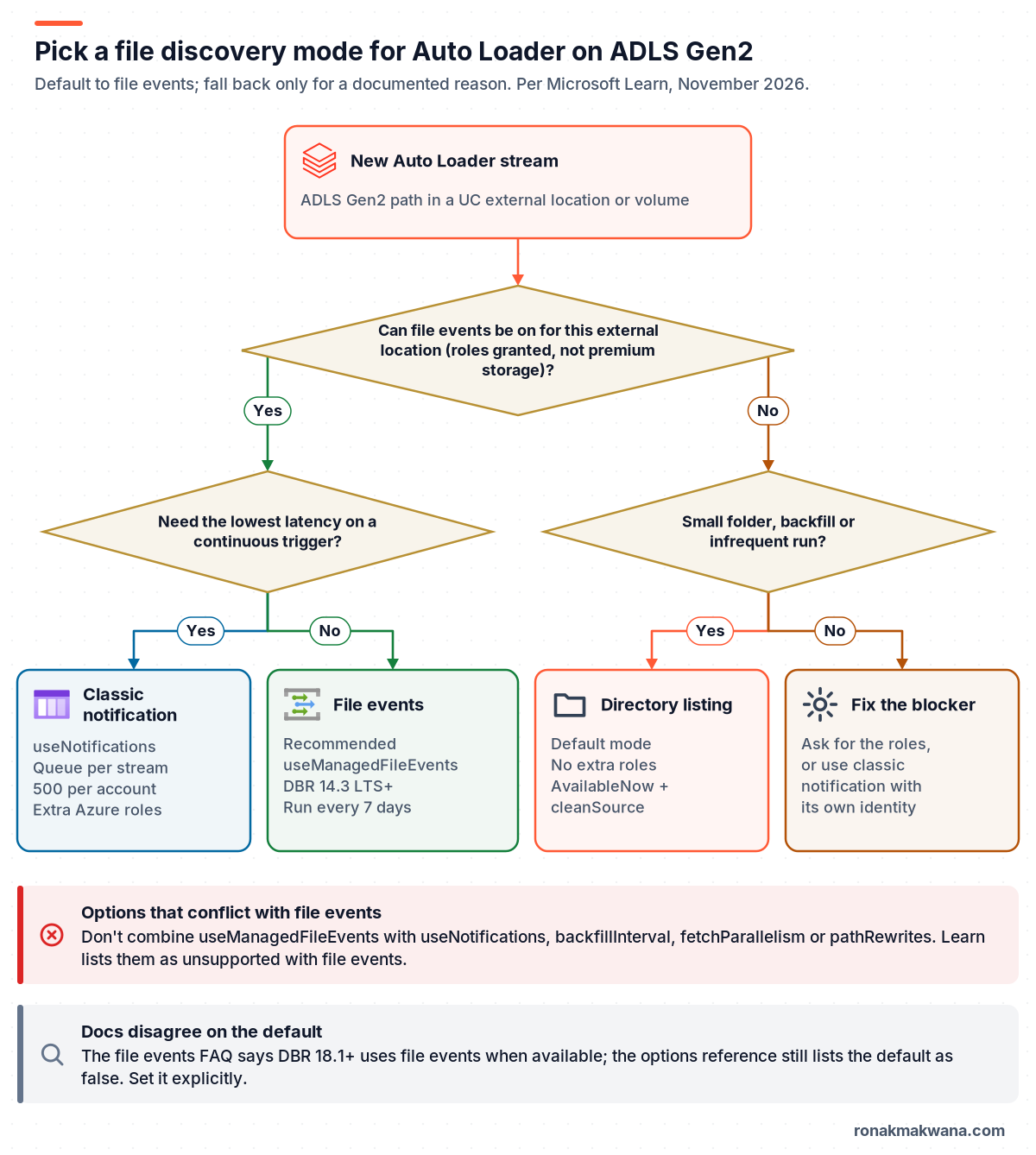
Auto Loader finds new files in one of three ways. You can switch between them across restarts and keep exactly-once guarantees (compare file detection modes).
| Mode | How to turn on | Setup | Best for |
|---|---|---|---|
| File events | useManagedFileEvents | One-time roles on the location | Most streams |
| Classic notification | useNotifications | Identity and queue per stream | Lowest latency |
| Directory listing | Default | None | Small folders, backfills |
- File events use one Event Grid subscription and storage queue per external location, shared by every stream and file arrival trigger. The service caches recent file metadata, and also runs its own full listing every 24 hours while at least one stream uses it, which is why
cloudFiles.backfillIntervalis no longer needed (file events overview). - Run at least every 7 days. If a file-events stream doesn’t run for more than seven days, its read position expires and the next run does a full directory listing.
- Classic notification creates an Event Grid subscription and queue per stream, with a limit of 500 per storage account, and needs its own credentials (a service credential on Runtime 16.1+, or a service principal) with Contributor-level roles. Databricks still documents it and suggests it for very latency-sensitive streams, because file events add a caching hop. It isn’t marked deprecated on the pages checked.
- Directory listing needs no extra permissions. On ADLS it receives up to 5,000 results per list call, but cost and time still grow with folder size. The old incremental listing option (
cloudFiles.useIncrementalListing) is deprecated (directory listing mode). - Don’t mix options. With file events, Learn lists
useNotifications,fetchParallelism,backfillInterval,pathRewritesand resource tags as unsupported (file notification mode).
Troubleshooting
| Symptom | Likely cause | Fix |
|---|---|---|
| PERMISSION_DENIED on the source path | No READ VOLUME / READ FILES, or the path isn’t under any external location | Grant the privilege; check the location URL covers the path |
| 403 or failed location validation | Managed identity lacks Storage Blob Data Contributor, or a firewall blocks access | Assign the role; allow trusted Azure services |
| File Events Read fails on Test connection | Missing queue, account or Event Grid roles | Grant the roles, wait a few minutes, test again |
| Failed to create event grid subscription | Microsoft.EventGrid provider not registered (classic mode) | Register the provider in the subscription |
| UnknownFieldException | A new column arrived; expected in addNewColumns mode | Let the job retry; the schema is already updated |
| Values in _rescued_data | Type or case mismatch with the schema | Add a schema hint, or use type widening |
| Stream asks for a schema | Source folder empty at first start | Provide a schema, or start after files land |
| Existing files not loaded | includeExistingFiles was false on first start | Changing it later has no effect; use a new checkpoint |
| New files not picked up | Stream paths are parent and child, or a glob filter excludes them | Use sibling folders; check pathGlobFilter |
| Files appear late with file events | Upload API didn’t emit FlushWithClose, or 7+ days since last run | Run more often; see Learn’s note on Azure events |
| Updated file not reloaded | Same path is overwritten; default is ingest once | Write new file names; allowOverwrites only with dedup |
| Everything reloads | New or deleted checkpoint folder | Keep the checkpoint; a new path is a new stream |
| Invalid continuation token error (file events) | File events toggled, location or queue changed | Run once with listOnStart, then remove it |
| Trigger error on serverless | processingTime isn’t supported on serverless | Use availableNow |
Two notes on the table. The continuation-token error is CF_MANAGED_FILE_EVENTS_INVALID_CONTINUATION_TOKEN; Learn’s recovery is to set cloudFiles.listOnStart to true and cloudFiles.validateOptions to false, restart, and remove both after one successful micro-batch (Auto Loader FAQ). For a path error rather than a permission error, see fixing “Path does not exist” on ADLS in Databricks.
Security
- No keys or SAS tokens. The access connector’s managed identity is the only Azure identity involved, and users never see it; they get Unity Catalog privileges. See securing data pipelines with managed identity and Key Vault for the wider pattern.
- Least privilege in Unity Catalog. Grant
READ VOLUMEon the landing volume andREAD VOLUME, WRITE VOLUMEonly on the state volume. You can mark a storage credential or external location as read-only, and bind it to specific workspaces so a dev workspace can’t read production files (external locations). - File events don’t widen access. Learn states that enabling them doesn’t give Databricks more access to your data, and the notification path carries file metadata, never file contents (file events FAQ).
- Scope the Azure roles. Storage Account Contributor and EventGrid EventSubscription Contributor are only for automatic setup. If that is too broad for your policy, use a provided queue instead.
- Read-only source vs cleanup. A read-only external location or volume and
cleanSourcedon’t mix, because cleanup has to delete or move files. Pick one per source.
Reliability
- Exactly-once into Delta comes from the checkpoint: Auto Loader keeps discovered file metadata in RocksDB in the checkpoint and resumes from it after a failure (What is Auto Loader?).
- Protect the checkpoint. One per stream, never shared, never under a storage lifecycle policy. Deleting it or pointing at a new folder starts a brand-new stream (checkpoints).
- Changing the source path. The directory listing page says Runtime 11.3 LTS and above lets you change the input path without a new checkpoint (not in notification modes), while the general recovery guidance lists Auto Loader path changes among changes that usually need a new checkpoint. Treat a path change as a planned migration and test it.
- Order isn’t guaranteed. Auto Loader doesn’t guarantee discovery or processing order in any mode, so downstream merges should compare timestamps rather than trust arrival order.
- Immutable files. Have producers write new file names instead of rewriting files in place. Databricks recommends keeping
allowOverwritesfalse, and warns that turning it on in notification mode can ingest a file twice. - For general streaming behaviour (micro-batches, triggers, state), see the Spark Structured Streaming guide.
Monitoring
- Backlog metrics: Auto Loader reports
numFilesOutstandingandnumBytesOutstandingin the streaming query progress, andapproximateQueueSizein notification modes. A steadily growing backlog means the stream is falling behind (monitoring Auto Loader). - Slow discovery shows up as a rising
durationMs.latestOffsetin the progress events. With directory listing, that’s usually folder growth (monitor and observe Auto Loader). - File-level state: schedule the
cloud_files_statequeries above, or build a Databricks SQL alert on the uncommitted-file count. - Data quality: alert on non-null
_rescued_data. Learn’s best practices also suggestcolumnNameOfCorruptRecordfor rows that can’t be parsed at all. - Programmatic listeners: a
StreamingQueryListenerreceives the same metrics per batch (monitoring Structured Streaming).
Cost
- Compute is usually the biggest line. A scheduled
availableNowjob or a file arrival trigger only runs while there’s work; a continuous stream holds a cluster all day. - File discovery costs ADLS list operations in directory listing mode, or queue and Event Grid operations in notification modes. Learn calls continuous triggers with directory listing especially expensive, and ranks file events lowest.
- Folder growth:
cleanSourcewithMOVEarchives processed files (the archive must be in the same external location or volume) so listings stay small. Add a lifecycle rule on the archive path, never on the checkpoint. - Region: keep the workspace and storage account in the same region to avoid egress. See ADLS Gen2 best practices for enterprise data lakes for container and folder layout.
- Prices vary by region and change over time, so none are quoted here.
What was checked for this article
No code in this article was executed against Azure or Databricks, and each code block is labelled. Option names, defaults, runtime versions, Azure roles, privileges, limits and error names were checked against the Microsoft Learn pages below on 19 November 2026. Where Learn disagrees with itself, this post says so: the useManagedFileEvents default (false in the options reference, automatic from Runtime 18.1 in the file events FAQ), the COMMITTED state used on the observability page but missing from the cloud_files_state reference, and whether a source path change needs a new checkpoint. If any of those matter to you, recheck the current pages.
Related guides
Start with ADLS Gen2 best practices for the storage layout, then see how this bronze step fits the medallion architecture. For streaming fundamentals, read the Spark Structured Streaming guide. When access breaks, use the ADLS 403 troubleshooting guide or the Path does not exist fix. More posts are in the Azure Databricks category.
Sources
- What is Auto Loader? (Microsoft Learn)
- Spark API options reference: Auto Loader options (Microsoft Learn)
- Configure schema inference and evolution in Auto Loader (Microsoft Learn)
- Automatic type widening with Auto Loader (Microsoft Learn)
- Compare Auto Loader file detection modes (Microsoft Learn)
- Auto Loader with file events overview (Microsoft Learn)
- Configure Auto Loader streams in file notification mode (Microsoft Learn)
- Configure Auto Loader streams in directory listing mode (Microsoft Learn)
- Using Auto Loader with Unity Catalog (Microsoft Learn)
- Configure Auto Loader for production workloads (Microsoft Learn)
- Auto Loader best practices (Microsoft Learn)
- Monitor and observe Auto Loader (Microsoft Learn)
- Auto Loader FAQ (Microsoft Learn)
- Common data loading patterns with Auto Loader (Microsoft Learn)
- Clean up processed files with Auto Loader (Microsoft Learn)
- Connect to an ADLS Gen2 external location (Microsoft Learn)
- Manage external locations and set up file events (Microsoft Learn)
- File events FAQ (Microsoft Learn)
- cloud_files_state table-valued function (Microsoft Learn)
- Configure Structured Streaming trigger intervals (Microsoft Learn)
- Structured Streaming checkpoints (Microsoft Learn)
- Using Unity Catalog with Structured Streaming (Microsoft Learn)
- Monitoring Structured Streaming queries (Microsoft Learn)
- Trigger jobs when new files arrive (Microsoft Learn)
- Set up incremental ingestion from Azure Data Lake Storage (Microsoft Learn)
- What are Unity Catalog volumes? (Microsoft Learn)
- CREATE VOLUME (Microsoft Learn)
- Unity Catalog privileges and securable objects (Microsoft Learn)
- az role assignment (Azure CLI reference, Microsoft Learn)