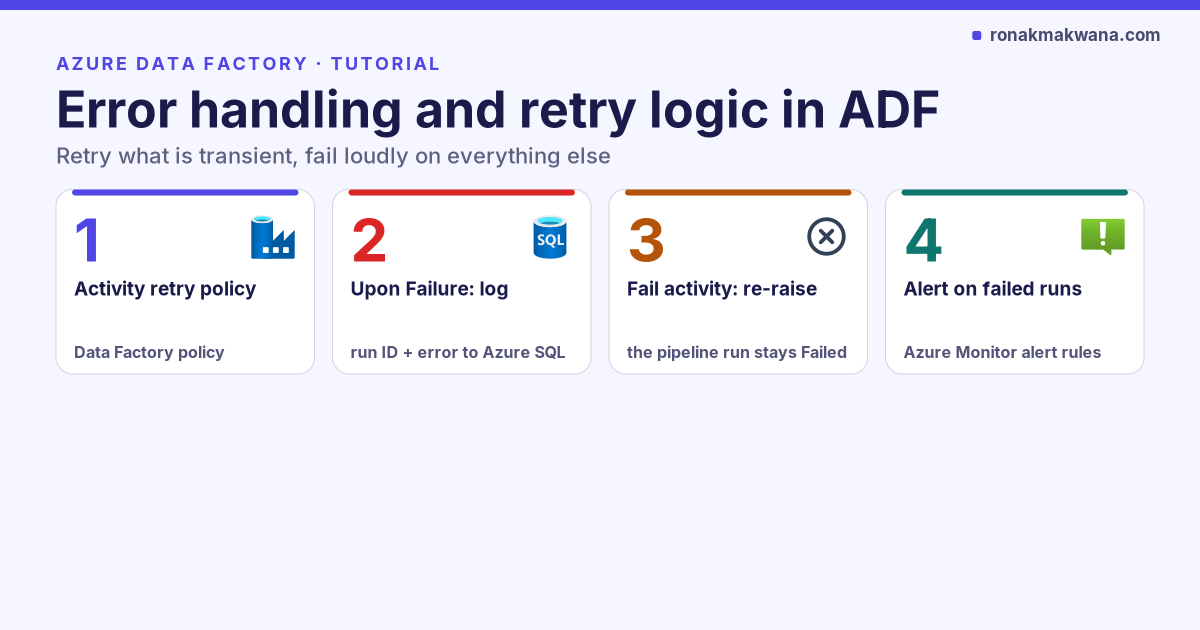
Azure Data Factory gives you several error-handling tools: activity retries, four kinds of dependency paths, a Fail activity, loops with waits, trigger-level retries and reruns from the point of failure. Used together they make a pipeline that recovers from transient problems on its own and fails loudly, with a useful message, when it can’t. Used carelessly, they produce pipelines that retry things that should never be retried, or that report success while data is missing.
This tutorial builds a pipeline with each layer of error handling in place and explains exactly how Data Factory decides whether the run succeeded.
Applies to: Azure Data Factory (V2) and Synapse pipelines. Defaults and behaviours are from Microsoft Learn as checked in October 2026.
First, classify the failure
Retry logic is only useful for failures that might go away on their own. Decide which kind you’re dealing with before you configure anything.
| Failure type | Examples | Right response |
|---|---|---|
| Transient | Network blip, throttling (HTTP 429), database failover, cluster start timeout | Retry with a delay |
| Not ready yet | Source file hasn’t arrived, upstream job still running, API returns 202 | Wait and poll, with a time limit |
| Persistent | Wrong credentials, missing table, firewall rule, bad query | Fail fast, alert, fix, rerun |
| Data | Type conversion error, constraint violation, schema change | Fail or quarantine; never blindly retry |
Prerequisites
- A data factory with a pipeline that copies data and runs a downstream step (for example a Databricks job).
- A logging table and stored procedure in Azure SQL Database, like
etl.usp_log_entity_runfrom Building Metadata-Driven Pipelines in Azure Data Factory. - Diagnostic settings sending pipeline and activity runs to Log Analytics.
Step 1: Set activity retry policies for transient failures
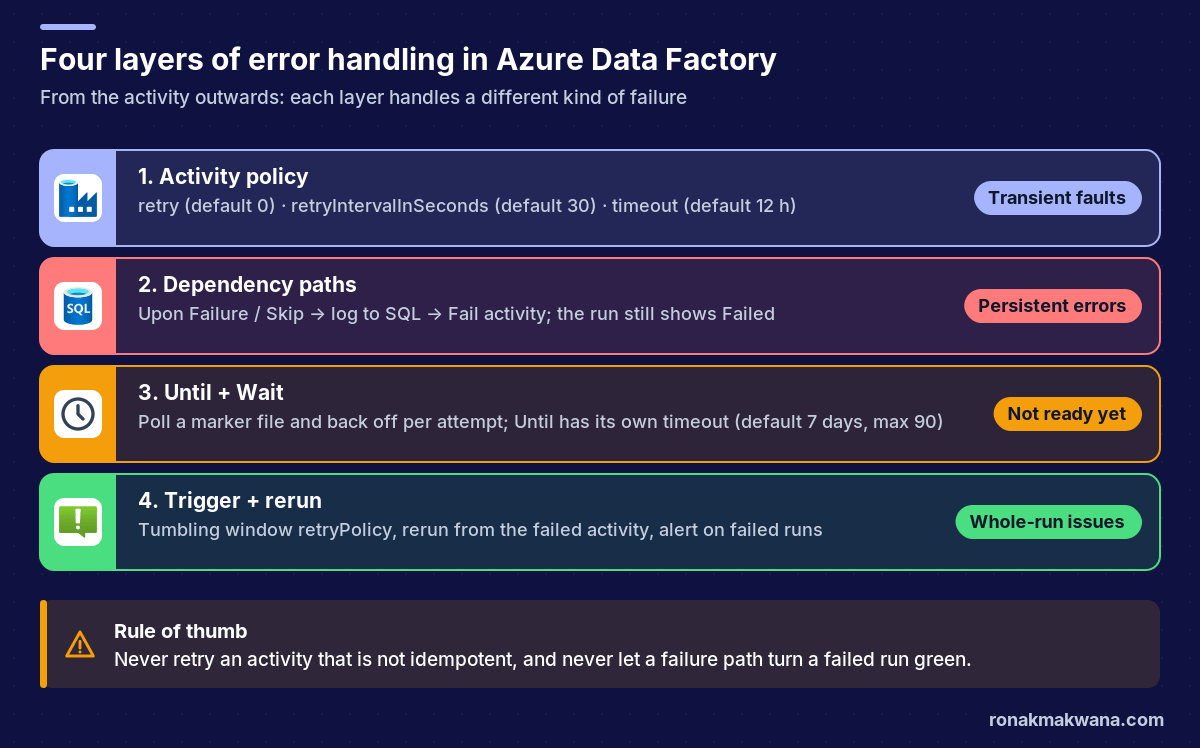
Every activity has a policy with retry (default 0), retryIntervalInSeconds (default 30) and timeout (default 12 hours, minimum 10 minutes, per the pipelines and activities reference). Retries happen inside the activity run, so downstream activities don’t start until the final attempt succeeds or fails.
{
  "name": "CopyOrders",
  "type": "Copy",
  "policy": { "timeout": "0.01:00:00", "retry": 3, "retryIntervalInSeconds": 120 },
  "typeProperties": { }
}
Guidelines:
- Retry reads and idempotent writes (overwrite a window folder, upsert by key). Don’t retry an activity that appends rows or sends an email unless a second run is harmless.
- Keep the interval long enough for a failover or throttling window to pass; a few minutes is more useful than 30 seconds for database sources.
- Always set a timeout. With the default, a hung activity holds the run for 12 hours.
Step 2: Understand how the pipeline outcome is decided
Activities connect through four conditions: Upon Success, Upon Failure, Upon Completion and Upon Skip. Microsoft’s error-handling article explains how the pipeline result is calculated: Data Factory evaluates the leaf activities (if a leaf was skipped, it evaluates that leaf’s parent instead), and the pipeline succeeds only if every evaluated node succeeded. That rule produces three patterns with different results:
| Pattern | Paths defined after the activity | Activity fails → pipeline shows |
|---|---|---|
| Try-Catch | Upon Failure only | Succeeded (if the handler succeeds) |
| Do-If-Else | Upon Success and Upon Failure | Failed |
| Do-If-Skip-Else | Upon Success, Upon Failure, plus a dummy Upon Skip | Succeeded (if the handler succeeds) |
The Try-Catch row is the trap. If you attach a logging activity on failure and nothing else, the pipeline goes green when the copy fails, your failed-run alert never fires, and the tumbling window trigger won’t retry. Step 3 fixes that explicitly.
Step 3: Log, then fail on purpose
The Fail activity ends the run with an error code and message you choose, both of which can be dynamic. Put it after your logging so the run is recorded as failed with a meaningful message.
For a step whose error you want to capture precisely, handle it directly. activity('Name').error.message is the expression Microsoft’s control-flow tutorial uses on a failure path:
[
  {
    "name": "LogTransformFailure",
    "type": "SqlServerStoredProcedure",
    "dependsOn": [ { "activity": "TransformOrders", "dependencyConditions": [ "Failed" ] } ],
    "linkedServiceName": { "referenceName": "ls_sql_control", "type": "LinkedServiceReference" },
    "typeProperties": {
      "storedProcedureName": "etl.usp_log_pipeline_error",
      "storedProcedureParameters": {
        "pipeline_name": { "value": "@pipeline().Pipeline", "type": "String" },
        "run_id":        { "value": "@pipeline().RunId", "type": "String" },
        "activity_name": { "value": "TransformOrders", "type": "String" },
        "error_message": { "value": "@activity('TransformOrders').error.message", "type": "String" }
      }
    }
  },
  {
    "name": "FailTransform",
    "type": "Fail",
    "dependsOn": [ { "activity": "LogTransformFailure", "dependencyConditions": [ "Completed" ] } ],
    "typeProperties": {
      "errorCode": "ORDERS_TRANSFORM_FAILED",
      "message": "@concat('TransformOrders failed in run ', pipeline().RunId, ': ', activity('TransformOrders').error.message)"
    }
  }
]
Note that FailTransform depends on the logger with Completed, so the run still fails even if logging itself fails.
For a sequence of activities, Microsoft documents a generic pattern: connect both the Upon Failure and Upon Skip paths from the last activity to one error-handling step. If any earlier activity fails, the later ones are skipped, so the handler runs; if everything succeeds, it doesn’t. Listing both conditions in one dependency means “either”:
{
  "name": "LogAnyFailure",
  "type": "SqlServerStoredProcedure",
  "dependsOn": [ { "activity": "PublishGold", "dependencyConditions": [ "Failed", "Skipped" ] } ],
  "linkedServiceName": { "referenceName": "ls_sql_control", "type": "LinkedServiceReference" },
  "typeProperties": {
    "storedProcedureName": "etl.usp_log_pipeline_error",
    "storedProcedureParameters": {
      "pipeline_name": { "value": "@pipeline().Pipeline", "type": "String" },
      "run_id":        { "value": "@pipeline().RunId", "type": "String" },
      "activity_name": { "value": "see ADFActivityRun", "type": "String" },
      "error_message": { "value": "One or more activities failed", "type": "String" }
    }
  }
}
Follow it with a Fail activity in the same way. The generic handler doesn’t know which activity failed, so log the run ID and look the details up in the ADFActivityRun table:
ADFActivityRun
| where PipelineRunId == "<run id from the log table>"
| where Status == "Failed"
| project TimeGenerated, ActivityName, ActivityType, ErrorCode, ErrorMessage
Step 4: Poll for “not ready yet” with Until and Wait
When a dependency isn’t ready (a file hasn’t landed, an export is still running), retrying the whole activity is the wrong tool. Poll instead, with a limit. The Until activity loops until an expression is true; its timeout defaults to seven days with a maximum of 90, so always set your own. Because a Set Variable activity can’t reference the variable it’s setting, the Set Variable documentation recommends incrementing through a temporary variable, which this loop does.
{
  "name": "WaitForExport",
  "type": "Until",
  "typeProperties": {
    "expression": { "value": "@or(variables('exportReady'), greaterOrEquals(variables('attempt'), 8))", "type": "Expression" },
    "timeout": "0.02:00:00",
    "activities": [
      { "name": "CheckMarkerFile", "type": "GetMetadata",
        "typeProperties": { "dataset": { "referenceName": "ds_export_marker", "type": "DatasetReference" }, "fieldList": [ "exists" ] } },
      { "name": "SetReady", "type": "SetVariable",
        "dependsOn": [ { "activity": "CheckMarkerFile", "dependencyConditions": [ "Succeeded" ] } ],
        "typeProperties": { "variableName": "exportReady", "value": "@activity('CheckMarkerFile').output.exists" } },
      { "name": "NextAttemptTemp", "type": "SetVariable",
        "dependsOn": [ { "activity": "SetReady", "dependencyConditions": [ "Succeeded" ] } ],
        "typeProperties": { "variableName": "attemptTemp", "value": "@add(variables('attempt'), 1)" } },
      { "name": "NextAttempt", "type": "SetVariable",
        "dependsOn": [ { "activity": "NextAttemptTemp", "dependencyConditions": [ "Succeeded" ] } ],
        "typeProperties": { "variableName": "attempt", "value": "@variables('attemptTemp')" } },
      { "name": "Backoff", "type": "Wait",
        "dependsOn": [ { "activity": "NextAttempt", "dependencyConditions": [ "Succeeded" ] } ],
        "typeProperties": { "waitTimeInSeconds": { "value": "@if(variables('exportReady'), 1, mul(60, variables('attempt')))", "type": "Expression" } } }
    ]
  }
}
Declare exportReady as Boolean and attempt and attemptTemp as Integer variables. The wait grows by a minute per attempt. After the loop, an If Condition checks exportReady and routes to a Fail activity with a clear “export not ready after 8 attempts” message if it’s still false. Pipeline variables aren’t thread-safe, so don’t use this pattern inside a parallel ForEach; move it into a child pipeline instead.
For HTTP endpoints that return 202 with a Location header, the Web activity already follows the asynchronous pattern by default (unless you set turnOffAsync), and its response timeout defaults to one minute with a maximum of ten.
Step 5: Retry and rerun at the pipeline level
- Trigger retry: tumbling window triggers have a
retryPolicy(count defaults to 0; interval defaults to 30 seconds, minimum 30) that reruns the whole pipeline for the same window. Use it for whole-run transient failures, and only if the pipeline is idempotent; see Designing Production-Ready ETL Pipelines. - Rerun from activity: after fixing a persistent failure, rerun from the failed activity in the monitoring view instead of from the start. Container activities have specific rerun rules (a ForEach always loops over its items; inner activities may be skipped), so check the run afterwards.
Step 6: Alert on the outcome, not the noise
Create an Azure Monitor alert on the Failed pipeline runs metric, filtered to production pipelines. Because Step 3 makes every handled failure still fail the run, this one alert covers them all. Avoid alerting on failed activity runs: retried transient failures show up there and will train people to ignore alerts.
Verify the setup
- Point
CopyOrdersat a table that doesn’t exist and debug. Expect three retries, then the generic handler logs the run, the Fail activity ends it with your message, and the run shows Failed. - Make the marker file appear after two polls. Expect the Until loop to finish on the third attempt and the pipeline to continue.
- Check that one alert fired for the failed run and none for the successful one.
For a broader view of where errors come from in Data Factory pipelines (schema drift in particular), see handling schema drift when landing Parquet.
Clean up
Restore the table name in CopyOrders, delete the test marker files, and remove any test alert rules you created.
About this article
The JSON fragments were checked to be well-formed JSON locally, but weren’t run in a live data factory, and the stored procedure etl.usp_log_pipeline_error is assumed rather than shown. Pipeline outcome rules, defaults and limits are quoted from the Microsoft Learn pages below. Last checked against official documentation: October 2026.
Sources
- Errors and conditional execution (Microsoft Learn)
- Pipelines and activities (Microsoft Learn)
- Fail activity (Microsoft Learn)
- Until activity (Microsoft Learn)
- Set Variable activity (Microsoft Learn)
- Web activity (Microsoft Learn)
- Branching and chaining activities (Microsoft Learn)
- Tumbling window triggers (Microsoft Learn)
- Visually monitor Azure Data Factory (Microsoft Learn)