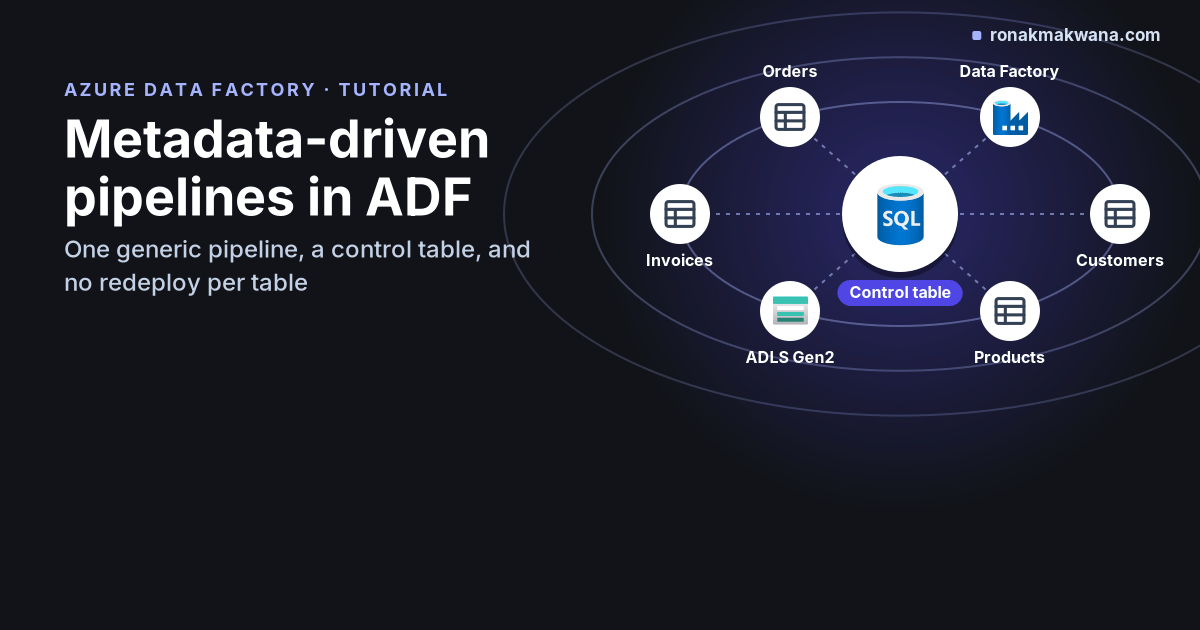
When a data platform grows from five source tables to five hundred, building one pipeline per table stops being an option. A metadata-driven pipeline flips the model: the list of what to copy, and how, lives in a control table, and a single generic pipeline reads that table and loops over it. Adding a new table becomes an INSERT, not a deployment.
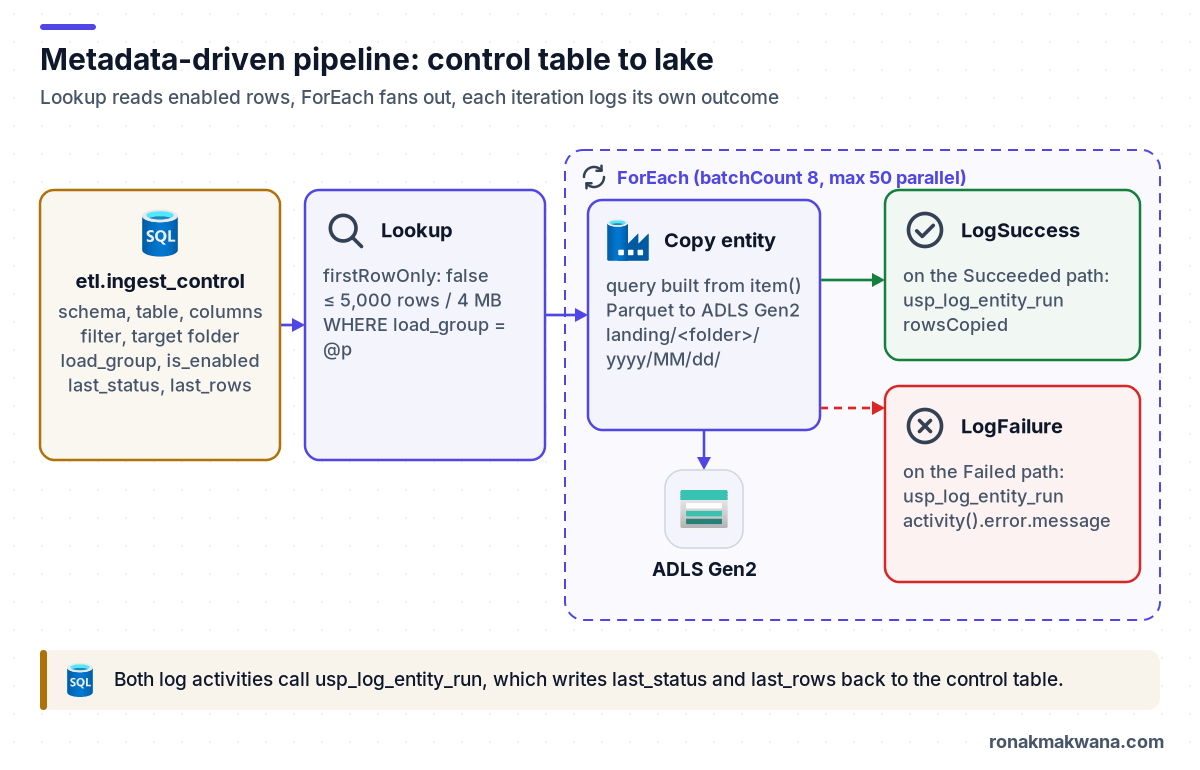
This tutorial builds that pattern in Azure Data Factory: a control table in Azure SQL Database, a Lookup that reads it, a ForEach that fans out, a parameterised Copy activity that lands each table as Parquet in ADLS Gen2, and per-entity logging back to the control table.
Applies to: Azure Data Factory (V2) with the Azure integration runtime, Azure SQL Database as both source and control store, ADLS Gen2 as the sink. Limits quoted are from the Lookup and ForEach activity documentation as checked in October 2026.
Prerequisites
- A data factory with a system-assigned managed identity.
- An Azure SQL Database for the control table (it can be the source database for this tutorial, or a separate small database, which is better in production). The factory’s identity needs a database user:
CREATE USER [contoso-dev-adf] FROM EXTERNAL PROVIDER;withdb_datareaderon the source and permission to execute the logging procedure. - An ADLS Gen2 account with a
landingcontainer and Storage Blob Data Contributor for the factory identity. - Familiarity with parameterised datasets, covered in Designing Production-Ready ETL Pipelines.
Step 1: Create the control table
The control table describes each entity: where it comes from, which columns and rows to take, where it lands, and how the last run went.
CREATE SCHEMA etl;
GO
CREATE TABLE etl.ingest_control (
    entity_id         int IDENTITY(1,1) PRIMARY KEY,
    source_system     varchar(50)    NOT NULL,
    source_schema     sysname        NOT NULL,
    source_table      sysname        NOT NULL,
    column_list       nvarchar(max)  NOT NULL CONSTRAINT df_ctl_cols DEFAULT N'*',
    filter_clause     nvarchar(1000) NULL,
    target_container  varchar(63)    NOT NULL CONSTRAINT df_ctl_cont DEFAULT 'landing',
    target_folder     varchar(400)   NOT NULL,
    load_group        tinyint        NOT NULL CONSTRAINT df_ctl_grp DEFAULT 1,
    is_enabled        bit            NOT NULL CONSTRAINT df_ctl_en  DEFAULT 1,
    last_run_id       varchar(64)    NULL,
    last_status       varchar(20)    NULL,
    last_rows_copied  bigint         NULL,
    last_error        nvarchar(4000) NULL,
    last_run_utc      datetime2(0)   NULL
);
GO
INSERT INTO etl.ingest_control (source_system, source_schema, source_table, column_list, filter_clause, target_folder, load_group)
VALUES ('erp', 'Sales', 'Orders',     N'OrderID, CustomerID, OrderDate, Status, TotalDue', N'OrderDate >= DATEADD(day, -7, SYSUTCDATETIME())', 'erp/orders', 1),
       ('erp', 'Sales', 'Customers',  N'*', NULL, 'erp/customers', 1),
       ('erp', 'Production', 'Product', N'ProductID, Name, ListPrice, ModifiedDate', NULL, 'erp/products', 2);
GO
CREATE PROCEDURE etl.usp_log_entity_run
    @entity_id int, @run_id varchar(64), @status varchar(20),
    @rows_copied bigint = NULL, @error nvarchar(4000) = NULL
AS
BEGIN
    SET NOCOUNT ON;
    UPDATE etl.ingest_control
       SET last_run_id = @run_id, last_status = @status, last_rows_copied = @rows_copied,
           last_error = LEFT(@error, 4000), last_run_utc = SYSUTCDATETIME()
     WHERE entity_id = @entity_id;
END;
load_group lets you split entities into independently scheduled groups (for example hourly and nightly), and is_enabled lets you pause an entity without deleting its configuration.
Step 2: Create linked services and parameterised datasets
Create an Azure SQL Database linked service with authenticationType set to SystemAssignedManagedIdentity (one of the documented options for the connector), and an ADLS Gen2 linked service using the same managed identity. Then create two datasets:
ds_sql_generic: an Azure SQL table dataset with no table set. The Copy activity will supply a query.ds_lake_parquet: a Parquet dataset withcontainer,folderandfileparameters, as shown in the production-ready pipelines post.
Step 3: Read the control table with a Lookup
The pipeline takes a loadGroup parameter. The Lookup returns every enabled entity in that group. Set firstRowOnly to false so it returns an array.
{
  "name": "GetEntities",
  "type": "Lookup",
  "policy": { "timeout": "0.00:10:00", "retry": 2, "retryIntervalInSeconds": 30 },
  "typeProperties": {
    "source": {
      "type": "AzureSqlSource",
      "sqlReaderQuery": {
        "value": "SELECT entity_id, source_schema, source_table, column_list, filter_clause, target_container, target_folder FROM etl.ingest_control WHERE is_enabled = 1 AND load_group = @{pipeline().parameters.loadGroup}",
        "type": "Expression"
      }
    },
    "dataset": { "referenceName": "ds_sql_generic", "type": "DatasetReference" },
    "firstRowOnly": false
  }
}
Know the Lookup limits before you depend on it: the documentation states it returns at most 5,000 rows and 4 MB of output. If your control table might exceed that for one group, split it into more groups, or have the Lookup return group IDs and use an Execute Pipeline per group.
Step 4: Loop with ForEach and copy each entity
The ForEach iterates over @activity('GetEntities').output.value. According to the ForEach documentation, parallel execution allows at most 50 concurrent iterations, and batchCount defaults to 20. Set it to what your source database can tolerate, not to the maximum.
{
  "name": "ForEachEntity",
  "type": "ForEach",
  "dependsOn": [ { "activity": "GetEntities", "dependencyConditions": [ "Succeeded" ] } ],
  "typeProperties": {
    "items": { "value": "@activity('GetEntities').output.value", "type": "Expression" },
    "isSequential": false,
    "batchCount": 8,
    "activities": [
      {
        "name": "CopyEntity",
        "type": "Copy",
        "policy": { "timeout": "0.02:00:00", "retry": 2, "retryIntervalInSeconds": 120 },
        "typeProperties": {
          "source": {
            "type": "AzureSqlSource",
            "sqlReaderQuery": {
              "value": "SELECT @{item().column_list} FROM [@{item().source_schema}].[@{item().source_table}]@{if(empty(coalesce(item().filter_clause, '')), '', concat(' WHERE ', item().filter_clause))}",
              "type": "Expression"
            }
          },
          "sink": { "type": "ParquetSink", "storeSettings": { "type": "AzureBlobFSWriteSettings" } }
        },
        "inputs":  [ { "referenceName": "ds_sql_generic", "type": "DatasetReference" } ],
        "outputs": [ {
          "referenceName": "ds_lake_parquet", "type": "DatasetReference",
          "parameters": {
            "container": "@item().target_container",
            "folder": "@concat(item().target_folder, '/', formatDateTime(pipeline().TriggerTime, 'yyyy/MM/dd'))",
            "file": "@concat(item().source_table, '.parquet')"
          }
        } ]
      },
      {
        "name": "LogSuccess",
        "type": "SqlServerStoredProcedure",
        "dependsOn": [ { "activity": "CopyEntity", "dependencyConditions": [ "Succeeded" ] } ],
        "linkedServiceName": { "referenceName": "ls_sql_control", "type": "LinkedServiceReference" },
        "typeProperties": {
          "storedProcedureName": "etl.usp_log_entity_run",
          "storedProcedureParameters": {
            "entity_id":   { "value": "@item().entity_id", "type": "Int32" },
            "run_id":      { "value": "@pipeline().RunId", "type": "String" },
            "status":      { "value": "Succeeded", "type": "String" },
            "rows_copied": { "value": "@activity('CopyEntity').output.rowsCopied", "type": "Int64" }
          }
        }
      },
      {
        "name": "LogFailure",
        "type": "SqlServerStoredProcedure",
        "dependsOn": [ { "activity": "CopyEntity", "dependencyConditions": [ "Failed" ] } ],
        "linkedServiceName": { "referenceName": "ls_sql_control", "type": "LinkedServiceReference" },
        "typeProperties": {
          "storedProcedureName": "etl.usp_log_entity_run",
          "storedProcedureParameters": {
            "entity_id": { "value": "@item().entity_id", "type": "Int32" },
            "run_id":    { "value": "@pipeline().RunId", "type": "String" },
            "status":    { "value": "Failed", "type": "String" },
            "error":     { "value": "@activity('CopyEntity').error.message", "type": "String" }
          }
        }
      }
    ]
  }
}
A few points about this design:
- Inside a ForEach,
item()is the current control row. Every dynamic value comes from it, so the same activities serve every entity. - The failure branch doesn’t swallow the error. When
CopyEntityfails,LogFailurerecords the message (Microsoft’s control-flow tutorial uses the sameactivity('…').error.messageexpression), and becauseCopyEntityhas both a success and a failure path (the pattern Microsoft’s error-handling docs call Do-If-Else), the run is still reported as failed even when the logging step succeeds. Other entities keep running. rowsCopiedis a documented Copy activity output property, so the control table always shows how many rows the last run moved.
Step 5: Run and check the results
- Debug the pipeline with
loadGroup = 1. - In the Monitor view, the ForEach shows one Copy and one logging activity per entity (two entities for group 1).
- In the lake you should see
landing/erp/orders/<yyyy>/<MM>/<dd>/Orders.parquetand the same for customers. - Query the control table:
SELECT source_table, last_status, last_rows_copied, last_run_utc, last_error
FROM etl.ingest_control
WHERE load_group = 1;
Now add an entity with an INSERT, rerun, and it’s picked up with no change to the pipeline.
Design considerations
Treat the control table as code
Column lists and filter clauses are concatenated into SQL, so anyone who can write to the control table can change what runs against your source. Restrict write access to the deployment identity, keep the seed data in source control as a SQL script, and deploy it through the same CI/CD path as the factory.
Know when to stop adding columns
Metadata-driven pipelines tend to accumulate flags until the control table becomes a programming language. A good rule is that the control table describes what to load, while the pipeline decides how. If two groups of entities need genuinely different logic (full versus incremental, files versus tables), build a second worker pipeline and add a column that selects it, rather than wrapping everything in If Condition activities. Incremental loading with a watermark column is the subject of the next post in this series.
Consider the built-in option
The Copy Data tool in Data Factory has a metadata-driven copy task that generates a control table script and parameterised pipelines from a wizard. It’s a quick start for straightforward database-to-lake copies. A hand-built version like this one gives you full control over the schema of the control table and the logging.
Watch out for schema changes
With column_list = '*', new source columns flow through automatically, and the Parquet files change shape. Downstream readers need to cope with that; the techniques in handling schema drift when landing Parquet apply here as well. For where these files go next, see the medallion architecture post.
Clean up
- Delete the test pipeline, datasets and linked services, or keep them as a template.
- Drop the test objects:
DROP PROCEDURE etl.usp_log_entity_run; DROP TABLE etl.ingest_control; DROP SCHEMA etl; - Delete the test folders under
landing/erp/.
About this article
The pipeline JSON was checked to be well-formed JSON locally, but neither the pipeline nor the T-SQL was run against a live Data Factory or Azure SQL Database. Treat them as a starting point and validate in debug mode. Table and factory names are fictional. Last checked against official documentation: October 2026.
Sources
- Lookup activity (Microsoft Learn)
- ForEach activity (Microsoft Learn)
- Metadata-driven copy with the Copy Data tool (Microsoft Learn)
- Azure SQL Database connector (Microsoft Learn)
- Monitor copy activity (Microsoft Learn)
- Expressions and functions (Microsoft Learn)
- Branching and chaining activities tutorial (Microsoft Learn)
- Errors and conditional execution (Microsoft Learn)
- Parameterize linked services (Microsoft Learn)