Most Azure Data Factory pipelines work the first time they run. Production readiness is about what happens on run 400: the source is slow, a file arrives twice, a deployment lands mid-run, or someone needs to reload last Tuesday. This post is a design guide for pipelines that cope with those situations, with the specific settings, defaults and limits that matter.
Applies to: Azure Data Factory (V2) pipelines on the Azure integration runtime or a self-hosted integration runtime. Defaults and limits quoted here come from Microsoft Learn and were rechecked in October 2026.
What “production-ready” means in practice
I recommend judging a pipeline against five properties before it goes live:
- Rerunnable: running the same window twice gives the same result, with no duplicates.
- Bounded: every activity has a timeout and a retry policy chosen on purpose, and the pipeline has a concurrency limit.
- Observable: failures raise alerts, and run history lives longer than the built-in retention.
- Secure: no credentials in pipeline JSON; identities are managed by Microsoft Entra ID.
- Deployable: the same pipeline JSON is promoted from dev to test to prod with only parameters changing.
The rest of the post takes these one at a time.
1. Split orchestration from work
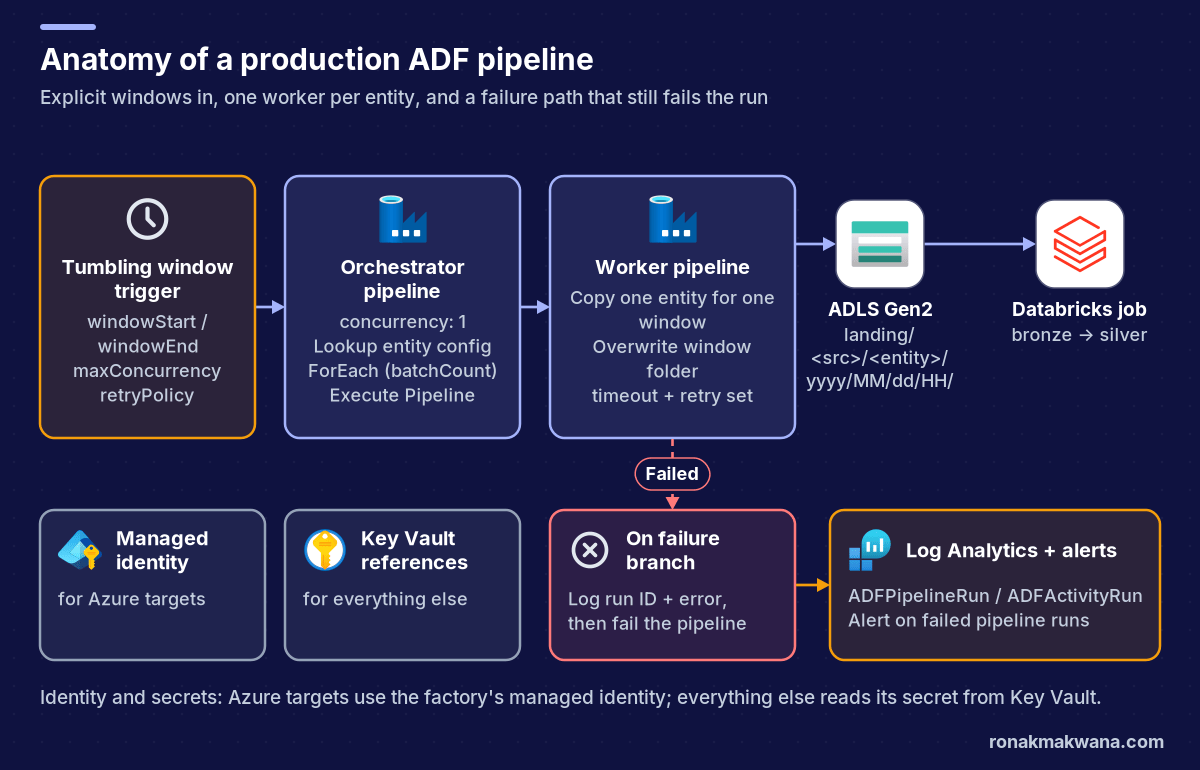
Put the control flow (what to load, in which order) in an orchestrator pipeline, and the actual movement (copy one entity, run one transformation) in small worker pipelines called with the Execute Pipeline activity. This keeps each pipeline readable and lets you rerun a single worker for a single entity.
It also keeps you clear of service limits. Microsoft’s published limits for Data Factory include a maximum of 120 activities per pipeline (inner activities in containers such as ForEach count toward that), 50 parameters per pipeline, and 10,000 concurrent pipeline runs per factory, shared across all pipelines. A single pipeline that grows towards 120 activities is a design smell long before it’s a hard error.
2. Parameterise linked services, datasets and pipelines
Every hard-coded server name, container or folder is a future copy-paste bug. Data Factory supports parameters at three levels, and all linked service types support parameterisation according to the docs.
- Linked service parameters for values like a database name, so one linked service serves many databases on the same server.
- Dataset parameters for folder paths and file names.
- Global parameters (referenced as
pipeline().globalParameters.<name>) for environment-level values such as a storage account name, overridden per environment during deployment.
A parameterised Parquet dataset on ADLS Gen2 looks like this:
{
  "name": "ds_lake_parquet",
  "properties": {
    "linkedServiceName": { "referenceName": "ls_adls_lake", "type": "LinkedServiceReference" },
    "parameters": {
      "container": { "type": "string" },
      "folder":    { "type": "string" },
      "file":      { "type": "string" }
    },
    "type": "Parquet",
    "typeProperties": {
      "location": {
        "type": "AzureBlobFSLocation",
        "fileSystem": { "value": "@dataset().container", "type": "Expression" },
        "folderPath": { "value": "@dataset().folder", "type": "Expression" },
        "fileName":   { "value": "@dataset().file", "type": "Expression" }
      },
      "compressionCodec": "snappy"
    }
  }
}
One dataset now serves every entity in every layer. A later post in this series, on metadata-driven pipelines, takes this further by driving those parameters from a control table.
3. Make every run idempotent
The single most useful property of a production pipeline is that rerunning it is safe. Two habits get you there.
Process explicit windows, not “now”. A tumbling window trigger hands each run a fixed start and end time, exposed as trigger().outputs.windowStartTime and windowEndTime. If a run fails, it’s retried or rerun for the same window. Contrast this with a schedule trigger that computes “yesterday” from the current time: rerun it a day late and it loads the wrong day.
{
  "name": "tr_orders_hourly",
  "properties": {
    "type": "TumblingWindowTrigger",
    "typeProperties": {
      "frequency": "Hour",
      "interval": 1,
      "startTime": "2026-02-01T00:00:00Z",
      "delay": "00:10:00",
      "maxConcurrency": 4,
      "retryPolicy": { "count": 2, "intervalInSeconds": 300 }
    },
    "pipeline": {
      "pipelineReference": { "referenceName": "pl_orders_orchestrator", "type": "PipelineReference" },
      "parameters": {
        "windowStart": "@trigger().outputs.windowStartTime",
        "windowEnd": "@trigger().outputs.windowEndTime"
      }
    }
  }
}
Per the tumbling window trigger reference, maxConcurrency is required (maximum 50), the retry count defaults to 0 and the retry interval defaults to 30 seconds, with 30 as the minimum. The delay gives late-arriving source data a few minutes before the window starts processing.
Write to window-specific locations, and overwrite. Land files in a folder derived from the window, for example landing/erp/orders/2026/02/04/13/, and delete or overwrite that folder at the start of the run. For database sinks, use a pre-copy script that deletes the window’s rows, or load into a staging table and merge. Either way, a rerun replaces the window instead of appending a second copy.
4. Set activity timeouts and retries on purpose
The documented activity policy defaults are a 12-hour timeout (minimum 10 minutes), zero retries, and a 30-second retry interval. A 12-hour timeout means a hung copy can hold a window, and any downstream dependency, for half a day before anyone hears about it.
"policy": {
  "timeout": "0.01:00:00",
  "retry": 2,
  "retryIntervalInSeconds": 120,
  "secureOutput": false,
  "secureInput": false
}
| Activity | Timeout guidance | Retry guidance |
|---|---|---|
| Copy from a database | A few times the normal duration | 2–3 retries with a delay; transient network and throttling errors are common |
| Web activity / REST call | Short; match the API’s own timeout | Only if the call is idempotent |
| Databricks job or notebook | Normal duration plus cluster start time | 1 retry at most; fix the code instead of retrying logic errors |
| Stored procedure that writes | Short | Only if the procedure is safe to run twice |
| Lookup / Get Metadata | Short | 2 retries |
Set secureOutput to true on Web or Lookup activities that return tokens or personal data; the docs state that secure output isn’t logged for monitoring.
5. Limit concurrency
By default a pipeline has no maximum number of concurrent runs. Set the pipeline-level concurrency property so extra runs queue instead of competing for the same source or target. Combine it with the trigger’s maxConcurrency and the ForEach activity’s batchCount so a backfill of 200 windows doesn’t open 200 connections to a production database.
{
  "name": "pl_orders_orchestrator",
  "properties": {
    "concurrency": 1,
    "parameters": {
      "windowStart": { "type": "string" },
      "windowEnd":   { "type": "string" }
    },
    "activities": [ ]
  }
}
6. Give failures somewhere to go
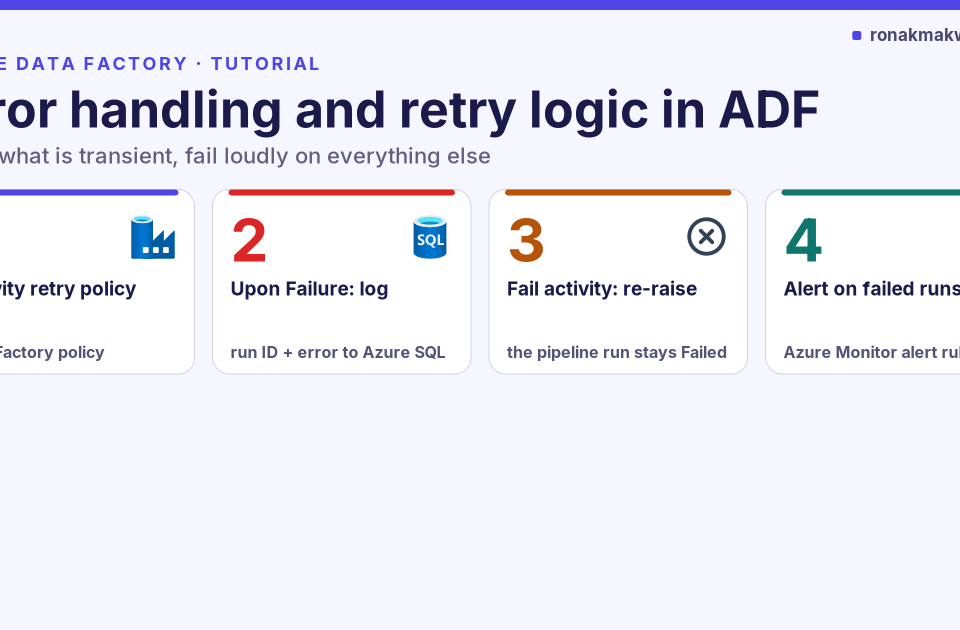
Activities connect through four dependency conditions: Succeeded, Failed, Skipped and Completed. A production pipeline should have an explicit failure branch that records what failed (pipeline run ID, activity name, error message) to a log table or Log Analytics, and then fails the pipeline so the trigger’s retry policy and your alerts see it. If the failure branch succeeds and nothing re-raises the error, the run can look green while data is missing. The detailed patterns are in the error handling post later in this series.
7. Keep credentials out of pipeline JSON
- Use the factory’s managed identity for Azure targets that support Entra ID authentication: ADLS Gen2, Azure SQL Database, Key Vault, Databricks.
- For everything else, reference Key Vault from the linked service so the secret is resolved at run time:
"password": {
  "type": "AzureKeyVaultSecret",
  "store": { "referenceName": "ls_keyvault", "type": "LinkedServiceReference" },
  "secretName": "erp-sql-password"
}
On the network side, choose the integration runtime per source: the Azure integration runtime with a managed virtual network and managed private endpoints for PaaS sources, and a self-hosted integration runtime (installed on more than one node for high availability) for on-premises systems.
8. Keep run history and alert on it
Data Factory stores pipeline run data for 45 days. Route diagnostic logs to a Log Analytics workspace (resource-specific tables) to keep history longer and to query it with KQL. Create alerts on the built-in Failed pipeline runs metric for paging, and use log queries for trends such as windows that are getting slower:
ADFPipelineRun
| where TimeGenerated > ago(14d) and Status in ("Succeeded", "Failed")
| extend durationMin = datetime_diff('minute', End, Start)
| summarize runs = count(), failed = countif(Status == "Failed"),
            p95DurationMin = percentile(durationMin, 95) by PipelineName, bin(TimeGenerated, 1d)
| order by PipelineName asc, TimeGenerated asc
Add annotations to pipelines (for example the owning team) and user properties to activities (for example the source table) so they show up in monitoring and make the logs searchable.
9. Deploy with CI/CD, not the Publish button
Connect only the development factory to Git. Test and production factories are deployment targets that receive ARM templates generated from the collaboration branch. Microsoft’s automated publishing flow uses the @microsoft/azure-data-factory-utilities npm package to validate all resources and export the ARM template in a build pipeline, so nobody has to click Publish. During release:
- Stop triggers with the pre-deployment script from the Microsoft docs (the same script restarts them and removes deleted resources afterwards).
- Deploy the ARM template with environment-specific parameter files: linked service URLs, Key Vault names, global parameters.
- Start triggers again.
Stopping triggers matters because deploying a changed trigger while it’s running can fail the deployment or leave the trigger in an unexpected state.
Pre-go-live checklist
| Check | Pass condition |
|---|---|
| Rerun safety | Running the same window twice gives identical target data |
| Timeouts | No activity relies on the 12-hour default |
| Retries | Retries set only where the activity is idempotent |
| Concurrency | Pipeline concurrency, trigger maxConcurrency and ForEach batchCount set |
| Failure path | Failures are logged and still fail the pipeline |
| Secrets | No passwords, keys or tokens in JSON; managed identity or Key Vault only |
| Monitoring | Diagnostic settings to Log Analytics plus an alert on failed runs |
| Deployment | Pipeline promoted by CI/CD with parameter files, triggers stopped during release |
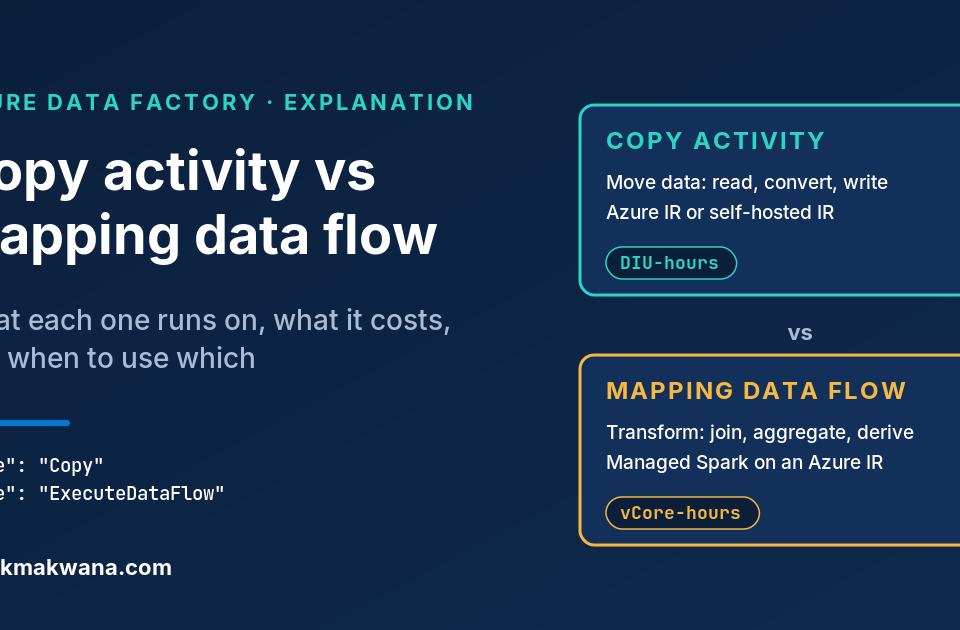
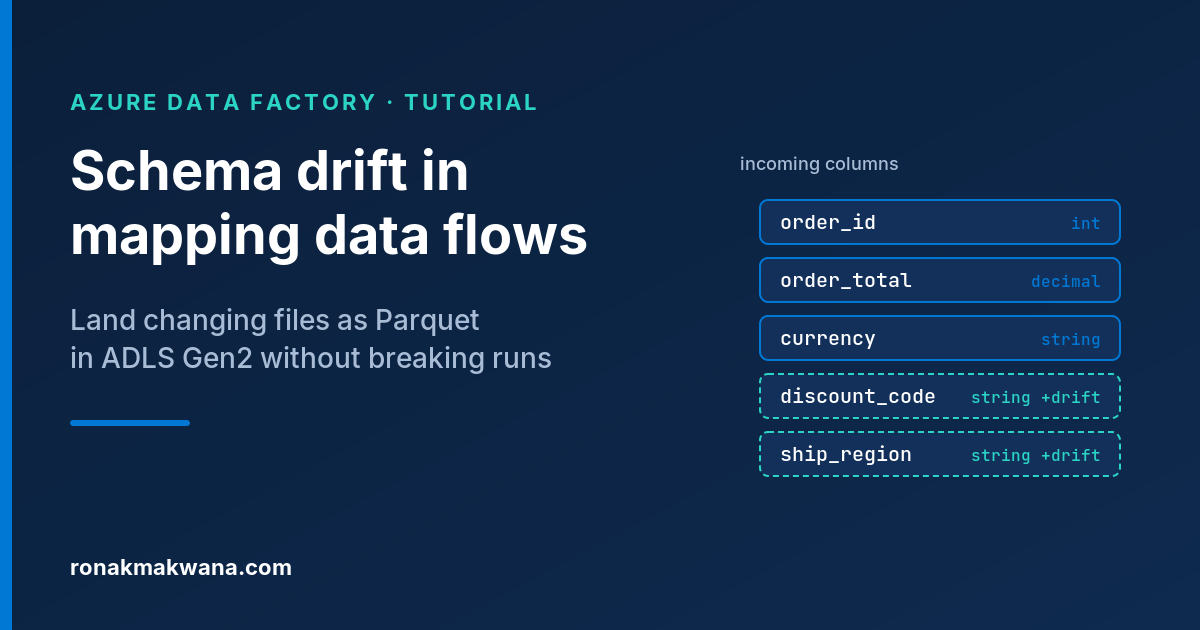
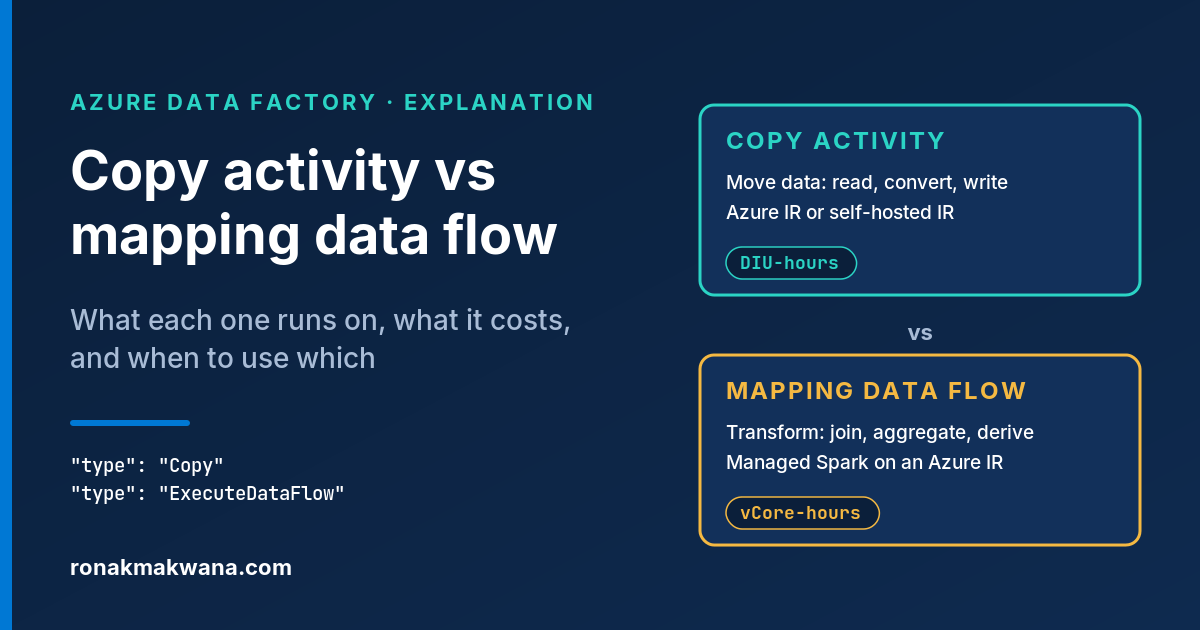
For where Data Factory sits in the wider platform, see Building a Modern Data Engineering Platform on Microsoft Azure. For choosing between activity types inside these pipelines, see Copy activity vs mapping data flow, and if your sources change shape, handling schema drift when landing Parquet.
About this article
The pipeline, dataset and trigger JSON and the KQL query are illustrative and were not run against a live Data Factory or Log Analytics workspace. Defaults and limits (activity timeout and retry defaults, tumbling window retry and concurrency rules, 45-day run retention, 120 activities and 50 parameters per pipeline) are quoted from the Microsoft Learn pages below. Last checked against official documentation: October 2026.
Sources
- Pipelines and activities (Microsoft Learn)
- Create tumbling window triggers (Microsoft Learn)
- Azure subscription and service limits: Data Factory (Microsoft Learn)
- Parameterize linked services (Microsoft Learn)
- Global parameters (Microsoft Learn)
- Store credentials in Azure Key Vault (Microsoft Learn)
- Monitor Azure Data Factory (Microsoft Learn)
- Automated publishing for CI/CD (Microsoft Learn)
- CI/CD pre- and post-deployment scripts (Microsoft Learn)
- Managed virtual network and managed private endpoints (Microsoft Learn)