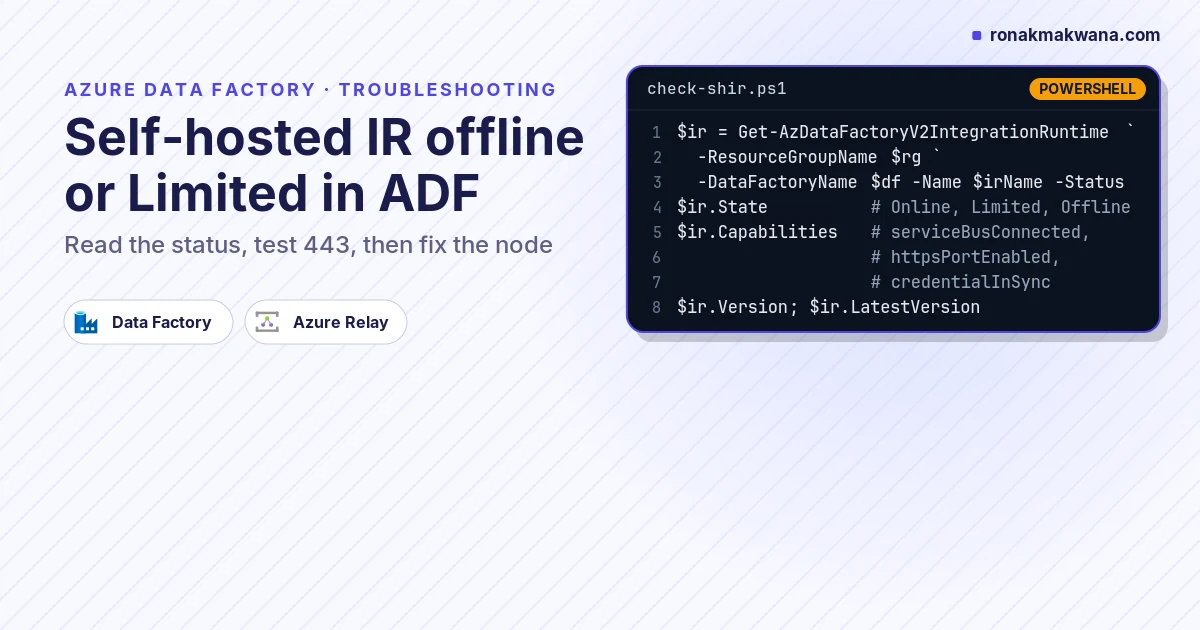
When an Azure Data Factory self-hosted integration runtime shows Offline, no node is connected to the Data Factory service. When it shows Limited, a node is connected but something around it is broken: Microsoft Learn lists an HTTP port 8060 problem, a Service Bus (Azure Relay) connectivity problem, or a credential sync problem (Monitor an integration runtime). So the fix depends on the status, and the fastest route is: read the status and its capability flags, confirm the Integration Runtime Service is running on the node, read the Integration Runtime event log, then test outbound HTTPS (443) from the node to the exact service URLs your IR uses.
This guide turns the scattered Microsoft Learn troubleshooting notes into one ordered workflow for a self-hosted integration runtime that’s offline, Limited, Inactive or Unavailable, with the checks to run on the node and what each result tells you.
Quick answer
- Offline: the node can’t reach the service. Check the service is running, the host isn’t hibernating, outbound 443 to the factory’s service URL works (DNS, firewall, proxy, TLS), and the IR version hasn’t expired.
- Limited: check the
Capabilitiesflags fromGet-AzDataFactoryV2IntegrationRuntime -Status. Relay blocked (*.servicebus.windows.neton 443) breaks Test connection and data preview; nodes that can’t talk on 8060 or are out of credential sync also give Limited. - Inactive (one node): its configuration differs from the majority of nodes or it can’t reach the other nodes. Check port 8060, node name resolution and versions.
- Unavailable after a release: a linked ARM deployment can overwrite a shared self-hosted IR with an empty definition. Strip IR resources from the templates.
- Read the log first: Event Viewer,
Applications and Services Logs > Integration Runtime. Messages likeUnable to connect to the remote serverorAuthentication Key is not assigned yettell you which branch you’re on.
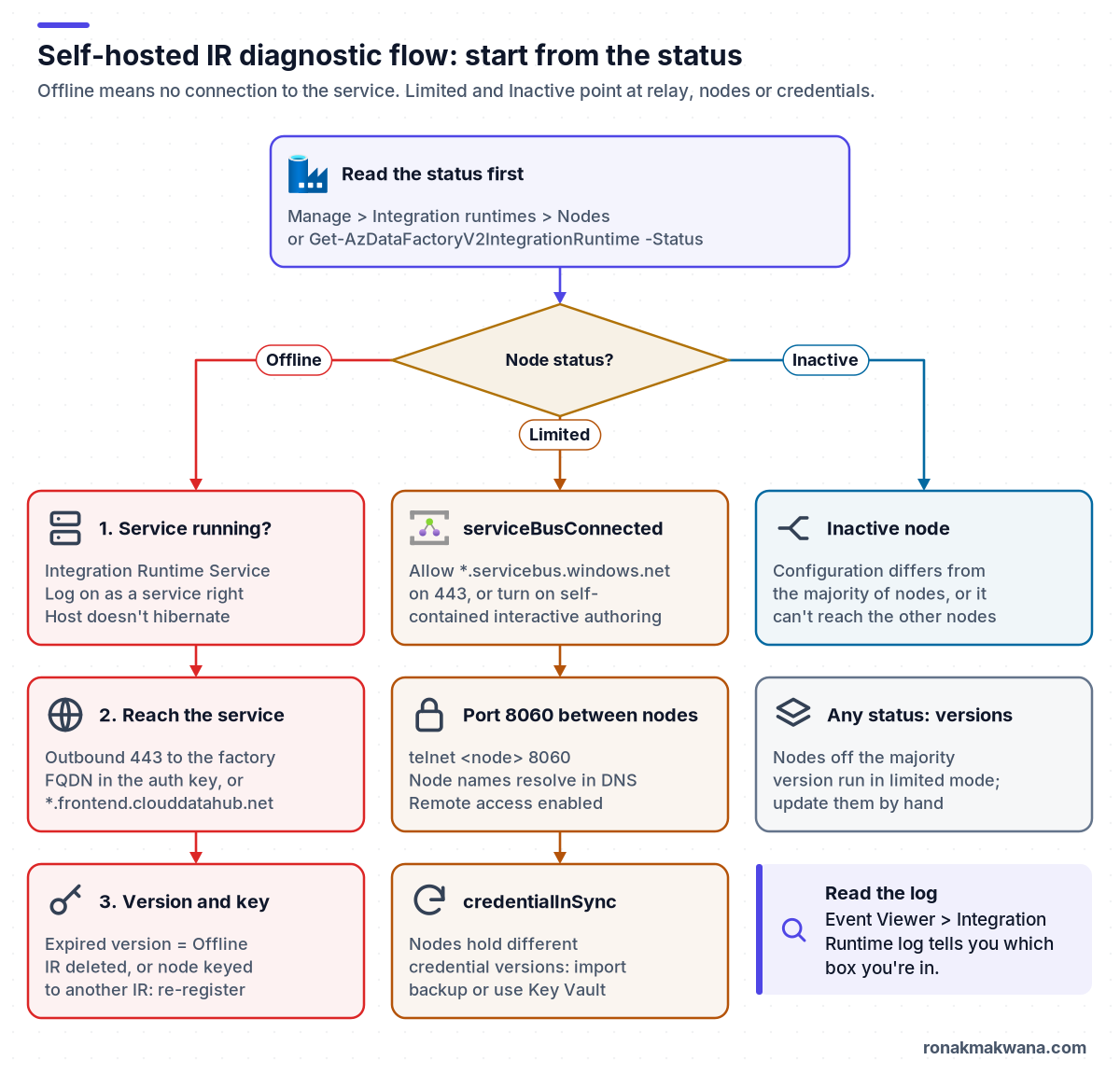
What each self-hosted IR status means
Data Factory reports a status for every node and one for the logical IR, which is derived from the nodes. These are the documented meanings (Microsoft Learn):
| Status | Applies to | Documented meaning |
|---|---|---|
| Online | Node / IR | Node connected to the service / all nodes online |
| Offline | Node / IR | Node offline / no node online |
| Limited | Node | Connectivity issue: port 8060, Service Bus, or credential sync |
| Limited | IR | Not all nodes healthy; may be a credential sync issue |
| Inactive | Node | Config differs from the majority, or can’t reach other nodes |
| Upgrading | Node | Node is being auto-updated |
| Need Registration | IR | No node registered yet |
Two more rules from the same page matter when you have several nodes. The IR’s version is the version most nodes run, and only nodes on that version work properly; the others run in limited mode until you update them. And one node is the dispatcher, which pulls jobs from the service and hands them to workers, so a dispatcher failover is when credential sync problems show up.
Prerequisites
- Read access to the data factory to see the IR status and service URLs, and a role that can manage integration runtimes (for example Data Factory Contributor) for fixes such as getting or regenerating a key.
- Administrator access to each node machine. Microsoft requires admin rights to install and configure the IR.
- Azure PowerShell with the
Az.DataFactorymodule, or Azure CLI with thedatafactoryextension (it installs on first use). - A contact in your network team who can read firewall and proxy logs. Most offline cases end with them.
- Know your platform: the IR runs on 64-bit Windows with .NET Framework 4.7.2 or later. Version 5.x needs 4.7.2 or later to install or auto-update (prerequisites, troubleshooting guide).
Step-by-step diagnostic workflow
Step 1: Read the status, capability flags and service URLs
In Data Factory Studio, open Manage > Integration runtimes, select the self-hosted IR, and open the Nodes tab. Note each node’s status and version, then select View Service URLs: that’s the exact list of hosts the IR needs, and you’ll test them in step 4. From a shell, the -Status switch returns the same data plus a Capabilities list (Get-AzDataFactoryV2IntegrationRuntime).
PowerShell and Azure CLI: read the status (not executed)
# Not executed: illustrative only. Replace the placeholder names; nothing here was run against an Azure environment.
$rg = "rg-data-demo"; $df = "adf-demo"; $irName = "shir-onprem"
$ir = Get-AzDataFactoryV2IntegrationRuntime -ResourceGroupName $rg `
        -DataFactoryName $df -Name $irName -Status
$ir | Select-Object State, Version, LatestVersion, VersionStatus, AutoUpdate
$ir.Capabilities   # serviceBusConnected, httpsPortEnabled, credentialInSync, connectedToResourceManager
$ir.ServiceUrls    # hosts to allow and test
$ir.Nodes | Format-List   # per-node status and version

# Azure CLI equivalent
az datafactory integration-runtime get-status --factory-name $df `
  --resource-group $rg --name $irName
The four capability names come from the example output in the cmdlet reference. The reference doesn’t define them, but they line up with the documented causes of Limited: serviceBusConnected with Relay connectivity, credentialInSync with credential sync, and httpsPortEnabled most likely with the node port (8060 by default). Treat a False as a pointer to the right step below, not as a diagnosis on its own.
Step 2: Check the service and the host on the node
Sign in to the node. The Windows service is Integration Runtime Service (DIAHostService), and by default it runs as NT SERVICE\DIAHostService. Microsoft calls out three host problems that look like a network fault: the account lacks the Log on as a service right, so the service can’t start; the machine hibernates, which takes the IR offline; and the service account was changed, which breaks registration because permissions on %programdata%\Microsoft\DataTransfer\DataManagementGateway stay with the old account (service account and best practices, registration error).
PowerShell: service and host checks on the node (not executed)
# Not executed: illustrative only. Replace the placeholder names; nothing here was run against an Azure environment. Run in an elevated PowerShell session on the node.
Get-Service DIAHostService | Select-Object Status, StartType
powercfg /a          # which sleep states are available on this host

# dmgcmd ships with the IR (default path for 5.x)
cd "C:\Program Files\Microsoft Integration Runtime\5.0\Shared"
.\dmgcmd.exe -r      # restart the Integration Runtime host service
.\dmgcmd.exe -ts     # built-in diagnostic tool; documented syntax: dmgcmd.exe -ts [AUTH_KEY]
The diagnostic tool (also under Diagnostics > Troubleshoot Problems in Configuration Manager) runs health checks for network, firewall, dependency and OS issues and writes an HTML report with suggested fixes (diagnostic tool). If you pass the authentication key on the command line, remember it lands in your shell history.
Step 3: Read the Integration Runtime event log
Open Event Viewer, Applications and Services Logs > Integration Runtime (Microsoft Learn also names a second journal, Connectors – Integration Runtime). Filter on errors around the time the status changed.
PowerShell: recent IR errors (not executed)
# Not executed: illustrative only. Replace the placeholder names; nothing here was run against an Azure environment. Confirm the log names first: Get-WinEvent -ListLog *Integration*
Get-WinEvent -LogName "Integration Runtime" -MaxEvents 100 |
  Where-Object { $_.LevelDisplayName -in "Error", "Warning" } |
  Format-Table TimeCreated, Id, Message -Wrap
Map the message to the step that fixes it:
| Message in the log | Go to |
|---|---|
Unable to connect to the remote server | Step 4 (firewall, proxy) |
Could not establish trust relationship for the SSL/TLS secure channel | Step 5 (certificates) |
EndpointNotFoundException ... :8060 | Step 7 (node to node) |
No DNS entries exist for host | Step 7 (node names) |
Authentication Key is not assigned yet | Step 9 (registration) |
Step 4: Test outbound 443 to the service URL
A self-hosted IR only makes outbound connections. At the corporate firewall it needs these on TCP 443 (ports and firewalls):
- Data Factory service:
<factory>.<region>.datafactory.azure.net, which you can read from the IR’s authentication key on newer factories. Older factories, and Synapse, use*.frontend.clouddatahub.net. Required. - Azure Relay:
*.servicebus.windows.net, for interactive authoring. Not required if self-contained interactive authoring is on (step 6). download.microsoft.com: for updates. Skip it if auto-update is off.- Your Key Vault URL: only if linked services read secrets from Key Vault.
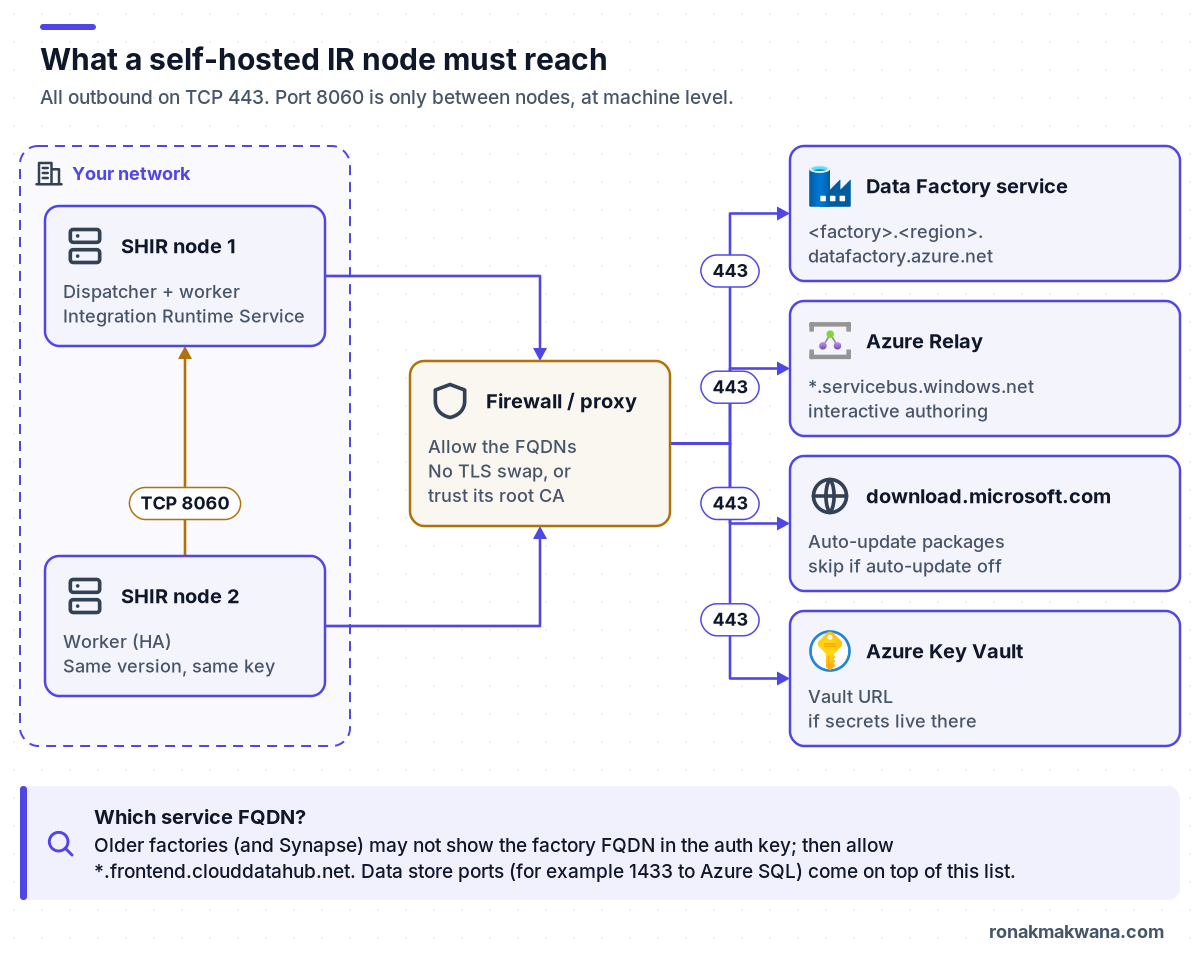
Data stores need their own rules on top (for example TCP 1433 to Azure SQL, plus an IP rule for the IR’s egress address; see fixing the Azure SQL linked service firewall error). Now test from the node itself, not from your laptop:
PowerShell: DNS, TCP and HTTPS tests from the node (not executed)
# Not executed: illustrative only. Replace the placeholder names; nothing here was run against an Azure environment. Use a host from View Service URLs / $ir.ServiceUrls.
$svc = "https://<factory>.<region>.datafactory.azure.net/"
$h = ([uri]$svc).Host
Resolve-DnsName $h                          # "Remote name could not be resolved" = DNS
Test-NetConnection -ComputerName $h -Port 443   # TCP only; ignores any proxy

# Microsoft's documented check when the IR uses no proxy:
(New-Object System.Net.WebClient).DownloadString($svc)
Read the results in order. A DNS failure goes to the network team. If Test-NetConnection reports TcpTestSucceeded : False and the IR doesn’t use a proxy, the firewall is dropping 443. If TCP works but DownloadString fails with a trust error, go to step 5. If the IR is configured to use a proxy, a direct test proves little: use Microsoft’s proxy version of the check in the troubleshooting guide, which sends the request through the proxy with credentials.
When Configuration Manager shows Disconnected or Connecting, or registration fails with Failed to register this Integration Runtime node! Confirm that the Authentication key is valid..., Microsoft’s first suspect is still firewall or proxy configuration, not the key.
Step 5: Fix certificate trust and TLS inspection
The error Could not establish trust relationship for the SSL/TLS secure channel has two documented causes: the root CA of the service certificate isn’t trusted on the node, or a proxy replaces the service certificate with its own, which the node doesn’t trust. Open the service URL in a browser on the node and inspect the certificate chain. Microsoft notes the service certificate is signed by DigiCert, so DigiCert Global Root G2 must be in the machine’s Trusted Root store. If the chain shows your proxy’s CA, either trust that root on every node or ask for TLS inspection to be bypassed for the service hosts (troubleshooting guide).
PowerShell: is the DigiCert root trusted? (not executed)
# Not executed: illustrative only. Replace the placeholder names; nothing here was run against an Azure environment.
Get-ChildItem Cert:\LocalMachine\Root |
  Where-Object Subject -like "*DigiCert Global Root G2*" |
  Select-Object Subject, Thumbprint, NotAfter
Step 6: Check the proxy configuration
Configuration Manager’s Settings > HTTP Proxy offers three modes: no proxy, system proxy, and custom proxy. Use system proxy means the settings in diahost.exe.config and diawp.exe.config in the Shared folder; Microsoft stresses updating both files and restarting the service, and if the service won’t start after an edit, the XML is probably malformed. Two more documented traps: with NTLM proxy authentication the service runs as a domain account, so a password change breaks it until you update the service; and with private endpoints you may need a bypasslist entry for the factory’s datafactory.azure.net host (proxy server considerations).
XML: system proxy settings for the IR (not executed)
<!-- Not executed: illustrative. Same change in diahost.exe.config and diawp.exe.config, then restart the service. -->
<system.net>
  <defaultProxy enabled="true">
    <proxy bypassonlocal="true" proxyaddress="http://proxy.contoso.local:8080/" />
  </defaultProxy>
</system.net>
Step 7: Limited because Azure Relay is blocked
Microsoft states it directly: if the self-hosted IR can’t connect to Azure Relay, its status is marked Limited. The documented impact is on interactive authoring: Test connection, browsing folders and tables, importing schema and data preview (self-contained interactive authoring). You have two fixes:
- Allow Relay.
*.servicebus.windows.neton 443 is the simple rule. If your security team won’t accept a wildcard that covers every Service Bus namespace, allow the specific FQDNs from View Service URLs. Azure Relay has no service tag, so NSG rules needAzureCloudorInternetfor it; the Data Factory traffic itself can use theDataFactoryManagementtag. - Turn on self-contained interactive authoring. Interactive authoring then bypasses Relay entirely. The trade-off: Get IP and Send log aren’t supported while it’s on.
Two related notes. If you store linked-service credentials locally on the IR instead of in Key Vault, Microsoft says the interactive authoring channel is also how the IR receives those credentials, so a blocked Relay can hurt more than the authoring UI. And Relay is why a SQL Test connection can fail on a self-hosted IR without any SQL error number, as covered in the Azure SQL firewall guide.
Step 8: Limited or Inactive across nodes: port 8060, DNS and credential sync
Nodes in a multi-node IR talk to each other on TCP 8060 (or the port you configured) and must be able to resolve each other’s names. Microsoft’s troubleshooting for Inactive and Limited nodes is: filter the event log, and if you see EndpointNotFoundException against net.tcp://<node>:8060, test the port from the other node; if you see No DNS entries exist for host, put the nodes in the same domain or add hosts-file entries. Port 8060 is opened on the nodes’ Windows Firewall only, never at the corporate firewall (security considerations). Remote access to intranet must be enabled before you add a second node (high availability).
PowerShell: node-to-node checks (not executed)
# Not executed: illustrative only. Replace the placeholder names; nothing here was run against an Azure environment. Run on the worker node; target the dispatcher (and the reverse).
Test-NetConnection -ComputerName shir-node1.contoso.local -Port 8060
Resolve-DnsName shir-node1.contoso.local
Credential sync is the other cause. Unless secrets come from Key Vault, each node keeps its own DPAPI-encrypted copy of linked-service credentials, and all nodes need the same version. Documented symptoms and fixes:
- Stuck on
The Integration Runtime (Self-hosted) node is trying to sync the credentials across nodesfor more than 10 minutes: check connectivity to the dispatcher. If the log shows a TLS private-key error such as0x8009030D, grantNT SERVICE\DIAHostServiceaccess to the certificate’s private key. - Credentials missing after a failover to another dispatcher: the nodes weren’t in sync. Re-enter the credentials on the linked service, or import a credential backup (
dmgcmd -ibf). az datafactory integration-runtime sync-credentialsforces sync, but it overwrites every worker’s credentials with the dispatcher’s. Microsoft prefers importing the latest backup file on a node (Azure CLI reference).- The durable fix is Azure Key Vault for secrets, which Microsoft recommends partly because it avoids credential sync problems between nodes.
Step 9: Expired version, auto-update and registration
Every self-hosted IR version expires one year after release. Data Factory and the IR client show a warning 90 days before, and once it expires the IR shows Offline and stops working properly (auto-update and expire notification). With auto-update on, Microsoft pushes a stable version about every three months (so the auto-update version can trail the latest release), you choose the time but not the date, and a single-node IR has some downtime during the update. A node that fails to update rolls back to the version the nodes shared. Auto-update to 5.x also waits for .NET Framework 4.7.2. If a node is expired or stuck, download the current MSI from the Microsoft Download Center and install it on the node.
Azure CLI: check the version (not executed)
# Not executed: illustrative only. Replace the placeholder names; nothing here was run against an Azure environment.
az datafactory integration-runtime get-status --factory-name $df `
  --resource-group $rg --name $irName --query "properties.version" -o tsv
# Microsoft Learn's auto-update article has a script that lists every expired or
# expiring self-hosted IR across all factories in a subscription.
Registration problems look like offline nodes too:
Authentication Key is not assigned yet: the IR or node was deleted in Data Factory, or a clean uninstall removed the configuration. Recreate the IR if needed, get a key withGet-AzDataFactoryV2IntegrationRuntimeKey, and register the node again.dmgcmd -Keyoverwrites the node’s key. Microsoft warns the node can go offline if the key belongs to a different IR.- Regenerating a key (New-AzDataFactoryV2IntegrationRuntimeKey,
authKey1orauthKey2) invalidates the previous value. Plan new node registrations around it. - Since IR 3.0 there’s no Register button on a registered node. To move a node to another IR, uninstall, reinstall and register it.
Step 10: Unavailable right after a CI/CD release
If the IR shows Unavailable in a test or production factory straight after a release, look at the deployment, not the node. Microsoft documents that deploying linked ARM templates to a factory that uses a linked (shared) self-hosted IR overwrites it with a plain self-hosted IR definition that has no registered nodes, so every dependent linked service breaks. Remove IR resources from the templates before deployment (linked templates); the pipeline step is in CI/CD for ADF with Azure DevOps.
Expected results
- Every node shows Online on the Nodes tab and the logical IR shows Online, not Limited.
Get-AzDataFactoryV2IntegrationRuntime -StatusreturnsState : Onlineand all four capability flags asTrue.- Test connection and data preview on a linked service that uses the IR succeed (Relay or self-contained interactive authoring works).
- The Integration Runtime event log has no new connection, TLS or 8060 errors after a service restart.
- The node version matches the other nodes and isn’t in the 90-day expiry window.
Troubleshooting table
| Symptom | Likely cause | Fix |
|---|---|---|
| Offline; log: Unable to connect to the remote server | 443 blocked or proxy wrong | Allow service FQDN; fix proxy |
| Remote name could not be resolved | DNS | Fix DNS for the service URL |
| SSL/TLS trust relationship error | Root CA untrusted or proxy swaps cert | Trust DigiCert G2 or proxy root |
| Offline overnight | Host hibernates | Set a power plan |
| Service won’t start | No Log on as a service right | Grant the right |
| Registration fails after account change | Folder permissions | Clean reinstall, then -SwitchServiceAccount |
| Limited; Test connection fails | Relay blocked | Allow Relay or self-contained authoring |
| Inactive or Limited; error on :8060 | Node port blocked | Open 8060 on node firewall |
| No DNS entries exist for host | Node names don’t resolve | Same domain or hosts file |
| Credential sync stuck over 10 min | No private key access | Grant DIAHostService key access |
| Credentials lost after failover | Nodes out of sync | Re-enter, import backup, Key Vault |
| Offline after expiry warnings | Version expired | Install current version |
| Stays on 4.x | .NET below 4.7.2 | Upgrade .NET Framework |
| Authentication Key is not assigned yet | IR deleted or clean uninstall | Re-create and register |
| Unavailable after release | ARM overwrote shared IR | Strip IR from templates |
Security, reliability, monitoring and cost
- Security. Allow specific FQDNs from View Service URLs rather than broad wildcards where your policy demands it, and don’t fix a TLS error by weakening certificate validation. Keep secrets in Key Vault (managed identity and Key Vault for pipelines). Treat the authentication key as a secret: the same key is all another machine needs to join as a node.
- Reliability. A single node is a single point of failure and has downtime during auto-update. Up to four nodes are supported, but HA only helps if nodes stay on the same version, can reach each other on 8060 and stay in credential sync. Back up credentials regularly (
dmgcmd -gbf). - Monitoring. Alert on the Azure Monitor metric Integration runtime available node count (
IntegrationRuntimeAvailableNodeNumber) dropping below your node count (metrics reference). Stream the node event logs to Log Analytics instead of signing in to each node (monitor SHIR in Azure), and act on the 90-day expiry notice. Pair this with pipeline-level alerts from ADF error handling and retry logic. - Cost. The nodes are machines you run and pay for, so a second node for HA adds a host. Microsoft recommends at least 4 cores, 8 GB RAM and 80 GB of disk per node and dedicated machines; don’t co-host it with a Power BI gateway, which also relies on 443.
What was checked for this article
None of the commands in this article were executed against Azure or on a self-hosted IR node, and each code block is labelled. Statuses, error messages, domains, ports, version-expiry rules, dmgcmd options, cmdlet and CLI names and the metric name were checked against the Microsoft Learn pages below on 12 November 2026. The mapping of the httpsPortEnabled flag to port 8060 is an inference from the flag name and the documented Limited causes. Microsoft Learn doesn’t document node clock skew as a cause of Offline status, so this guide doesn’t cover it.
Related guides
If Test connection fails at the database rather than the IR, see Azure SQL linked service test connection fails with a firewall error. For multi-node IR placement in a production design, read production-ready ETL pipelines in ADF. More Data Factory guides are in the Azure Data Factory category.
Sources
- Troubleshoot self-hosted integration runtime (Microsoft Learn): connectivity, TLS trust, Inactive/Limited nodes, credential sync, registration
- Create and configure a self-hosted integration runtime (Microsoft Learn): ports and firewalls, proxy, dmgcmd, HA, self-contained interactive authoring
- Monitor an integration runtime in Azure Data Factory (Microsoft Learn): node and IR statuses
- Self-hosted integration runtime autoupdate and expire notification (Microsoft Learn)
- Diagnostic tool for self-hosted integration runtime (Microsoft Learn)
- Security considerations for data movement in Azure Data Factory (Microsoft Learn): outbound 443, inbound 8060
- Get-AzDataFactoryV2IntegrationRuntime (Microsoft Learn): -Status output and capabilities
- New-AzDataFactoryV2IntegrationRuntimeKey (Microsoft Learn): regenerating authKey1/authKey2
- az datafactory integration-runtime (Microsoft Learn): get-status, sync-credentials, upgrade
- Azure Data Factory monitoring data reference (Microsoft Learn): IntegrationRuntimeAvailableNodeNumber
- Monitor self-hosted integration runtime virtual machines in Azure (Microsoft Learn): event logs
- Continuous integration and delivery with linked templates (Microsoft Learn): shared self-hosted IR becomes Unavailable
- Test-NetConnection (Microsoft Learn)