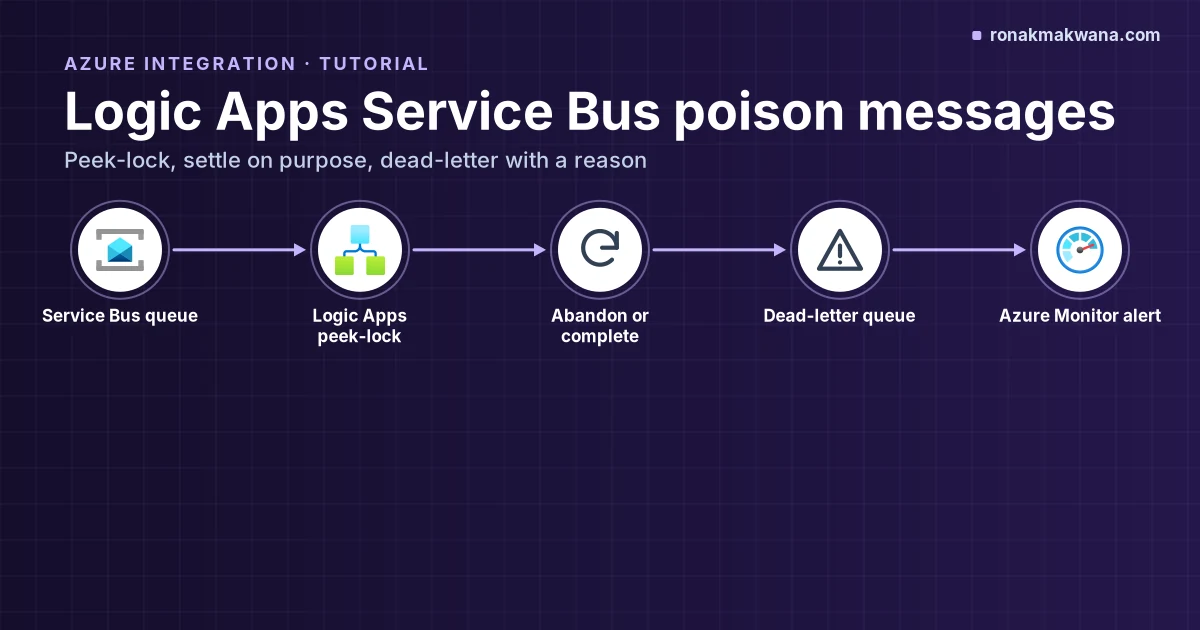
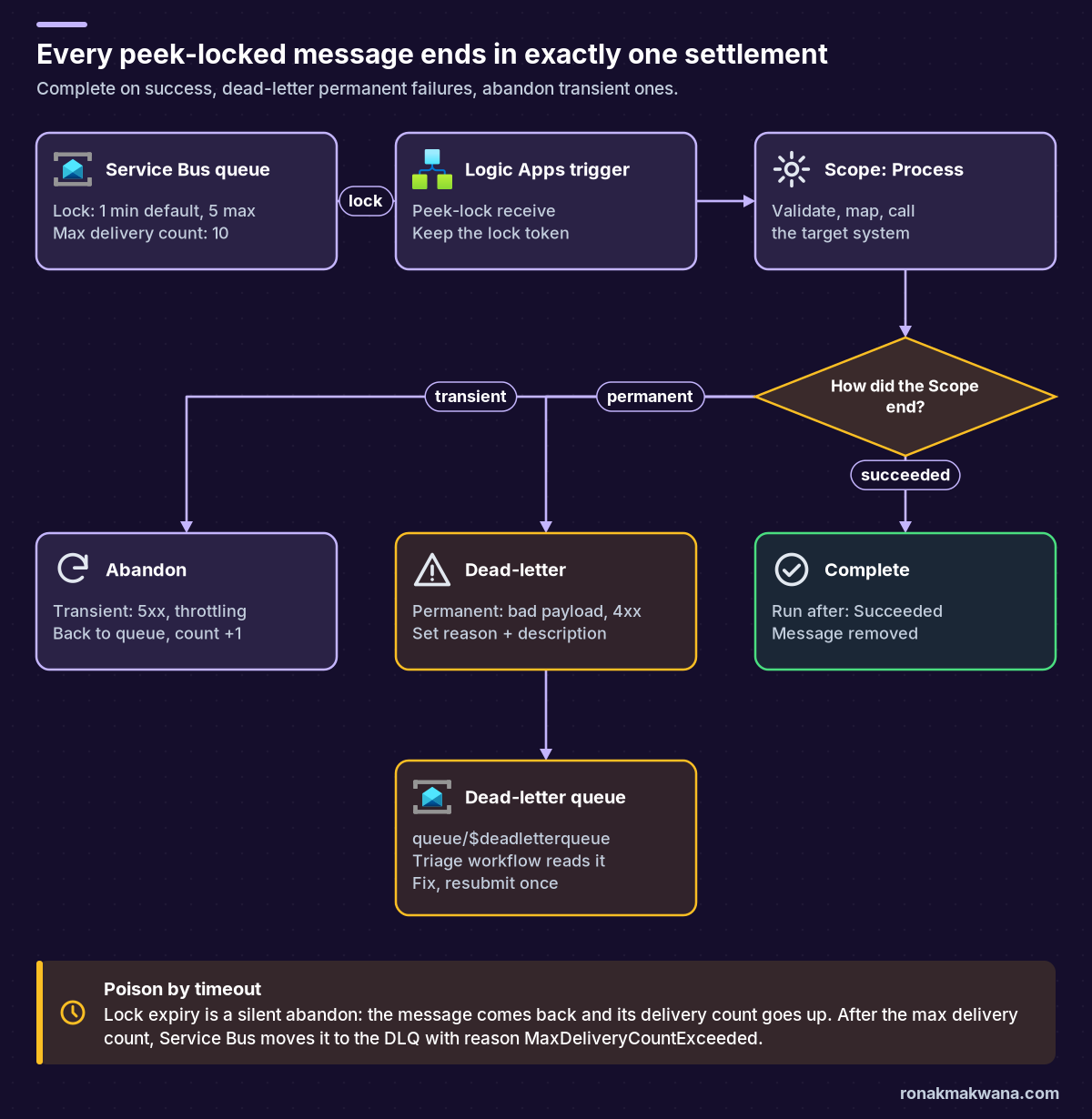
A poison message is one that fails every time your workflow touches it: a malformed payload, a reference that doesn’t exist in the target system, a field the API rejects. To handle Logic Apps Service Bus poison messages properly, receive with a peek-lock trigger instead of auto-complete, wrap the work in a Scope, and settle every message explicitly: Complete it when the Scope succeeds, Dead-letter it with a reason when the failure is permanent, and Abandon it when the failure is transient so Service Bus redelivers it. Service Bus backs this up on its own: once a message’s delivery count exceeds the queue’s max delivery count (10 by default), it moves the message to the dead-letter queue with reason MaxDeliveryCountExceeded (Microsoft Learn).
This tutorial builds that pattern for both Consumption (Service Bus managed connector) and Standard (built-in connector) workflows, then adds the part most guides skip: making sure the Logic Apps retry policy and the Service Bus lock duration don’t fight each other and quietly create poison messages out of healthy ones.
Quick answer
- Use peek-lock. Consumption:
When a message is received in a queue (peek-lock). Standard:When messages are available in a queue (peek-lock). Auto-complete triggers settle the message for you, so a failed run can’t hand it back. - Settle once, explicitly. After a Scope named
Process_message: Complete onSucceeded; onFailedorTimedOut, Dead-letter if retrying can’t help, otherwise Abandon. - Let Service Bus count. Each abandon or lock expiry adds one to the delivery count. Above the max delivery count the broker dead-letters the message. That behaviour can’t be turned off.
- Budget the lock. The default lock is 1 minute and the maximum is 5 minutes. An action’s Default retry policy can wait longer than that, so lower action retries, raise the lock, or renew it.
- Watch and triage the DLQ. Alert on the
DeadletteredMessagesmetric and read<queue>/$deadletterqueuewith a separate workflow. Nothing cleans the DLQ automatically.
How Service Bus already handles poison messages
Peek-lock is the receive mode that makes poison handling possible. The broker locks the message so competing receivers can’t see it, and your receiver must settle it: Complete removes it, Abandon releases the lock straight away, Dead-letter moves it to the dead-letter subqueue, and doing nothing lets the lock expire (message transfers, locks and settlement).
- Lock duration is set on the queue or subscription. Microsoft Learn gives a default of 1 minute and a maximum of 5 minutes; beyond that you renew the lock.
- Delivery count goes up when a peek-locked message is abandoned or its lock expires. When it exceeds max delivery count (default 10), the message is dead-lettered with
MaxDeliveryCountExceeded. - The dead-letter queue exists for every queue and subscription, at
<queue>/$deadletterqueueor<topic>/Subscriptions/<sub>/$deadletterqueue. Time to live isn’t applied there, you can’t dead-letter from it, and messages stay until you complete them. - Application dead-lettering is the Dead-letter operation you call yourself, with your own reason and description. Microsoft recommends putting the exception type in the reason and the detail in the description.
| Dead-letter reason (system) | What it means | Where it usually comes from |
|---|---|---|
MaxDeliveryCountExceeded | Delivered more times than max delivery count | Repeated Abandon, or locks that expired before Complete |
TTLExpiredException | Message expired (dead-lettering on expiration enabled) | Backlog older than the message time to live |
HeaderSizeExceeded | Size quota for the stream exceeded | Too many or too large properties |
Session ID is null | Session-enabled entity got a message without a session ID | Sender didn’t set SessionId |
MaxTransferHopCountExceeded | More than four auto-forward hops | Long auto-forward chains |
Reason values from the Service Bus dead-letter queues article. Your own Dead-letter actions add a fourth kind of row: the reason you choose.
Consumption vs Standard: which trigger you are really using
The Service Bus connector comes in two versions, and the poison-message behaviour differs in the details (Connect to Azure Service Bus from workflows). Consumption workflows use the managed connector, whose triggers long-poll on the recurrence you set. Standard workflows can use the managed connector or the built-in, service provider based connector, whose non-session triggers poll continuously. Microsoft describes the built-in connector as generally better on performance, capabilities and pricing.
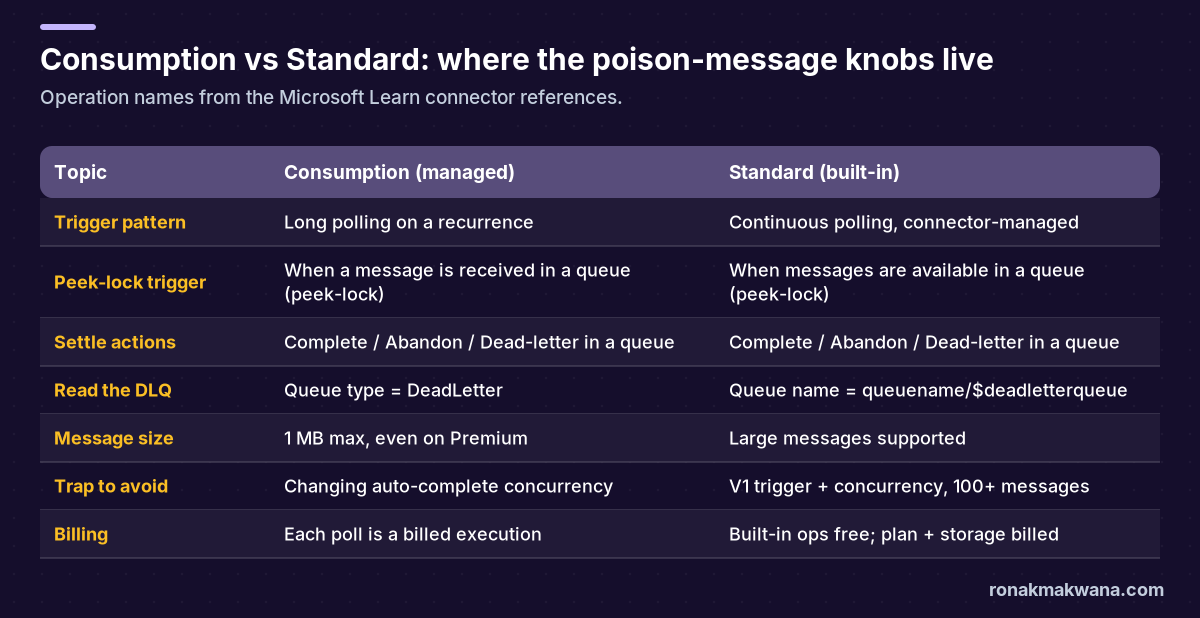
- Auto-complete in Consumption completes the message at the next call to Service Bus. Microsoft warns that changing concurrency on that trigger can cause duplicates when the workflow is throttled, and that the lock duration should be longer than the polling interval.
- Auto-complete in Standard completes the message once a stateful workflow has saved the trigger response, and abandons it if that fails. For stateless workflows the decision happens after the run completes. Either way you don’t get to choose dead-letter versus retry per failure type, which is why this guide uses peek-lock.
- The V1 built-in queue trigger with concurrency: Microsoft documents that if you enable concurrency on
When messages are available in a queue (V1)and send 100 or more messages, the trigger routes all of them to the dead-letter queue. That’s a mass poison event caused by configuration, not data. Use the V2 trigger and keep the batch size under the 100-item debatching limit. - Message size: the managed connector is limited to 1 MB per message even on a Premium namespace. Large messages need the Standard built-in connector.
Prerequisites
- A Service Bus namespace and queue (the examples use a queue named
orders; topics work the same way with the subscription variants of each operation). - A Consumption or Standard logic app and permission to edit its workflow in the designer and code view.
- A connection to the namespace. Prefer a managed identity with
Azure Service Bus Data Receiveron the queue (addAzure Service Bus Data Senderonly if the workflow also sends). Microsoft notes each managed identity needs its own Service Bus API connection. - Optional: Azure CLI, for the queue settings in Step 1.
- Know your target system’s error contract: which status codes or error bodies mean "this message will never succeed" and which mean "try later".
Step 1: set the queue’s lock, delivery count and expiry on purpose
Pick these values from your workflow’s real processing time rather than accepting defaults. A smaller max delivery count surfaces genuine poison messages sooner; a lock duration longer than your slowest successful run stops healthy messages from being redelivered mid-run.
Queue settings with Azure CLI (example, not run)
# Not executed against Azure. Placeholder names; parameters from the az servicebus queue reference.
az servicebus queue update \
  --resource-group rg-integration \
  --namespace-name sb-contoso-prod \
  --name orders \
  --lock-duration PT2M \
  --max-delivery-count 5 \
  --enable-dead-lettering-on-message-expiration true
Check the result in the portal on the queue’s Overview or Properties page. The values here (2 minutes, 5 deliveries) are examples, not recommendations; Step 4 shows how to size the lock.
Step 2: receive with a peek-lock trigger
Consumption (managed connector)
- Add the trigger
When a message is received in a queue (peek-lock), pick the queue, leave Queue type asMain, and set the polling interval. - The trigger output includes
LockToken,MessageId,SequenceNumber,ContentDataandProperties(managed connector reference).
Standard (built-in connector)
- Add the built-in trigger
When messages are available in a queue (peek-lock)and pick the queue. It can return several messages; with the designer’s default Split on behaviour each message gets its own run. - The message object includes
lockToken,messageId,deliveryCount,lockedUntilUtcandcontentData(built-in connector reference). - Built-in Service Bus operations are stateless by default. If you want run history for every message, enable stateful mode as Microsoft describes.
Whichever version you use, open one run in run history and copy the exact output path of the lock token. The expressions below assume one message per run; if your trigger doesn’t split, you’ll be inside a For each instead.
Step 3: put the work in a Scope and settle by outcome
Put every action that processes the message (Parse JSON, mapping, the HTTP or connector call to the target) inside a Scope named Process_message. Then add three settlement branches after it, using each action’s Run after setting (error and exception handling in Azure Logic Apps):
- Complete the message in a queue: run after
Process_messageisSucceeded. - Classify the failure: when
Process_messageisFailedorTimedOut, filterresult('Process_message')down to the failed actions, then use a Condition. Its true branch dead-letters, its false branch abandons. - Dead-letter the message in a queue (permanent): set Dead-letter reason to a short code you choose, and Dead-letter description to a trimmed error message plus the run ID.
- Abandon the message in a queue (transient): the message goes back, the delivery count goes up, and Service Bus dead-letters it for you if it keeps failing.
The Standard built-in operation IDs are completeQueueMessageV2, deadLetterQueueMessageV2 and abandonQueueMessageV2. Here’s the shape of the settlement part in code view:
Settlement branches, Standard built-in connector (example, not run)
// Not executed. Standard workflow skeleton: compare with the code view your designer generates.
"Complete_message": {
  "type": "ServiceProvider",
  "runAfter": { "Process_message": [ "Succeeded" ] },
  "inputs": {
    "parameters": { "queueName": "orders", "lockToken": "@triggerBody()?['lockToken']" },
    "serviceProviderConfiguration": {
      "connectionName": "serviceBus",
      "operationId": "completeQueueMessageV2",
      "serviceProviderId": "/serviceProviders/serviceBus"
    }
  }
},
"Failed_actions": {
  "type": "Query",
  "runAfter": { "Process_message": [ "Failed", "TimedOut" ] },
  "inputs": {
    "from": "@result('Process_message')",
    "where": "@equals(item()?['status'], 'Failed')"
  }
},
"Is_permanent_failure": {
  "type": "If",
  "runAfter": { "Failed_actions": [ "Succeeded" ] },
  "expression": { "or": [
    { "equals": [ "@first(body('Failed_actions'))?['name']", "Parse_order" ] },
    { "and": [
      { "greaterOrEquals": [ "@coalesce(first(body('Failed_actions'))?['outputs']?['statusCode'], 0)", 400 ] },
      { "less": [ "@coalesce(first(body('Failed_actions'))?['outputs']?['statusCode'], 0)", 500 ] },
      { "not": { "equals": [ "@first(body('Failed_actions'))?['outputs']?['statusCode']", 408 ] } },
      { "not": { "equals": [ "@first(body('Failed_actions'))?['outputs']?['statusCode']", 429 ] } }
    ] }
  ] },
  "actions": {
    "Dead_letter_message": {
      "type": "ServiceProvider",
      "inputs": {
        "parameters": {
          "queueName": "orders",
          "lockToken": "@triggerBody()?['lockToken']",
          "deadLetterReason": "@{if(equals(first(body('Failed_actions'))?['name'], 'Parse_order'), 'SchemaInvalid', concat('Http', string(first(body('Failed_actions'))?['outputs']?['statusCode'])))}",
          "deadLetterErrorDescription": "@{concat('run ', workflow()?['run']?['name'], ': ', take(string(first(body('Failed_actions'))?['error']), 900))}"
        },
        "serviceProviderConfiguration": {
          "connectionName": "serviceBus",
          "operationId": "deadLetterQueueMessageV2",
          "serviceProviderId": "/serviceProviders/serviceBus"
        }
      }
    }
  },
  "else": { "actions": {
    "Abandon_message": {
      "type": "ServiceProvider",
      "inputs": {
        "parameters": { "queueName": "orders", "lockToken": "@triggerBody()?['lockToken']" },
        "serviceProviderConfiguration": {
          "connectionName": "serviceBus",
          "operationId": "abandonQueueMessageV2",
          "serviceProviderId": "/serviceProviders/serviceBus"
        }
      }
    }
  } }
}
Notes on the skeleton:
Parse_order(Parse JSON) and the HTTP call stand in for your own actions. Keep them at the top level of the Scope: Microsoft notesresult()returns only top-level actions, not ones nested in conditions or switches. The rule treats a schema failure or a 4xx other than 408 and 429 as permanent, and everything else (5xx, timeouts, throttling) as transient. Adjust it to your target’s error contract.- The description is capped with
take(..., 900)because Microsoft warns that long stack traces in dead-letter properties can push a message past the 256 KB Standard-tier limit. Keep secrets and personal data out of it. - In Consumption the same three actions exist on the managed connector (
CompleteMessageInQueue,DeadLetterMessageInQueue,AbandonMessageInQueue); pass@triggerBody()?['LockToken']and fill Dead letter reason and Dead letter error description in the designer. - The description reads the failed action’s
errorproperty fromresult(). Check that property in one failed run; if it’s empty for your action type, use itsoutputsinstead. - If you want dead-lettered and abandoned runs to show as failed in run history, add a Terminate action with status Failed after each of those two branches.
- A timed-out Scope may have no failed action to inspect, so the expressions fall back to status 0 and the message is abandoned, which is the safe default.
Step 4: make the lock outlast your retries
This is the failure mode that turns good messages into poison ones. Inside a peek-lock workflow there are two retry systems: the Logic Apps retry policy on each action, and Service Bus redelivery. They don’t know about each other.
- Microsoft documents the Default action retry policy as an exponential policy with up to 4 retries, at intervals that scale by 7.5 seconds and are capped between 5 and 45 seconds (retry policies).
- The queue lock defaults to 1 minute and can be set to at most 5 minutes (renew locks).
- My arithmetic from those two documented limits: four retries capped at 45 seconds can add up to about 3 minutes of waiting on one action, before counting the time each attempt takes. That’s three times the default lock.
When the lock expires mid-run, the message becomes visible again and its delivery count goes up, while your first run is still working. If the target call finally succeeds, the run’s Complete fails because the lock is gone, and another run processes the same message. Repeat that a few times and a message the target accepted ends up in the DLQ as MaxDeliveryCountExceeded. Pick one of these fixes, in this order:
- Let Service Bus be the retry. Inside peek-lock workflows, set the target action’s retry policy to None or a small Fixed count, and rely on Abandon plus max delivery count for longer waits.
- Size the lock. Set lock duration above your slowest normal run plus any retries you keep, up to 5 minutes.
- Renew the lock for genuinely long work:
Renew lock on a message in queue(built-inrenewLockQueueMessageV2, managedRenewLockOnMessageInQueue) before the lock runs out. On the built-in trigger,lockedUntilUtctells you when that is. - Be idempotent anyway. Locks can be lost for reasons outside your control, such as service updates or connection loss. Microsoft recommends detecting duplicates by
MessageId, so set it on the sender and check it in the target.
Step 5: triage the dead-letter queue with a second workflow
A DLQ nobody reads is just a slower way to lose data. Create a separate workflow for it:
- Consumption: the same peek-lock trigger with Queue type set to
DeadLetter. - Standard: the built-in peek-lock trigger with Queue name set to
orders/$deadletterqueue(for a subscription,topicname/Subscriptions/subscriptionname/$deadletterqueue), as documented in the connector guide. - Store the body and the dead-letter reason and description somewhere durable (a storage container, a table, a ticket), notify the owning team, then Complete the message so it leaves the DLQ.
- Resubmit only after the cause is fixed. Microsoft points operators to Service Bus Explorer in the Azure portal to peek, edit and resend dead-lettered messages, singly or in batches.
- Don’t let the triage workflow send straight back to
orderswithout a guard. Microsoft warns that a trigger and action on the same entity can create a loop that never completes; a resubmit counter in a custom property is a simple guard.
Open one DLQ run and check where the reason and description appear in the trigger output before you map them; the connector references don’t list those two properties in the message schema, so the exact path is something to confirm in your own run history.
Expected results
| Test message | Expected outcome |
|---|---|
| Valid order, target returns 2xx | Run succeeds, Complete runs, queue count drops, no DLQ entry |
| Malformed JSON | Parse fails, Condition true, message in DLQ with your reason (for example SchemaInvalid) on the first delivery |
| Target returns 503 every time | Abandon on each run; after max delivery count, DLQ with MaxDeliveryCountExceeded |
| Target slower than the lock | Without Step 4: duplicate runs and lock-lost errors on Complete. With Step 4: one run, one Complete |
These are the outcomes the documented behaviour predicts. They weren’t produced by a test run for this article.
Troubleshooting
| Symptom | Likely cause | Fix |
|---|---|---|
| Failed runs, but the message is gone | Auto-complete trigger already settled it | Switch to a peek-lock trigger and settle explicitly |
MaxDeliveryCountExceeded on messages the target accepted | Lock expired during action retries | Step 4: fewer action retries, longer lock, or Renew lock |
| Complete or Dead-letter fails with a lock error | Lock expired or was lost before settlement | Don’t retry the settlement; the message will be redelivered. Make the target idempotent |
| Everything lands in the DLQ after enabling concurrency | V1 built-in queue trigger with concurrency and 100+ messages | Use the V2 trigger; keep batch size under the debatching limit |
| Duplicates after changing trigger concurrency (Consumption) | Throttled auto-complete trigger skipped its completion | Avoid changing concurrency on auto-complete triggers; use peek-lock |
TTLExpiredException in the DLQ | Backlog older than time to live | Scale processing or raise the message time to live |
| Messages over 1 MB fail (Consumption) | Managed connector 1 MB limit | Standard built-in connector, or claim-check the payload |
Occasional No session available or session-not-found errors | Session receiver cached on another instance | Microsoft calls this expected when occasional; the message stays in Service Bus |
Security, monitoring and cost
- Security. Use a managed identity with the narrowest Service Bus data role at queue scope instead of the namespace
RootManageSharedAccessKey. If the workflow also reads secrets, the Logic Apps Key Vault Unauthorized guide covers that identity side. - Monitoring. Alert on the Service Bus metric
DeadletteredMessages(Dead-lettered messages, split byEntityName) above zero, and watch Abandoned Messages for a rising trend (Service Bus monitoring reference). Pair it with failed-run alerts on the logic app. - Cost. In Consumption, each polling call of a managed trigger is a billed execution even when it finds nothing, so a short polling interval on a quiet queue costs money. Standard runs built-in operations free and bills the hosting plan and storage operations instead (Logic Apps pricing model).
- Reliability. Settlement, not retry, is your source of truth. Every path out of the Scope ends in exactly one Complete, Dead-letter or Abandon.
What was checked for this article
No workflow, CLI command or expression in this article was executed against Azure, and the code blocks are labelled. Trigger and action names, operation IDs, lock and delivery-count defaults, dead-letter reasons, retry-policy limits, connector differences, billing rules and metric names were checked against the Microsoft Learn pages below on 10 November 2026. The three-minute retry figure is arithmetic from documented limits, not a measurement.
Related guides
Choosing between messaging services first? See Event Hubs vs Service Bus vs Event Grid. For the same retry-versus-fail thinking in pipelines, read ADF error handling and retry logic. Identity patterns are in securing data pipelines with managed identity and Key Vault, and more integration posts are in the Azure Integration category.
Sources
- Connect to Azure Service Bus from workflows in Azure Logic Apps (Microsoft Learn): trigger patterns, auto-complete behaviour, concurrency warnings, reading the DLQ
- Service Bus built-in connector reference for Standard workflows (Microsoft Learn): peek-lock triggers, operation IDs, message properties
- Service Bus managed connector reference (Microsoft Learn): peek-lock trigger, settlement actions, LockToken, queue type
- Service Bus dead-letter queues (Microsoft Learn): max delivery count, system reasons, application dead-lettering
- Message transfers, locks and settlement (Microsoft Learn): peek-lock, lock duration, lock loss, duplicate detection
- Handle errors and exceptions in Azure Logic Apps (Microsoft Learn): retry policies, run after, Scope and result()
- az servicebus queue (Microsoft Learn): lock duration, max delivery count, dead-lettering on expiration
- Authenticate a managed identity with Microsoft Entra ID to access Service Bus (Microsoft Learn): data roles
- Monitoring data reference for Azure Service Bus (Microsoft Learn): DeadletteredMessages and related metrics
- Usage metering, billing and pricing for Azure Logic Apps (Microsoft Learn)