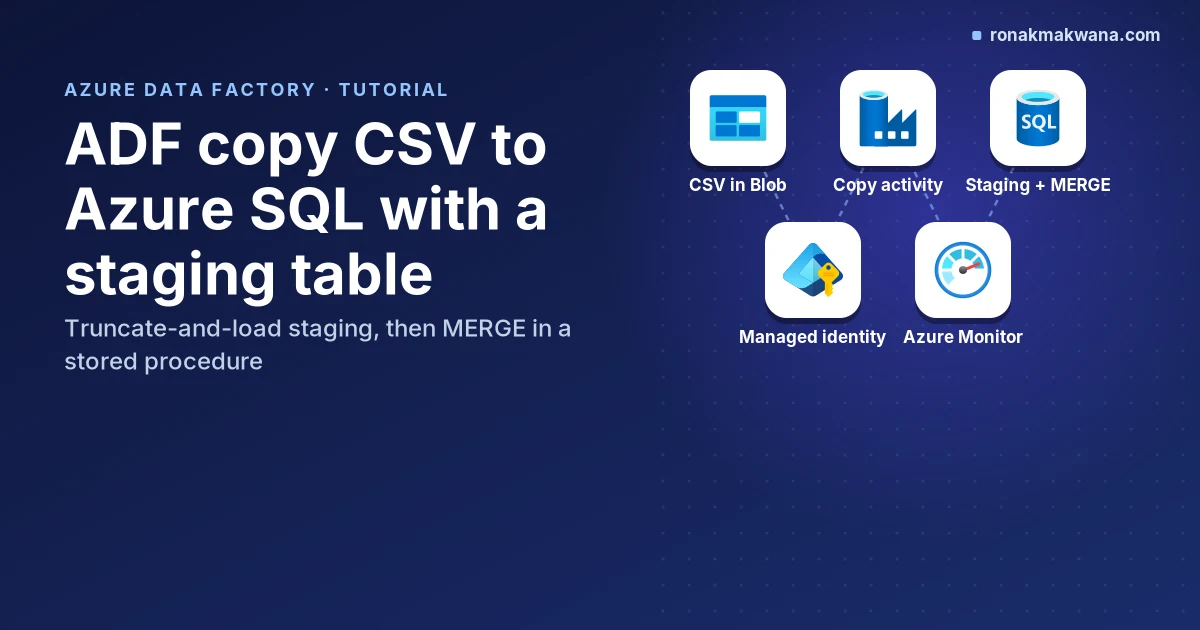
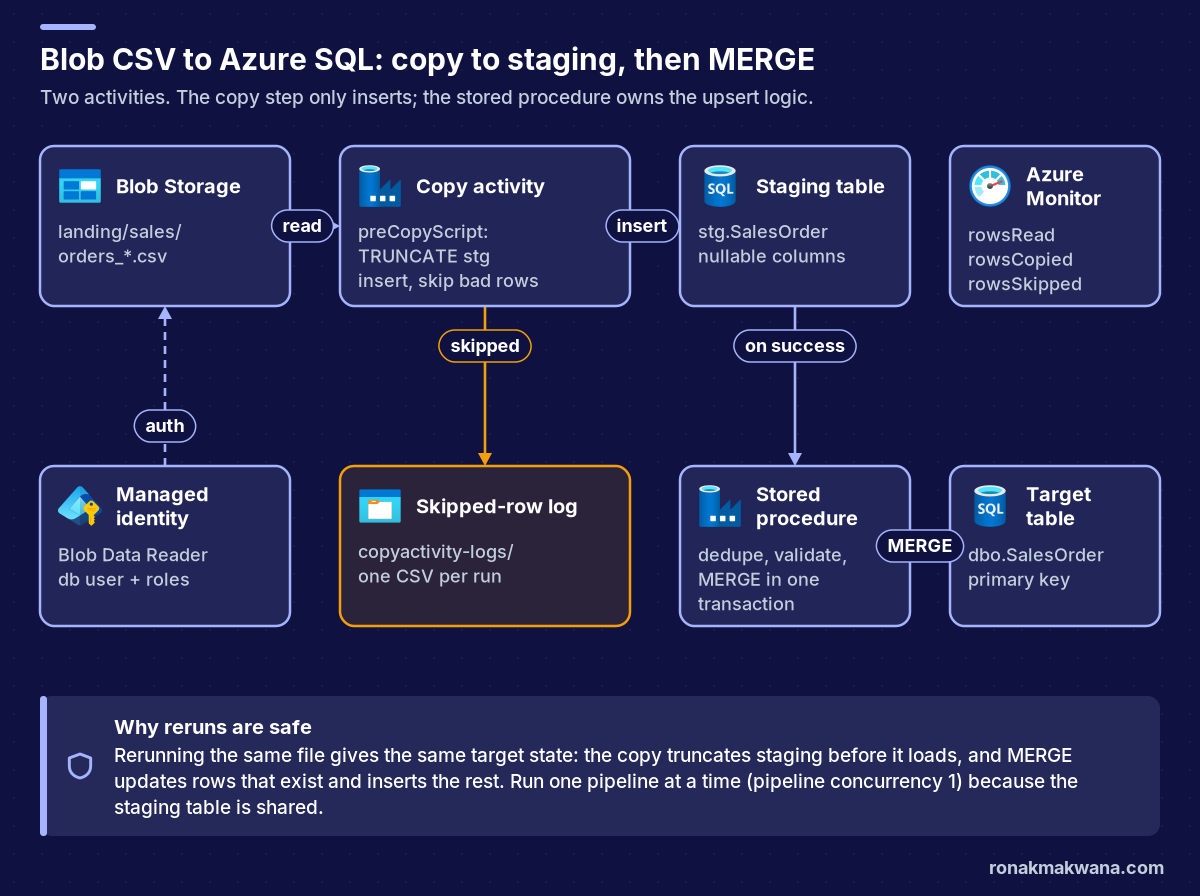
To load CSV files from Azure Blob Storage into Azure SQL Database with Azure Data Factory (ADF), use two activities. A Copy activity inserts the file into a staging table that its pre-copy script truncates first. A Stored Procedure activity then runs a MERGE from staging into the target table. Every rerun of the same file gives the same result, bad rows can be skipped and logged instead of failing the whole load, and the upsert logic lives in T-SQL that you can read and test.
This tutorial builds that pipeline with managed identity for both stores. It explains when the Copy activity’s built-in upsert is enough instead, and it ends with a table of the CSV-to-SQL errors you’re most likely to hit, each with its cause and fix.
Quick answer: the pattern in three steps
- Copy to staging. Source: a
DelimitedTextdataset on Blob Storage. Sink:stg.SalesOrderin Azure SQL withwriteBehaviorinsertandpreCopyScriptTRUNCATE TABLE stg.SalesOrder;. Turn on fault tolerance (enableSkipIncompatibleRow) with a session log. - Merge. A Stored Procedure activity, run on the copy’s success, calls a procedure that dedupes staging and runs one
MERGEintodbo.SalesOrderinside a transaction. - Check the numbers. Pass
rowsReadandrowsCopiedfrom the copy output to the procedure and write them to a load log, so every run records what was read, loaded and merged.
Built-in upsert or your own staging table?
The Azure SQL connector gives you three ways to do more than a plain insert, and “staging” means different things in each. The behaviour below is from the Azure SQL Database connector page and the fault tolerance page.
| Option | How it works | Good fit | Watch out for |
|---|---|---|---|
Copy sink writeBehavior: upsert | The copy loads an interim table, then updates or inserts by keys (the primary key if you don’t set keys). The interim table is a global temporary table by default; set useTempDB to false and interimSchemaName to use a physical table. | Simple key-based upserts with no transformation and no need to inspect rejected rows. | Skipping and logging incompatible rows doesn’t apply with upsert. A physical interim table needs permission to create and drop tables. |
Copy sink stored procedure (sqlWriterStoredProcedureName) | The copy passes rows to your procedure through a table type parameter. | Custom per-row logic when you can’t add a staging table. | The procedure is invoked per batch, so set-wide logic such as dedupe across the whole file doesn’t work reliably. No fault tolerance. Truncates belong in preCopyScript, not the procedure. |
| Your own staging table + Stored Procedure activity | Copy inserts into a table you own; a separate activity runs your MERGE once over the whole load. | Dedupe, validation, audit columns, load logging, or any rule that needs the whole file. | One extra activity run per pipeline run, and the staging table is shared, so don’t run two loads at once. |
How I’d choose. Use the built-in upsert when the file is clean, the key is reliable and a failed run is acceptable as a whole. Use your own staging table when any of these is true: the file can contain bad rows you want to skip and keep, the same key can appear twice in a file, you need to validate before touching the target, or you want a record of rows read versus rows merged. This tutorial uses the staging table because it’s the only option that combines skipped-row logging with full control of the merge.
ADF’s “staged copy” is something else. The enableStaging setting copies through interim Blob or ADLS Gen2 storage. The performance features page lists its uses: loading Azure Synapse Analytics through PolyBase, copying to or from Snowflake, ingesting from Amazon Redshift or HDFS, and hybrid copies through a self-hosted integration runtime that should go over port 443 instead of opening port 1433. A Blob-to-Azure SQL copy on the Azure integration runtime is none of those, so leave it off here. The staging in this post is a SQL table.
If the file needs joins, derived columns or row-level rules before it lands, compare this approach with a data flow in Copy activity vs Mapping Data Flow.
Prerequisites
- A data factory, a storage account (StorageV2) with the CSV files in a container, and an Azure SQL Database. The examples use a container called
landingand files namedsales/incoming/orders_*.csv. - The factory’s system-assigned managed identity. It’s created automatically when you create the factory in the Azure portal; see managed identity for Data Factory.
- A Microsoft Entra administrator on the logical SQL server, so you can create a database user for the identity.
- Network access from the Azure integration runtime to the SQL server. If the copy can’t connect, work through fixing the Azure SQL firewall for an ADF linked service.
- Rights to assign Azure roles on the storage account, for example Owner or User Access Administrator.
A sample file used in the examples (illustrative data):
orders_2026-10-03.csv (sample)
order_id,customer_id,order_date,amount,status,modified_at
1001,C-0042,2026-10-01,149.90,shipped,2026-10-02 08:15:00
1002,C-0107,2026-10-01,"1,299.00",pending,2026-10-01 17:40:00
1003,C-0042,2026-10-02,,"cancelled, refunded",2026-10-03 09:05:00
Row 1002 has a quoted amount with a thousands separator, and row 1003 has an empty amount and a quoted status that contains the delimiter. Both are common in exported CSVs and both come back in the troubleshooting table.
Step 1: create the staging, target and log tables
Not executed against Azure. The staging table uses the target’s data types so the Copy activity’s type conversion catches bad values, but every column is nullable so an empty field doesn’t fail the insert. The target keeps the real constraints.
T-SQL: staging, target and load log
-- Not executed against Azure. Run as the Microsoft Entra admin (or a user with CREATE SCHEMA/TABLE rights).
CREATE SCHEMA stg AUTHORIZATION dbo;
GO
CREATE SCHEMA etl AUTHORIZATION dbo;
GO
CREATE TABLE stg.SalesOrder (
    OrderId     int            NULL,
    CustomerId  nvarchar(20)   NULL,
    OrderDate   date           NULL,
    Amount      decimal(18,2)  NULL,
    Status      nvarchar(40)   NULL,
    ModifiedAt  datetime2(0)   NULL
);
GO
CREATE TABLE dbo.SalesOrder (
    OrderId     int            NOT NULL CONSTRAINT PK_SalesOrder PRIMARY KEY,
    CustomerId  nvarchar(20)   NOT NULL,
    OrderDate   date           NOT NULL,
    Amount      decimal(18,2)  NULL,
    Status      nvarchar(40)   NOT NULL,
    ModifiedAt  datetime2(0)   NOT NULL,
    LoadedAt    datetime2(0)   NOT NULL CONSTRAINT DF_SalesOrder_LoadedAt DEFAULT SYSUTCDATETIME()
);
GO
CREATE TABLE etl.LoadLog (
    LoadLogId      bigint IDENTITY PRIMARY KEY,
    PipelineRunId  nvarchar(64)  NOT NULL,
    RowsRead       bigint        NULL,
    RowsCopied     bigint        NULL,
    RowsRejected   int           NOT NULL,
    RowsMerged     int           NOT NULL,
    LoggedAt       datetime2(0)  NOT NULL DEFAULT SYSUTCDATETIME()
);
Don’t add a foreign key that references the staging table. TRUNCATE TABLE fails on tables referenced by a foreign key.
Step 2: give the factory’s managed identity access
Storage. On the storage account (or just the container), assign the factory’s identity Storage Blob Data Reader. The Blob Storage connector page lists Reader for a source and Contributor for a sink. The session log in Step 5 writes files, so the identity needs Storage Blob Data Contributor on the container that holds the logs. Keep the logs in a separate container so the write role doesn’t cover your landing data.
Azure SQL. Connect to the database (not master) as the Entra admin and create a contained user for the identity. The user name is the factory name. The connector page shows CREATE USER ... FROM EXTERNAL PROVIDER followed by role grants; the grants below are narrower than db_datawriter.
T-SQL: database user and grants
-- Not executed against Azure. Replace adf-sales-prod with your factory name.
CREATE USER [adf-sales-prod] FROM EXTERNAL PROVIDER;
GO
-- Copy activity: read metadata, insert into staging, and TRUNCATE (which needs ALTER on the table)
GRANT SELECT, INSERT, ALTER ON OBJECT::stg.SalesOrder TO [adf-sales-prod];
-- Stored Procedure activity
GRANT EXECUTE ON OBJECT::etl.usp_Merge_SalesOrder TO [adf-sales-prod];  -- run after Step 6 creates it
GO
Because stg, etl and dbo all belong to dbo, ownership chaining lets the procedure update dbo.SalesOrder without the identity having any direct permission on the target table. The minimum permission for TRUNCATE TABLE is ALTER on the table, according to the TRUNCATE TABLE reference.
Step 3: create the linked services with managed identity
Not executed against Azure. Both linked services authenticate as the factory, so there’s no account key or SQL password to store. Property names are taken from the Blob Storage and Azure SQL Database connector pages (the SQL example uses the recommended linked service version).
Linked service: Blob Storage with system-assigned managed identity (not executed)
{
  "name": "ls_blob_landing",
  "properties": {
    "type": "AzureBlobStorage",
    "typeProperties": {
      "serviceEndpoint": "https://<storage-account>.blob.core.windows.net/",
      "accountKind": "StorageV2"
    }
  }
}
Linked service: Azure SQL Database with system-assigned managed identity (not executed)
{
  "name": "ls_sql_sales",
  "properties": {
    "type": "AzureSqlDatabase",
    "typeProperties": {
      "server": "<server-name>.database.windows.net",
      "database": "<database-name>",
      "encrypt": "mandatory",
      "trustServerCertificate": false,
      "authenticationType": "SystemAssignedManagedIdentity"
    }
  }
}
If a policy forces you onto SQL authentication or an account key, keep the secret in Azure Key Vault and reference it from the linked service instead of typing it in. The factory identity needs the Get secret permission (access policy) or the Key Vault Secrets User role (Azure RBAC); see store credentials in Azure Key Vault.
Step 4: define the CSV dataset with explicit settings
Not executed against Azure. Set every parsing option yourself rather than relying on the defaults. Two of the documented defaults surprise people: firstRowAsHeader is false, and escapeChar is a backslash, not a double quote. The delimited text format page lists all of them.
Dataset: DelimitedText on Blob Storage (not executed)
{
  "name": "ds_sales_csv",
  "properties": {
    "type": "DelimitedText",
    "linkedServiceName": { "referenceName": "ls_blob_landing", "type": "LinkedServiceReference" },
    "typeProperties": {
      "location": {
        "type": "AzureBlobStorageLocation",
        "container": "landing",
        "folderPath": "sales/incoming"
      },
      "columnDelimiter": ",",
      "quoteChar": "\"",
      "escapeChar": "\"",
      "firstRowAsHeader": true,
      "nullValue": "",
      "encodingName": "UTF-8"
    }
  }
}escapeCharset to a double quote matches files that escape a quote by doubling it (""), which is how Excel and most exporters write CSV. Leave the backslash default only if your producer really escapes with backslashes.nullValueis shown at its default (an empty string) to make the behaviour visible: empty fields becomeNULL. That’s why the staging columns are nullable.- Set
encodingNameto the encoding the producer actually writes. The list includes bothUTF-8andUTF-8 without BOM, plus UTF-16 and many Windows and ISO code pages.
Add a sink dataset ds_stg_salesorder of type AzureSqlTable on ls_sql_sales with schema stg and table SalesOrder.
Step 5: configure the Copy activity
Not executed against Azure. The sink is a plain insert so that fault tolerance is allowed, and the pre-copy script empties staging. The connector page says preCopyScript runs once per copy run, which is what you want for a truncate.
Copy activity JSON (not executed)
{
  "name": "Copy CSV to staging",
  "type": "Copy",
  "policy": { "timeout": "0.01:00:00", "retry": 2, "retryIntervalInSeconds": 120 },
  "inputs":  [ { "referenceName": "ds_sales_csv", "type": "DatasetReference" } ],
  "outputs": [ { "referenceName": "ds_stg_salesorder", "type": "DatasetReference" } ],
  "typeProperties": {
    "source": {
      "type": "DelimitedTextSource",
      "storeSettings": {
        "type": "AzureBlobStorageReadSettings",
        "recursive": false,
        "wildcardFolderPath": "sales/incoming",
        "wildcardFileName": "orders_*.csv"
      },
      "formatSettings": { "type": "DelimitedTextReadSettings" }
    },
    "sink": {
      "type": "AzureSqlSink",
      "preCopyScript": "TRUNCATE TABLE stg.SalesOrder;",
      "writeBehavior": "insert",
      "writeBatchTimeout": "00:30:00"
    },
    "enableSkipIncompatibleRow": true,
    "logSettings": {
      "enableCopyActivityLog": true,
      "copyActivityLogSettings": { "logLevel": "Warning", "enableReliableLogging": false },
      "logLocationSettings": {
        "linkedServiceName": { "referenceName": "ls_blob_logs", "type": "LinkedServiceReference" },
        "path": "copy-logs/sales"
      }
    },
    "translator": {
      "type": "TabularTranslator",
      "typeConversion": true,
      "typeConversionSettings": {
        "allowDataTruncation": false,
        "dateFormat": "yyyy-MM-dd",
        "dateTimeFormat": "yyyy-MM-dd HH:mm:ss",
        "culture": "en-gb"
      },
      "mappings": [
        { "source": { "name": "order_id" },    "sink": { "name": "OrderId" } },
        { "source": { "name": "customer_id" }, "sink": { "name": "CustomerId" } },
        { "source": { "name": "order_date" },  "sink": { "name": "OrderDate" } },
        { "source": { "name": "amount" },      "sink": { "name": "Amount" } },
        { "source": { "name": "status" },      "sink": { "name": "Status" } },
        { "source": { "name": "modified_at" }, "sink": { "name": "ModifiedAt" } }
      ]
    }
  }
}- Fault tolerance. With
enableSkipIncompatibleRow, the copy skips rows with a value that can’t convert to the column type, rows with more columns than the sink, and primary key violations, and keeps going. It logs each one asTabularRowSkipundercopyactivity-logs/[activity name]/[run id]/in the path you set. These are the three cases the fault tolerance page lists; other SQL errors still fail the copy. - Explicit mapping. Default mapping is by name and case-sensitive (schema mapping), so
order_idwon’t land inOrderIdwithout a mapping. - Type conversion.
allowDataTruncationdefaults totrue, which allows conversions such as decimal to integer to lose data. Setting it tofalseis a choice to surface those values instead.cultureand the format strings control how dates and numbers in text are read. - Retry. A retry runs the copy again, including the truncate, so a retried copy doesn’t double-load staging. The retry also covers a paused serverless database: the connector page says the activity fails rather than waiting for auto-resume.
- Wildcards.
orders_*.csvloads every matching file in one run into one staging load. If you need one run per file, pass the file name as a pipeline parameter instead.
Row 1002 in the sample ("1,299.00") is a test of culture. Whether a thousands separator parses under a given culture isn’t spelled out on the mapping page, so expect it might be skipped as incompatible and check the session log on your first run.
Step 6: write the MERGE procedure and call it
Not executed against Azure. The procedure removes duplicate keys inside the file, ignores rows without a key, merges in one transaction and writes a load log row. It takes the copy’s counts as parameters because the Stored Procedure activity doesn’t support output parameters.
T-SQL: idempotent MERGE from staging
-- Not executed against Azure.
CREATE OR ALTER PROCEDURE etl.usp_Merge_SalesOrder
    @PipelineRunId nvarchar(64),
    @RowsRead      bigint = NULL,
    @RowsCopied    bigint = NULL
AS
BEGIN
    SET NOCOUNT ON;
    SET XACT_ABORT ON;   -- any error rolls back the whole merge

    DECLARE @Rejected int, @Merged int;

    BEGIN TRANSACTION;

    -- Rows the target can't accept (its NOT NULL columns) are counted, not merged.
    SELECT @Rejected = COUNT(*)
    FROM stg.SalesOrder
    WHERE OrderId IS NULL OR CustomerId IS NULL OR OrderDate IS NULL
       OR Status IS NULL OR ModifiedAt IS NULL;

    WITH src AS (
        SELECT OrderId, CustomerId, OrderDate, Amount, Status, ModifiedAt,
               ROW_NUMBER() OVER (PARTITION BY OrderId ORDER BY ModifiedAt DESC) AS rn
        FROM stg.SalesOrder
        WHERE OrderId IS NOT NULL AND CustomerId IS NOT NULL AND OrderDate IS NOT NULL
          AND Status IS NOT NULL AND ModifiedAt IS NOT NULL
    )
    MERGE dbo.SalesOrder WITH (HOLDLOCK) AS t
    USING (SELECT * FROM src WHERE rn = 1) AS s
        ON t.OrderId = s.OrderId
    WHEN MATCHED AND EXISTS (
            SELECT s.CustomerId, s.OrderDate, s.Amount, s.Status, s.ModifiedAt
            EXCEPT
            SELECT t.CustomerId, t.OrderDate, t.Amount, t.Status, t.ModifiedAt)
        THEN UPDATE SET CustomerId = s.CustomerId, OrderDate = s.OrderDate, Amount = s.Amount,
                        Status = s.Status, ModifiedAt = s.ModifiedAt, LoadedAt = SYSUTCDATETIME()
    WHEN NOT MATCHED BY TARGET
        THEN INSERT (OrderId, CustomerId, OrderDate, Amount, Status, ModifiedAt)
             VALUES (s.OrderId, s.CustomerId, s.OrderDate, s.Amount, s.Status, s.ModifiedAt);

    SET @Merged = @@ROWCOUNT;

    INSERT etl.LoadLog (PipelineRunId, RowsRead, RowsCopied, RowsRejected, RowsMerged)
    VALUES (@PipelineRunId, @RowsRead, @RowsCopied, @Rejected, @Merged);

    COMMIT TRANSACTION;
END;- Dedupe first. MERGE raises an error when more than one source row matches the same target row, so the
ROW_NUMBERkeeps the latest row perOrderId. If two rows share the sameModifiedAt, the pick between them is arbitrary; add a tie-breaker column if that matters. HOLDLOCK. The MERGE reference says it prevents unique key violations when a MERGE both inserts and updates unique keys while other sessions run the same load.EXCEPTcompare. It treats two NULLs as equal, so unchanged rows (including NULL amounts) aren’t rewritten on a rerun.- No deletes. There’s no
WHEN NOT MATCHED BY SOURCEclause. A file that holds some orders must not delete the rest. Add deletes only when every file is a full snapshot.
Stored Procedure activity JSON (not executed)
{
  "name": "Merge staging into target",
  "type": "SqlServerStoredProcedure",
  "dependsOn": [ { "activity": "Copy CSV to staging", "dependencyConditions": [ "Succeeded" ] } ],
  "policy": { "timeout": "0.00:30:00", "retry": 1, "retryIntervalInSeconds": 60 },
  "linkedServiceName": { "referenceName": "ls_sql_sales", "type": "LinkedServiceReference" },
  "typeProperties": {
    "storedProcedureName": "[etl].[usp_Merge_SalesOrder]",
    "storedProcedureParameters": {
      "PipelineRunId": { "value": { "value": "@pipeline().RunId", "type": "Expression" }, "type": "String" },
      "RowsRead":      { "value": { "value": "@activity('Copy CSV to staging').output.rowsRead", "type": "Expression" }, "type": "Int64" },
      "RowsCopied":    { "value": { "value": "@activity('Copy CSV to staging').output.rowsCopied", "type": "Expression" }, "type": "Int64" }
    }
  }
}
The activity type SqlServerStoredProcedure and the storedProcedureParameters shape are from the Stored Procedure activity page; the @activity('...').output syntax is from the expression language reference. Because the whole merge is one transaction, retrying this activity after a failure is safe: either everything committed or nothing did.
Step 7: make the pipeline safe to rerun
- Set the pipeline’s
concurrencyto1. The pipelines reference says extra runs are queued, not dropped, when the limit is reached. Without it, two overlapping runs would truncate each other’s staging data. - Rerunning a failed pipeline from the start is safe: the copy truncates staging, and the MERGE gives the same target state for the same file.
- Move or archive processed files only after the merge succeeds, for example with a later activity. Don’t rely on the copy’s
deleteFilesAfterCompletion: the Blob connector page says it’s only valid for binary copies. - For loading only new or changed files on a schedule, add a watermark; see incremental loads with a watermark in ADF. For failure paths, alerts and retry design, see ADF error handling and retry logic.
Troubleshooting CSV to Azure SQL errors
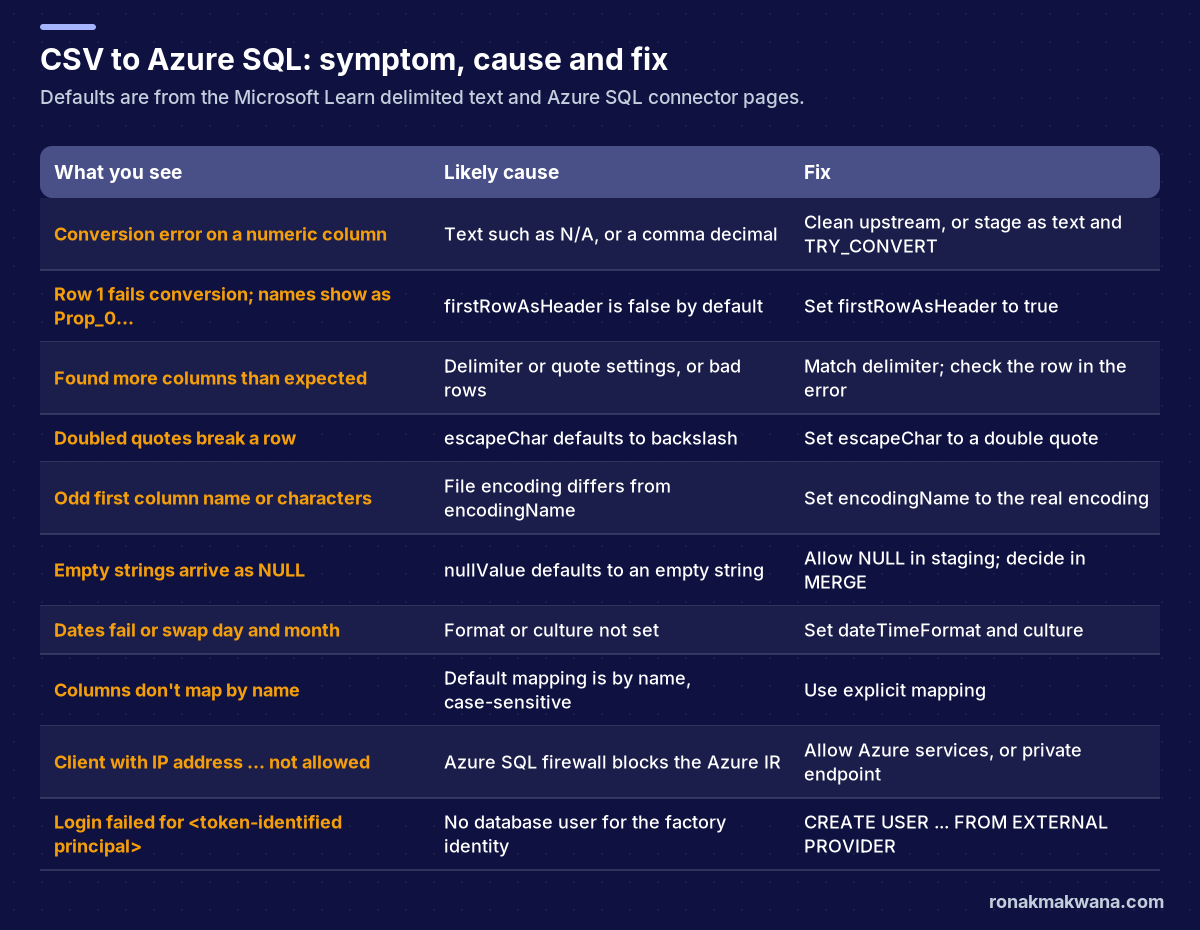
The same table with the detail behind each fix. Error codes and defaults are quoted from the delimited text troubleshooting page, the SQL connector troubleshooting page and the format and connector pages.
| Area | What you see | Cause and fix |
|---|---|---|
| Type conversion | Rows skipped with a message such as Cannot convert 'abc' to type ..., or the copy fails on a numeric or date column when fault tolerance is off | The text doesn’t parse as the sink type: N/A, a currency symbol, a thousands separator or a comma decimal. Fix the producer, set culture to match, or stage the column as nvarchar and convert with TRY_CONVERT in the procedure, counting what fails. |
| Header row | Row 1 fails conversion, or the preview shows columns named Prop_0, Prop_1… | firstRowAsHeader defaults to false. Set it to true. If the file has no header, use explicit mapping by ordinal, which starts at 1 in the Copy activity. DelimitedTextColumnNameNotAllowNull means a header cell is empty. |
| Delimiter and quotes | DelimitedTextMoreColumnsThanDefined: found more columns than expected | A wrong columnDelimiter or quoteChar, unquoted delimiters in a value, or files with different schemas in one folder. An expected column count of 1 usually means the format or compression settings are wrong. Check the row number in the message. |
| Escape character | Values with doubled quotes split or merge columns | escapeChar defaults to a backslash. RFC-style files escape a quote with another quote, so set escapeChar to ". By the same logic, a value that ends in a backslash can swallow its closing quote under the default (inferred from the documented definition, not tested). |
| Encoding and BOM | The first column name doesn’t map, or accented characters arrive garbled | The file’s encoding doesn’t match encodingName. Check the producer’s encoding (for example UTF-16 from some Windows tools, or Windows-1252) and set it. UTF-8 and UTF-8 without BOM are separate options; Mapping Data Flow doesn’t support UTF-8 with a BOM. |
| Nulls and empty strings | Cannot insert the value NULL in the target, or empty strings you expected arrive as NULL | nullValue defaults to an empty string, so empty fields become NULL. Keep staging nullable and decide in the procedure: reject, default, or keep NULL. Set nullValue to another marker (for example NULL) if empty strings must stay empty. |
| Date formats | Dates fail to convert, or day and month swap | Set dateFormat or dateTimeFormat and culture under typeConversionSettings. Values outside the datetime range need datetime2 in the sink (SqlDataTypeNotSupported). |
| Column mapping and size | A column stays empty or the copy can’t find it; String or binary data would be truncated; decimals over 28 digits | Default mapping is by name and case-sensitive, so use explicit mapping. Widen the column or let fault tolerance show which rows are too long. Copy supports decimal precision up to 28; read wider values as strings. |
| Firewall | SqlFailedToConnect with Client with IP address '...' isn't allowed, or SqlErrorNumber=47073 | Allow Azure services and resources on the SQL server firewall, or use a managed virtual network and private endpoint; 47073 means public network access is denied. Walkthrough: Azure SQL firewall and the ADF linked service. |
| Authentication | Login failed for user '<token-identified principal>'; a 403 permission mismatch from storage | No contained user or too few permissions for the factory identity: run CREATE USER ... FROM EXTERNAL PROVIDER and the grants from Step 2 in the right database. For storage, check the Storage Blob Data role on the right scope. |
Expected results
| Check | Expected |
|---|---|
| Copy activity output | rowsRead matches the data rows in the files, and rowsCopied plus rowsSkipped should account for them |
SELECT COUNT(*) FROM stg.SalesOrder | Equals rowsCopied for the latest run |
etl.LoadLog | One row per pipeline run with RowsRejected and RowsMerged |
| Second run with the same file | RowsMerged is 0, because unchanged rows aren’t rewritten, and dbo.SalesOrder has the same rows |
| Session log | A CSV under copy-logs/sales/copyactivity-logs/... only when rows were skipped |
These are expected results based on the documented behaviour, not output captured from a live pipeline.
Security, reliability, monitoring and cost
- Security. Managed identity on both linked services means no keys or passwords in the factory. Give the identity read on the landing container, write only on the log container, and object-level grants in SQL rather than
db_owner. If a secret is unavoidable, keep it in Key Vault. The wider pattern is in securing data pipelines with managed identity and Key Vault. - Reliability. Truncate-and-load staging plus a transactional MERGE makes reruns repeatable, pipeline concurrency of 1 protects the shared staging table, and activity retries cover transient failures and a paused serverless database.
- Monitoring. The copy output reports
rowsRead,rowsCopied,rowsSkipped,copyDuration, throughput and the log path (copy activity monitoring). Data Factory keeps run history for 45 days; send diagnostic logs to a Log Analytics workspace with Azure Monitor to keep it longer and to alert on failed runs (monitor Data Factory). A run whererowsSkippedis above zero deserves an alert of its own, because the pipeline still succeeds. - Cost. Copy on the Azure integration runtime is billed in DIU-hours (DIUs used multiplied by copy duration), plus a charge per activity run (plan and manage costs). For one file the service uses 4 DIUs; into Azure SQL Database it uses 4 to 16 depending on the database tier and file pattern (performance features). Raising DIUs rarely helps when the database is the bottleneck. Fault tolerance can add run time. The Stored Procedure activity is one more activity run.
What I tested and what I didn’t
I didn’t have an Azure environment for this post. None of the T-SQL, linked service, dataset, Copy activity or Stored Procedure activity JSON was run against Azure. Property names, defaults, error codes and limits were checked against the Microsoft Learn pages listed below on 29 October 2026. Where Learn doesn’t state a behaviour (whether a thousands separator parses under a given culture, and whether a row that violates a NOT NULL column counts as incompatible for fault tolerance), the post says so or designs around it.
Related guides
If the copy can’t reach the database, start with the Azure SQL firewall and linked service fix. To decide between this and a data flow, read Copy activity vs Mapping Data Flow. For scheduled loads, see incremental loads with a watermark and error handling and retry logic. To promote the pipeline between environments, see ADF CI/CD with Azure DevOps. More guides are in the Azure Data Factory category.
Sources
- Copy and transform data in Azure SQL Database: sink properties, upsert, managed identity (Microsoft Learn)
- Copy and transform data in Azure Blob Storage: managed identity and read settings (Microsoft Learn)
- Delimited text format in Azure Data Factory (Microsoft Learn)
- Fault tolerance of copy activity (Microsoft Learn)
- Schema and data type mapping in copy activity (Microsoft Learn)
- Monitor copy activity (Microsoft Learn)
- Copy activity performance optimization features: DIUs and staged copy (Microsoft Learn)
- Transform data by using the Stored Procedure activity (Microsoft Learn)
- Managed identity for Azure Data Factory (Microsoft Learn)
- Store credentials in Azure Key Vault (Microsoft Learn)
- Pipelines and activities: concurrency and policy (Microsoft Learn)
- Expressions and functions in Azure Data Factory (Microsoft Learn)
- Monitor Azure Data Factory (Microsoft Learn)
- Plan and manage costs for Azure Data Factory (Microsoft Learn)
- Troubleshoot the delimited text format connector (Microsoft Learn)
- Troubleshoot the Azure Synapse Analytics, Azure SQL Database and SQL Server connectors (Microsoft Learn)
- MERGE (Transact-SQL) (Microsoft Learn)
- TRUNCATE TABLE (Transact-SQL) (Microsoft Learn)